Send Transmittal
The Send Transmittal function allows the Document Controller to officially transmit documents related to a completed workflow. This step ensures that the finalized documents are formally delivered to the intended recipients for acknowledgment and record-keeping.
Send Transmittal
1. Open the Review Task
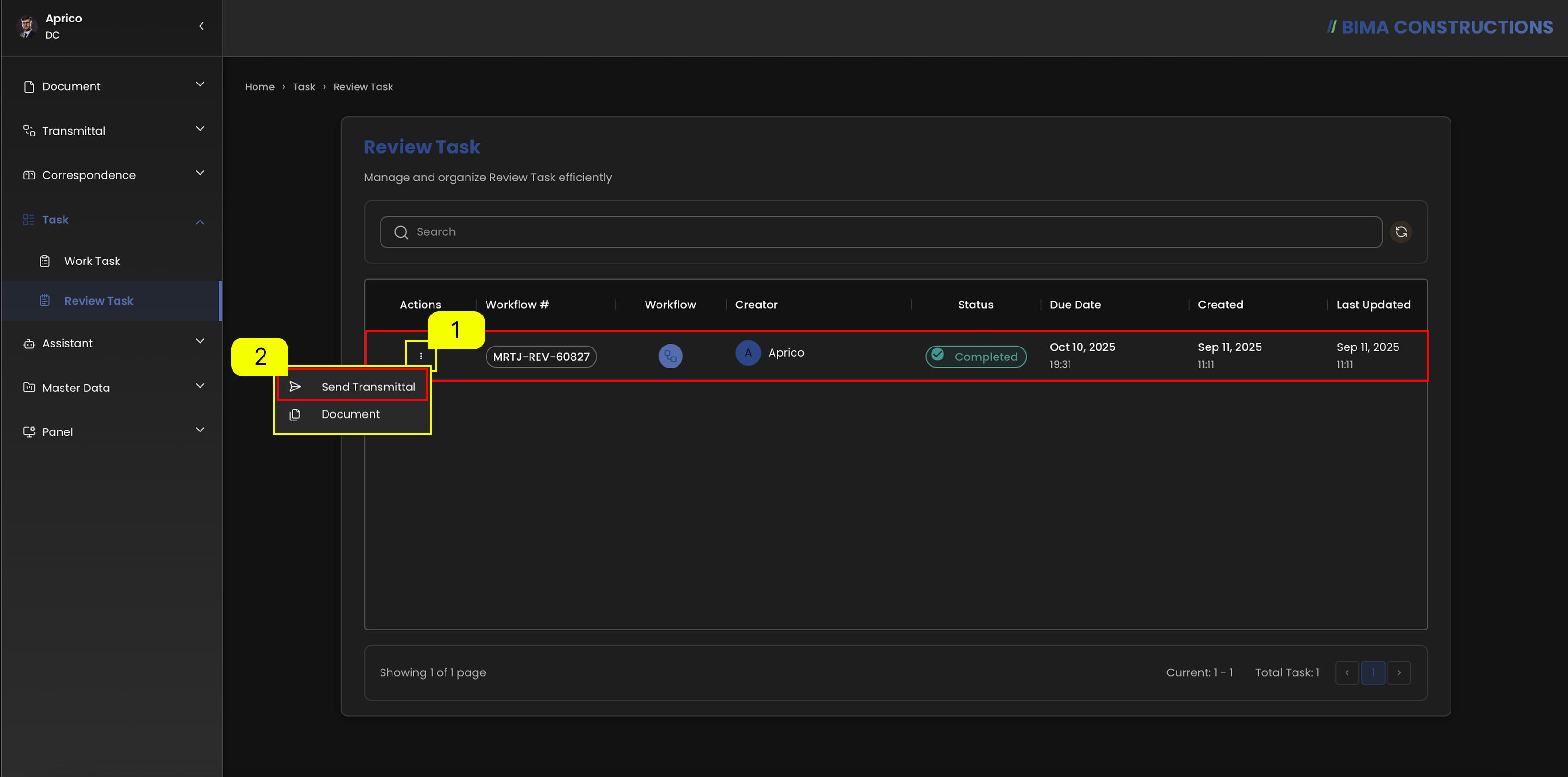
On the Review Task page, the Document Controller can see a list of workflows that have been created and processed.
- First, click on the
Actionsbutton (marked as 1) beside the workflow that has already been completed. - A dropdown menu will appear, showing two options:
Send TransmittalandDocumentselectSend Transmittal(marked as 2) to proceed. By choosing this option, the Document Controller begins the process of transmitting the document.
2. Sending a Transmital
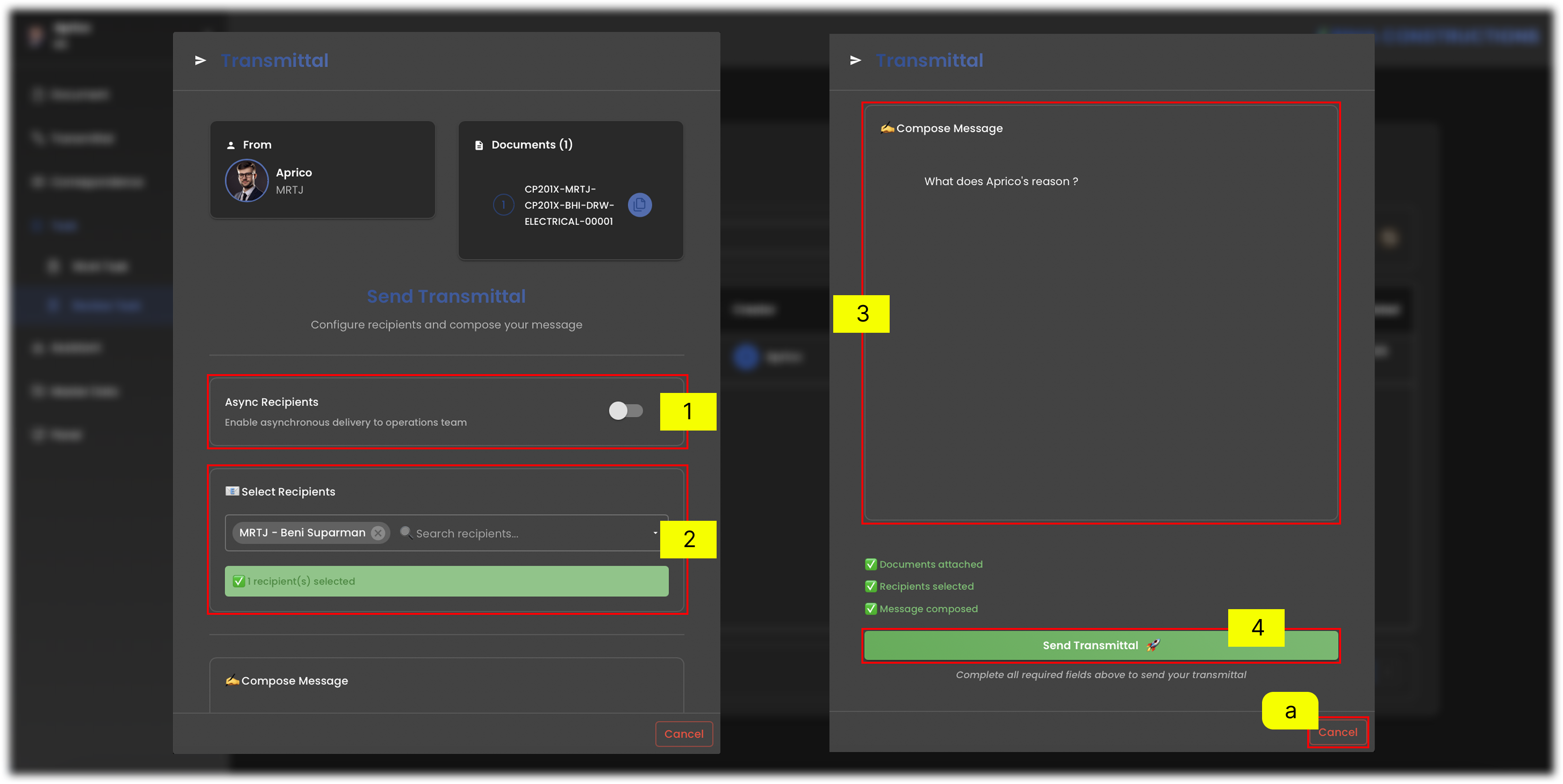
- Async Recipients
If DC want to send asynchronous transmissions, slide the Async Recipients
toggleto the right to enable asynchronous delivery for your operations team. - Select Recipients In the Select Recipients section, select the recipient who sent the transmittal document. Once selected, a green confirmation will appear indicating that the recipient was successfully added.
Check who sent the transmittal document
- Click Transmittal In the left menu, select the Transmittal section to open a list of available transmittals.
- Select Inbox Go to the Inbox submenu to view a list of incoming transmittals.
- Check Sender In the Transmittal Inbox table, check the Sender column. This displays who sent the transmittal document.
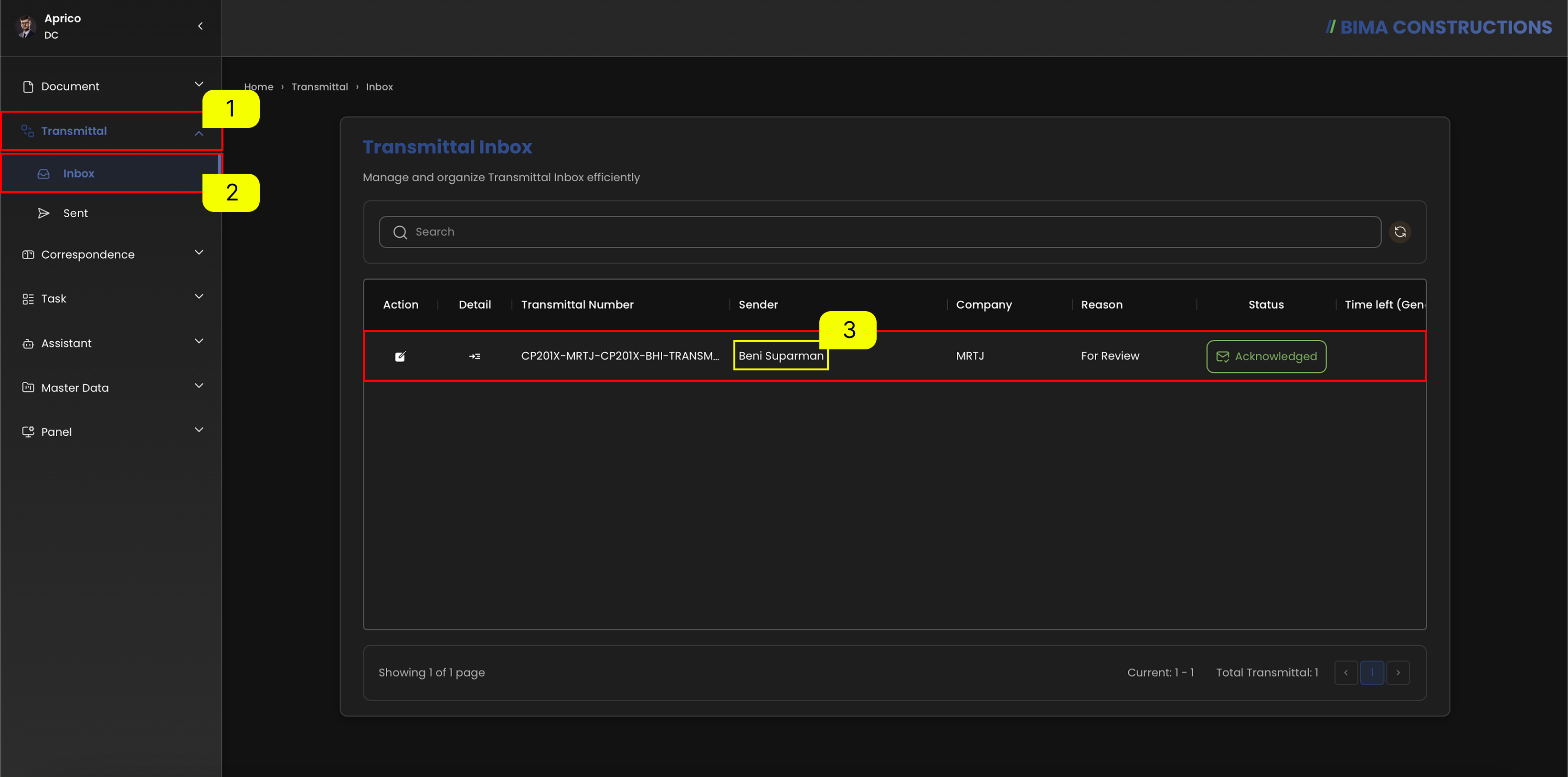
3. Send Transmital Successfuly
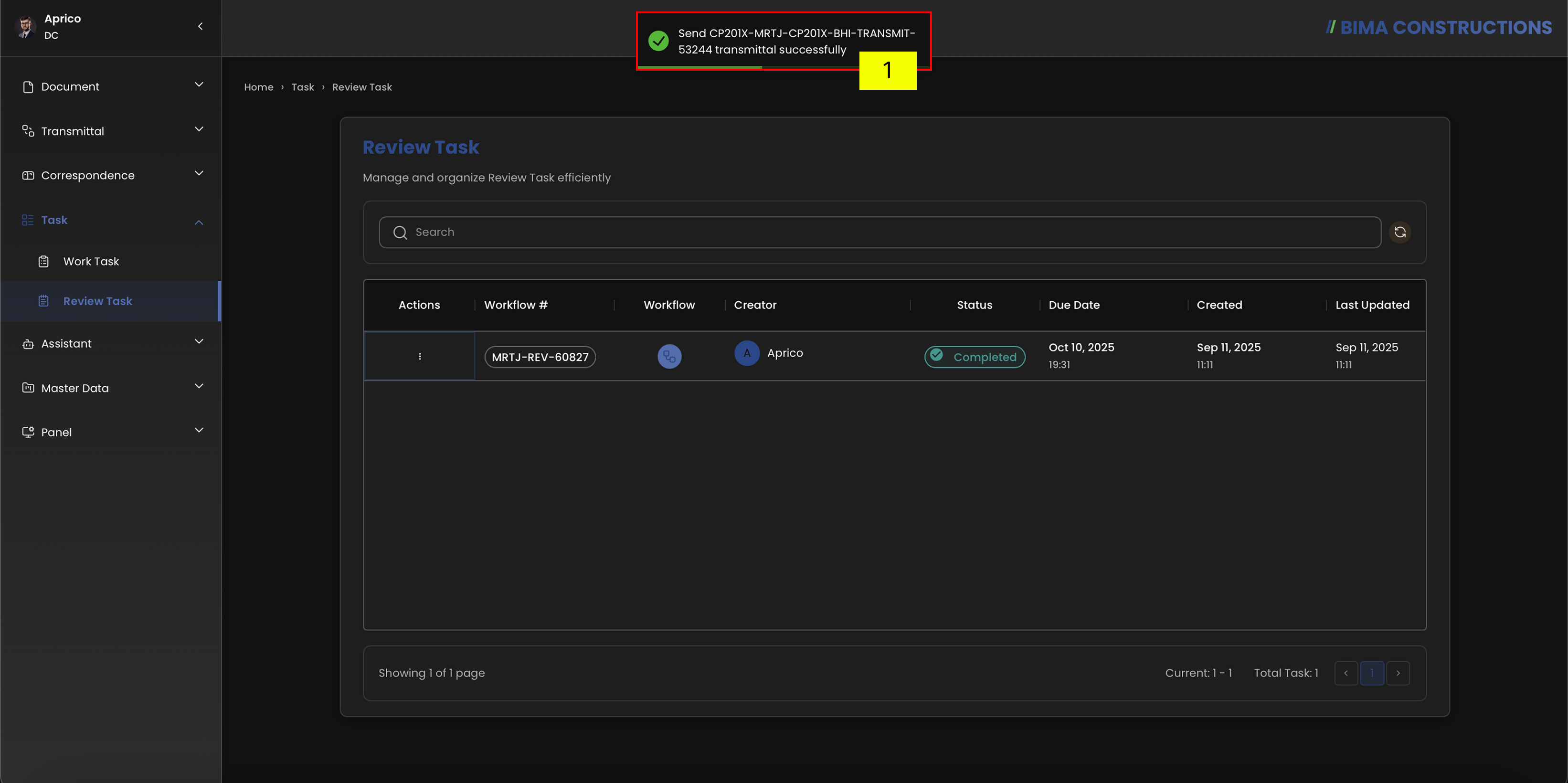 After the Send Transmittal process is carried out, a notification will pop-up saying
 Send [Dokument Name] transmittal successfully.
4. Check in Transmittal Sent
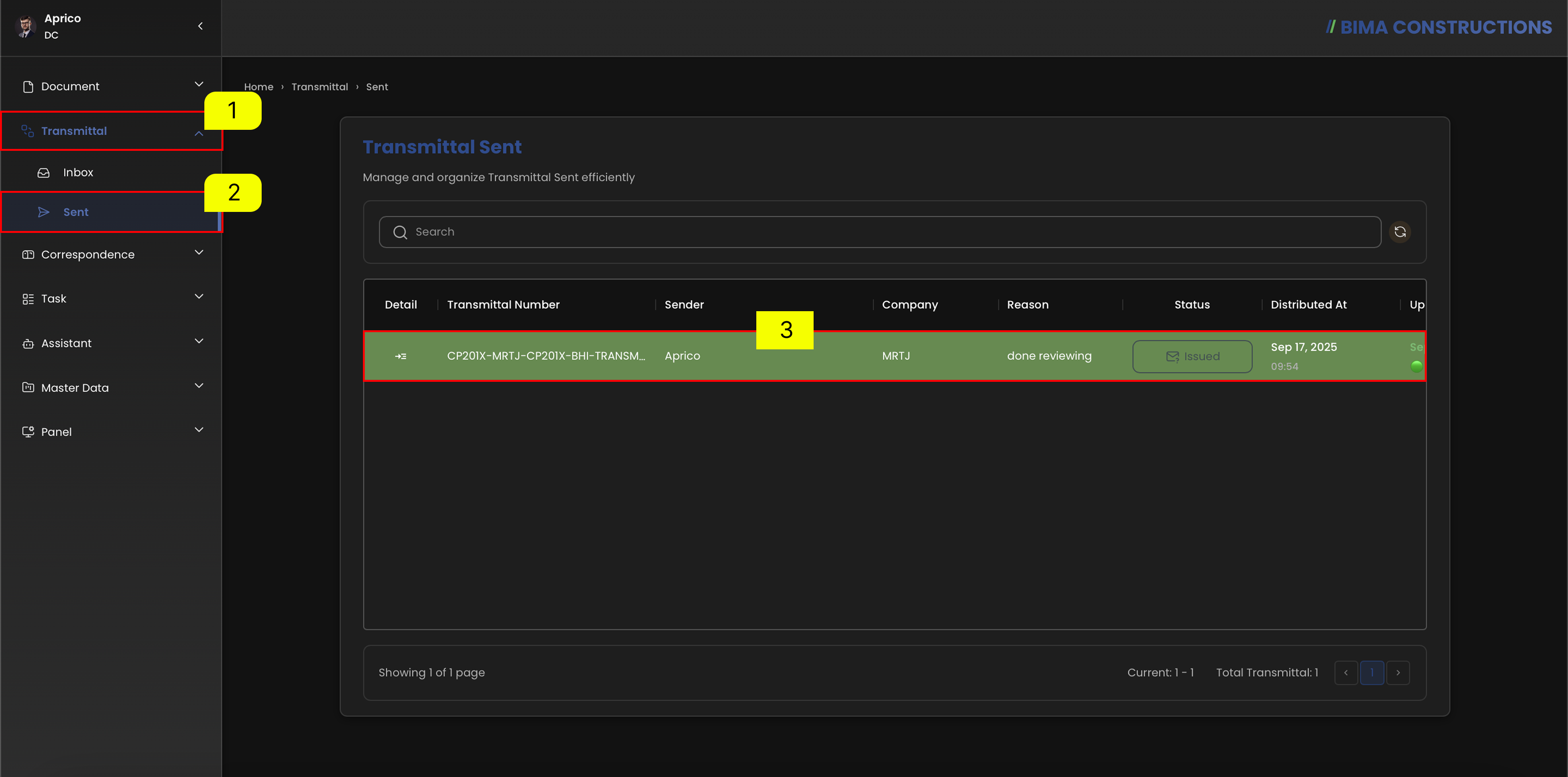
- Click the
Transmittalmenu on the left sidebar to open the transmittal feature. - Select the
Sentsubmenu to view a list of transmitted messages. - On the Transmittal Sent page, the system will display a list of transmitted messages.