Make a New Correspondence
Make a New Correspondence
1. Open Compose
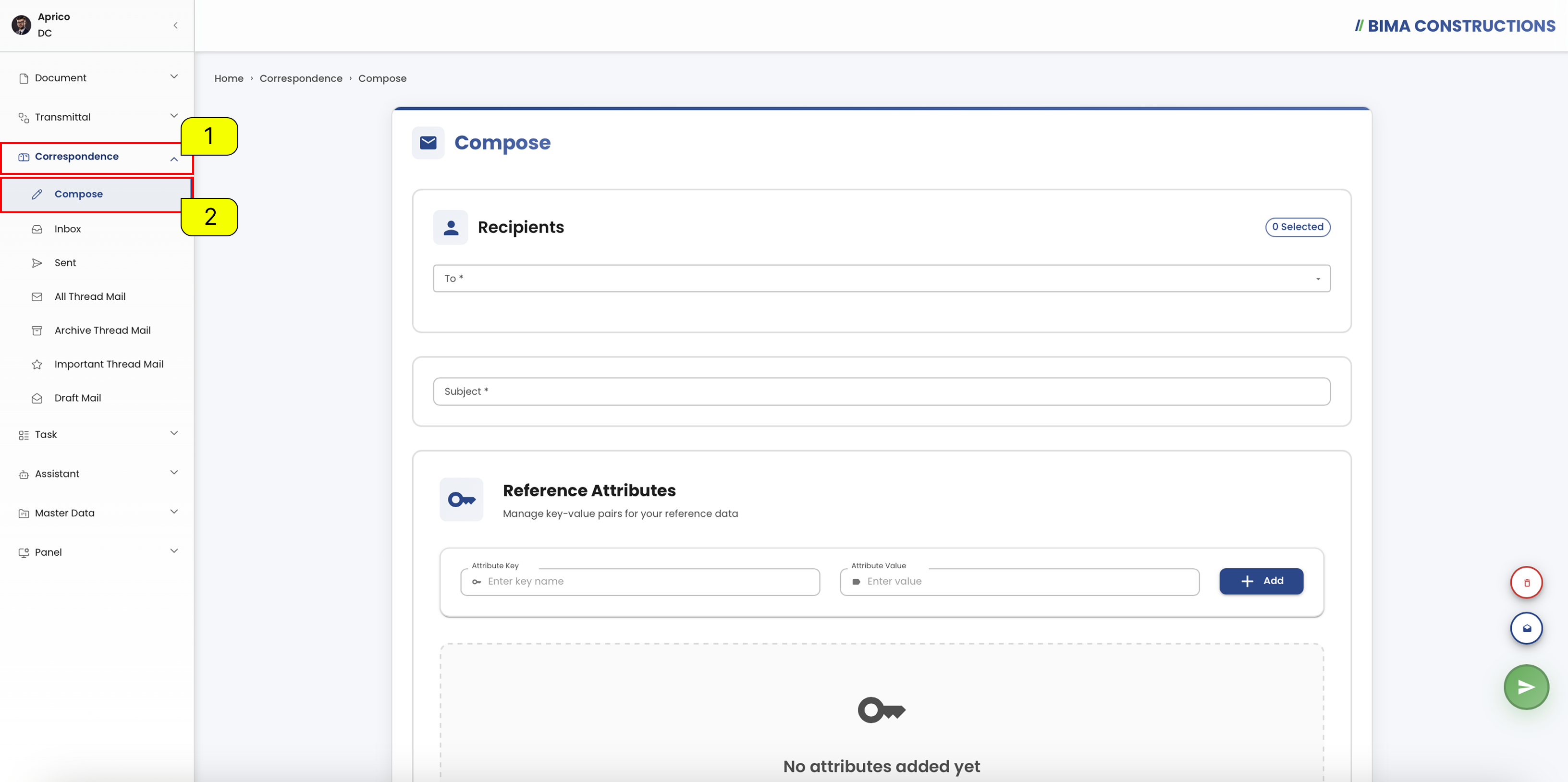
- The Document Controller can click on the
Correspondencemenu button to expand its submenu. - The Document Controller can select the
Composemenu to be directed to the page for creating a new correspondence.
2. Fill in the Correspondence Content
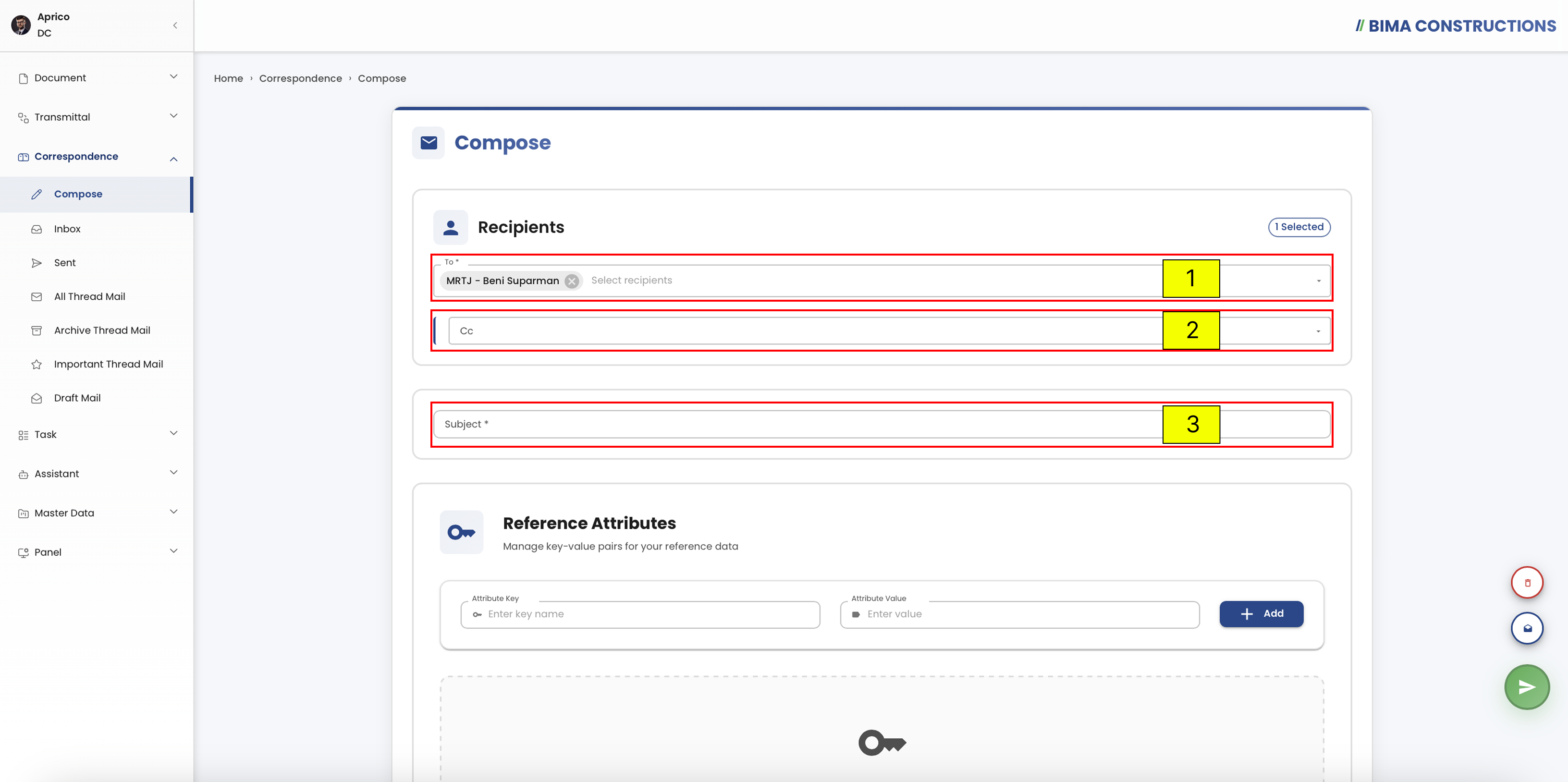
Once on the Compose page, the Document Controller needs to fill in the correspondence form, which consists of:
Recipients & Subject
To: This field is used to specify the main recipient of the correspondence. The DC must select the intended individual or group who will directly receive the message.Cc: This field allows the DC to add additional recipients who will be copied on the correspondence. Filling in this field is optional and can be used only if other parties also need to receive the information. Please note that the Cc recipients must belong to the same company as the main recipient. If the recipient belongs to a different company, the system will not allow it.Subject: This field is used to enter the title or topic of the correspondence. The subject should clearly and briefly describe the purpose or content of the message, for example Document Review Information.Reference Attributes & Tags
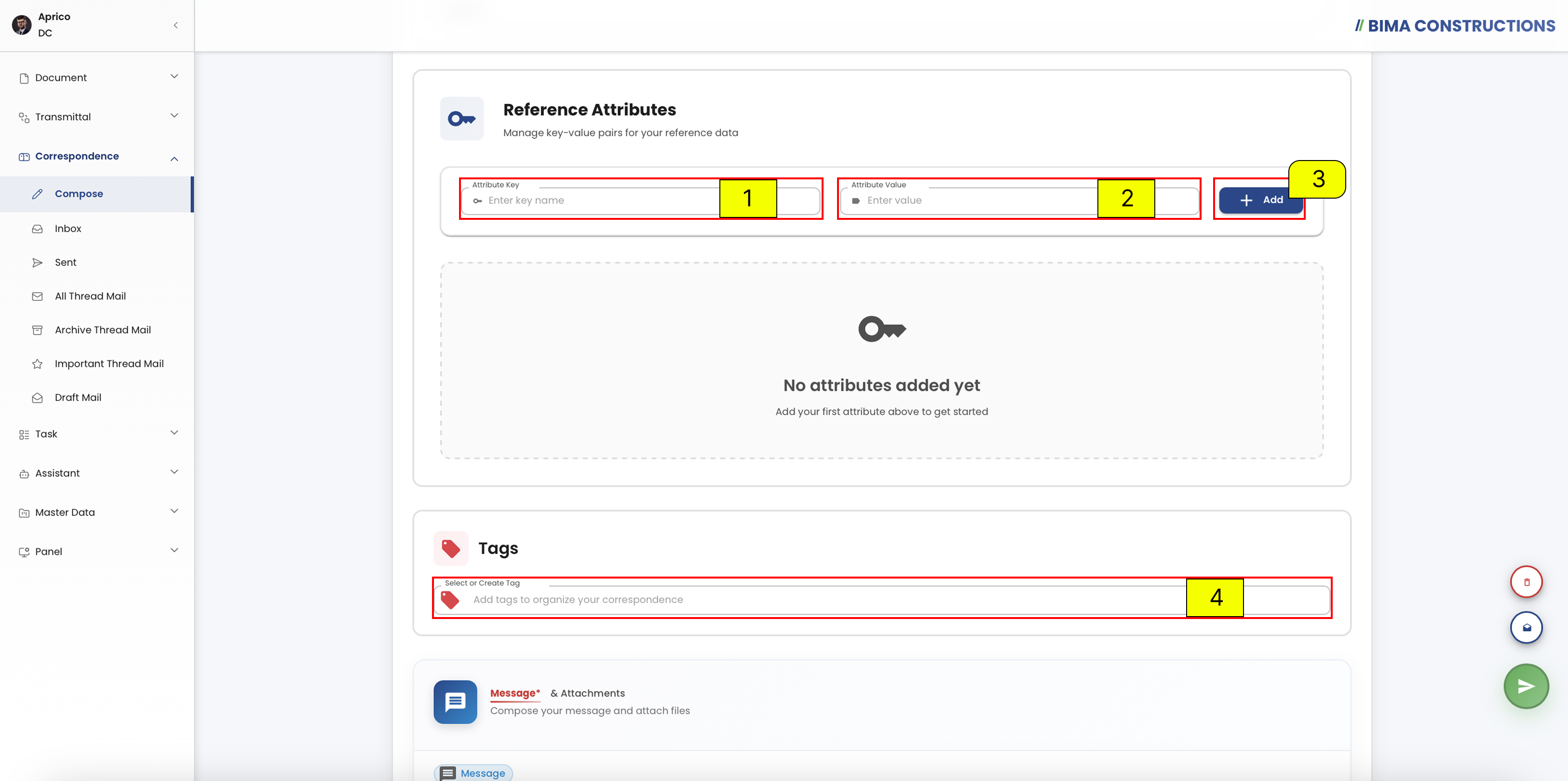
These fields are optional and can be used if needed to provide supporting information or better organize the correspondence.
Attribute Key: This field is used to enter the key name for the attribute.Attribute Value: This field is used to enter the corresponding value related to the attribute key.Add Button: After filling in both the key and value, the DC must click the Add button so that the attribute can be saved and displayed in the list. Multiple attributes can be added if needed.Tags: This field allows the DC to select or create tags in order to better organize the correspondence. Tags can help in categorizing and making it easier to retrieve correspondence in the future.Message
The
Messagefield is a mandatory section that must be filled in by the DC when composing a correspondence. In this field, the DC can write the main content of the correspondence, such as explanations, instructions, or information related to the attached documents. TheMessageeditor also provides formatting and structuring features to make the correspondence clearer and more organized:
- By clicking the plus (+) button, the DC can add different types of content such as Text, Heading, AI Text, List, Attachment, and Table.
- By clicking the three-dot icon (⋮) next to a line of text, the DC can access additional options: Convert to (Heading, AI Text, or List), Move Up, Delete, and Move Down.
This ensures that the message content is not only complete but also properly formatted before being sent to the recipients.
Attachments
In the Attachments section, the Document Controller can add supporting files by dragging and dropping them or selecting them from the file explorer. The system supports various file types, and any unwanted files can be removed using the
Deletebutton.
3. Send Correspondence
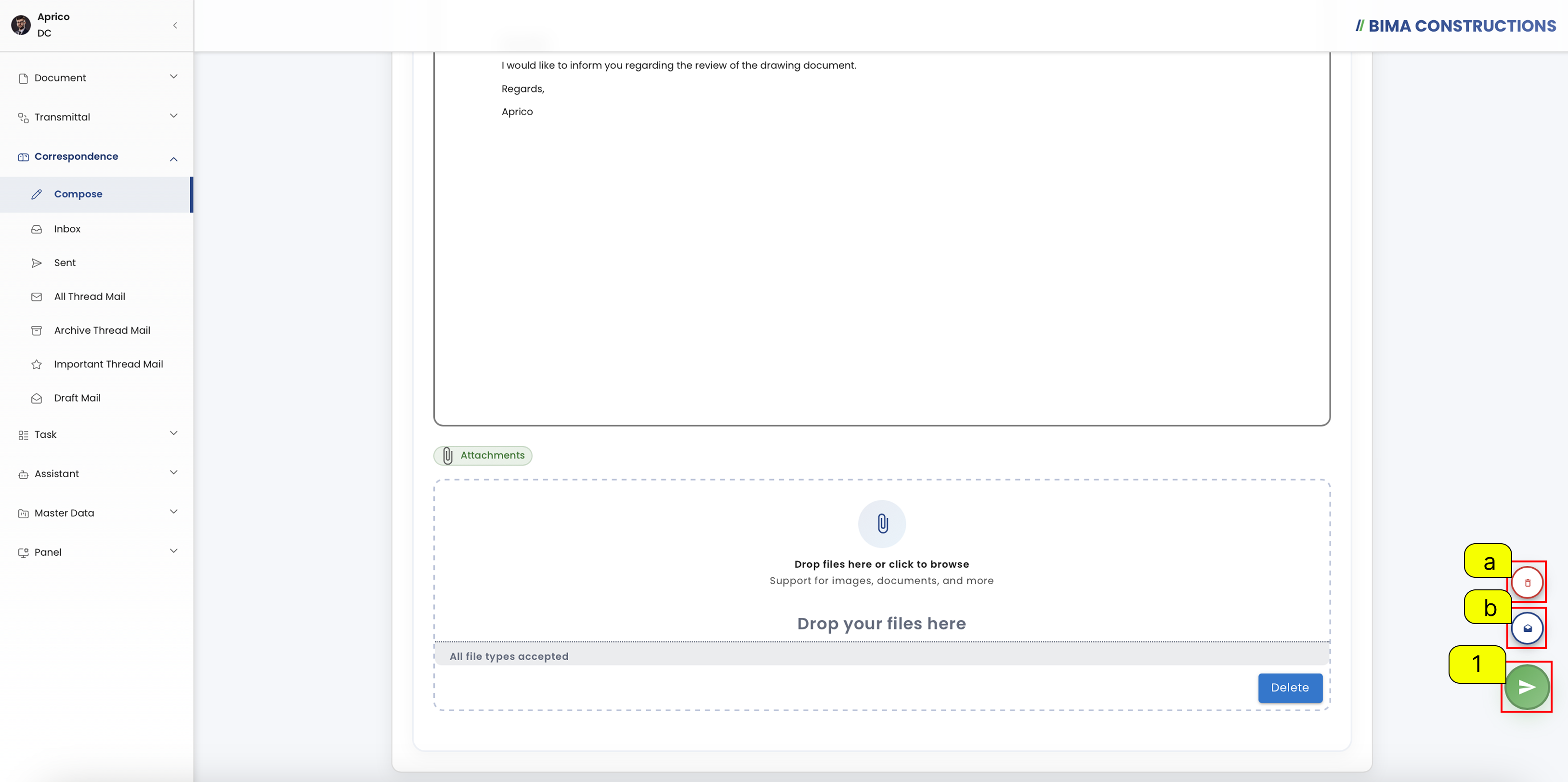 After composing a correspondence, the DC can click the
 Send Message button (1) to send the correspondence directly to the recipient.
If the DC wants to save the correspondence for later editing or sending, click the Save Draft button (a). However, if the DC decides not to proceed, the process can be canceled by clicking the Cancel button (b). If a draft has been previously saved, it will remain in the Mail Drafts folder.
4. Correspondence Sucessfuly
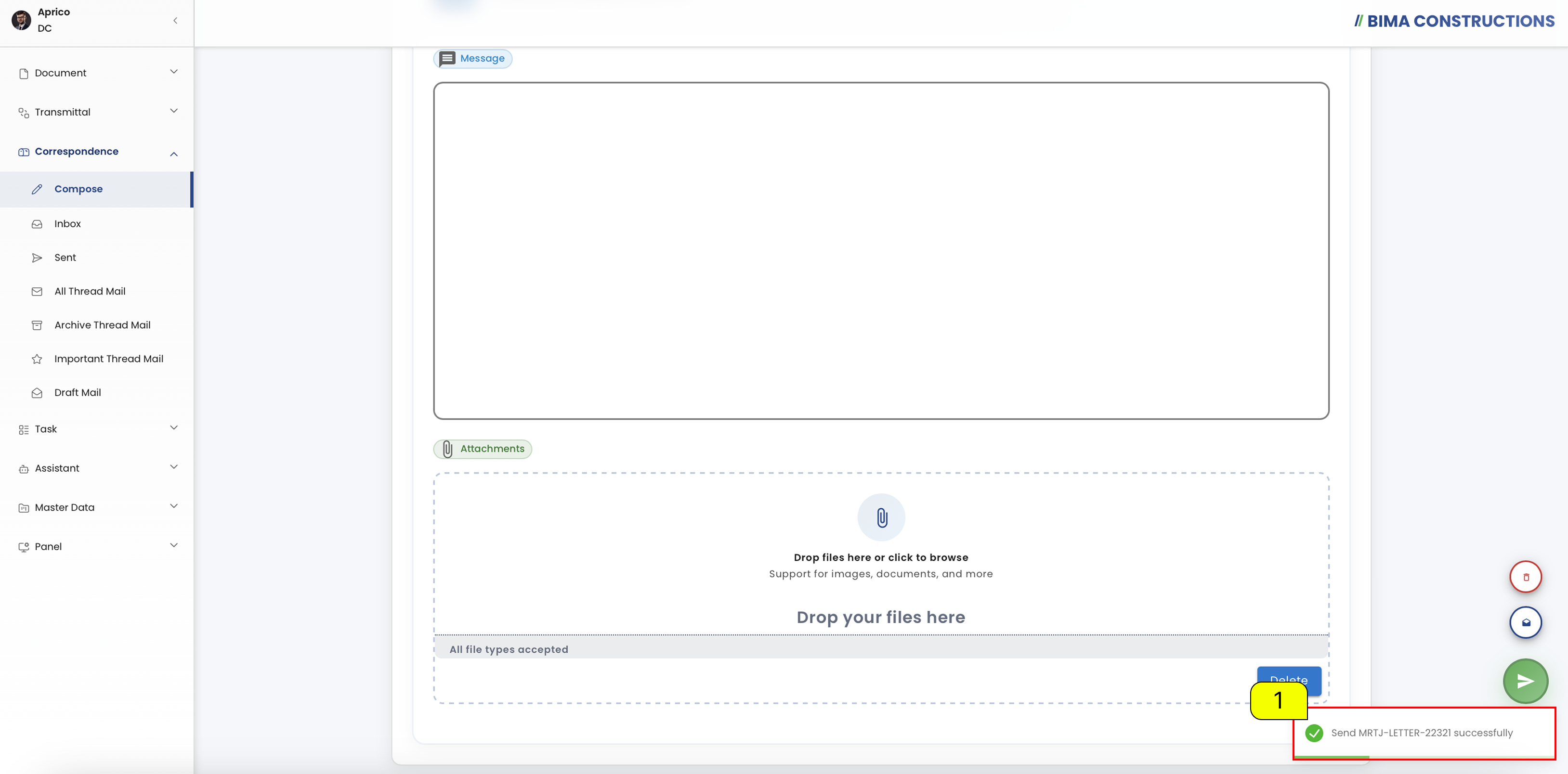 After finishing up the Compose, a notification will appear saying
 Send [Name Letter] Successfully.
5. Check in Correspondence Sent
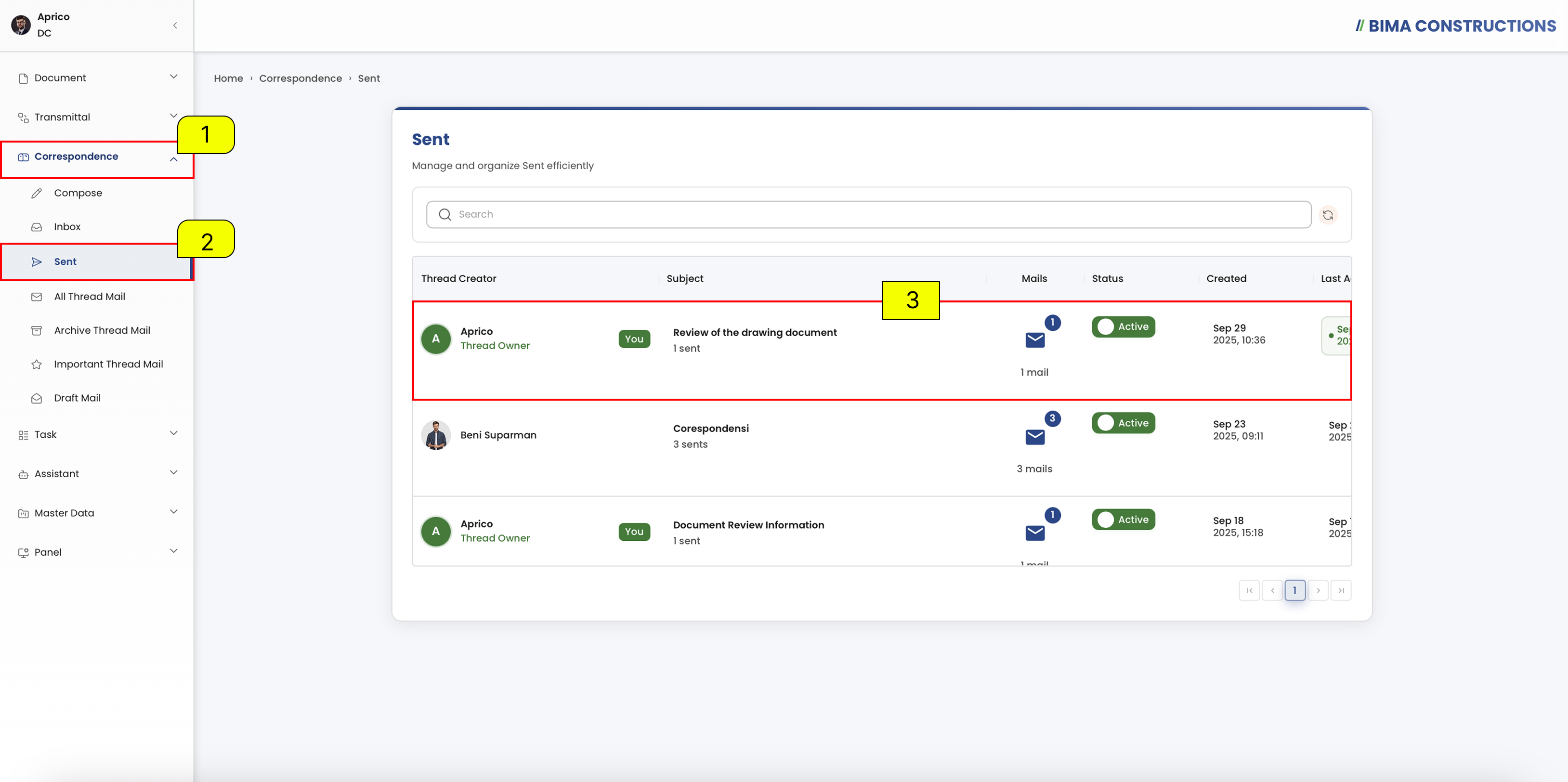
- Click the Correspondence menu (1) on the sidebar.
- Select the Sent submenu (2) to view the list of sent correspondences.
- In section (3), the DC can check the details of the sent message such as sender, subject, status, creation time and more.
6. Check in Email
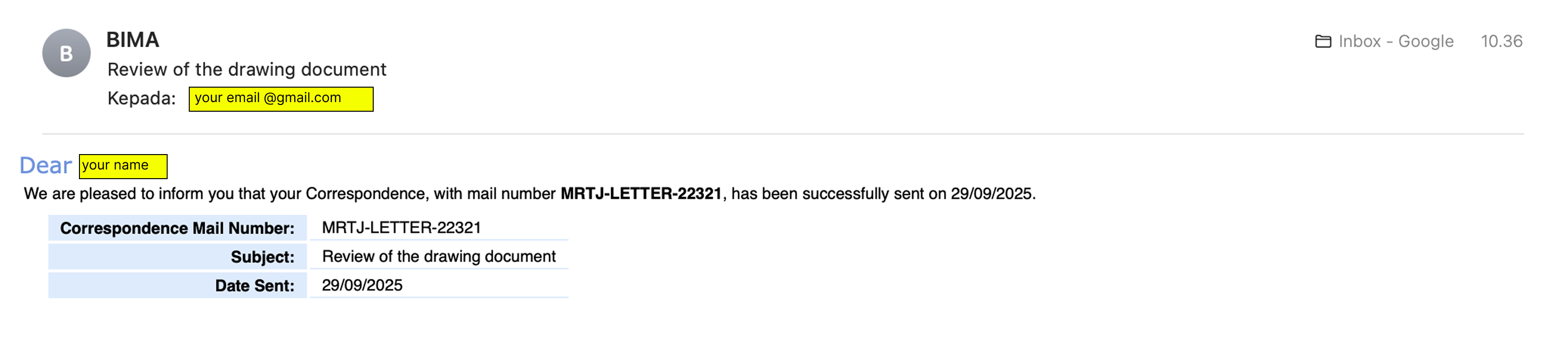 If the correspondence is successfully sent, the system will also send a confirmation email to the registered address.