Reply to Correspondence
Reply to Correspondence
1. Open Inbox Correspondence
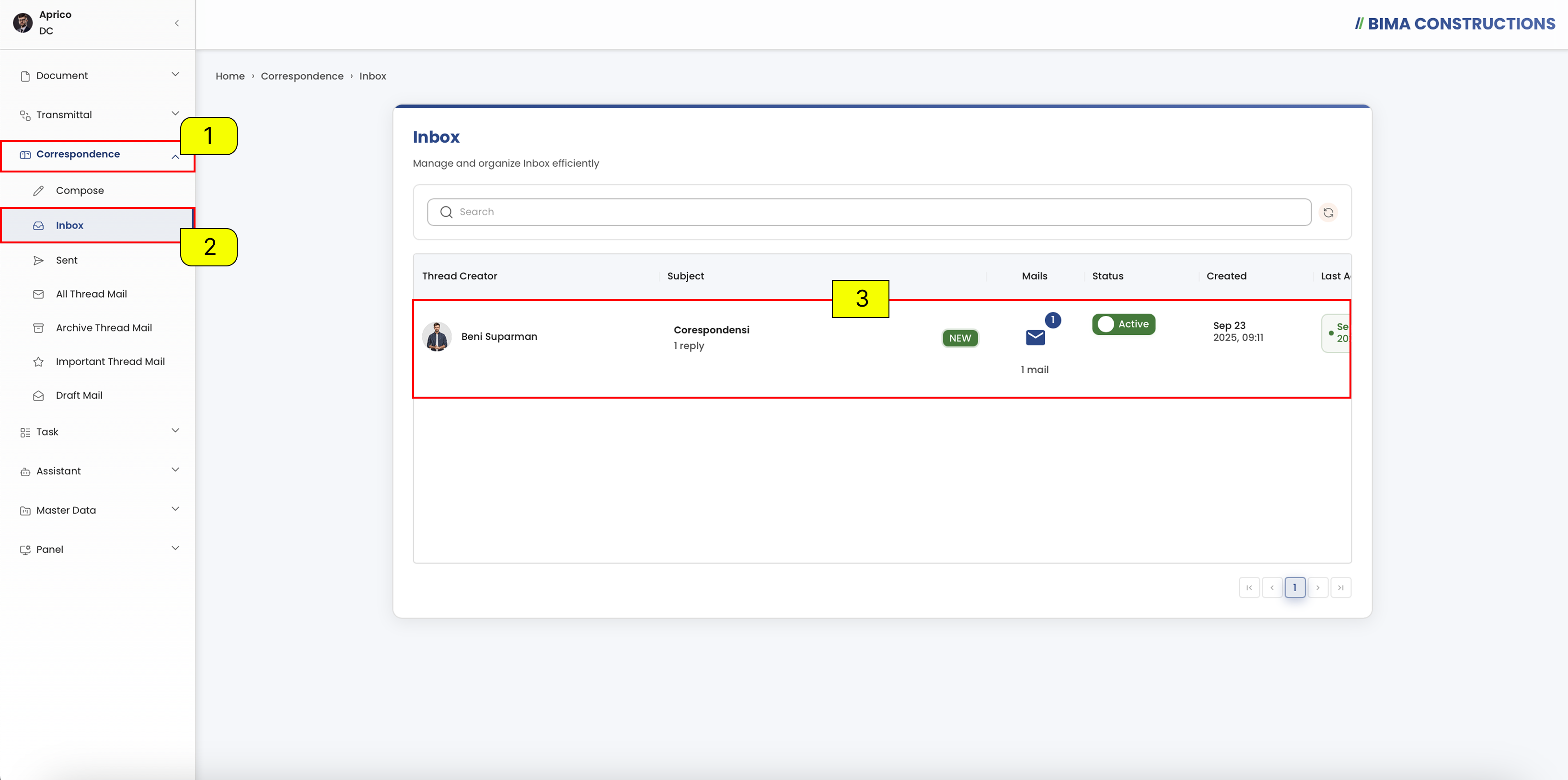
- The Document Controller can click on the
Correspondencemenu button to expand its submenu. - The Document Controller can select the
Inboxmenu to view all received correspondences. - The Document Controller can click on the listed correspondence thread in the inbox to open and view its details.
2. Open Mail Correspondence
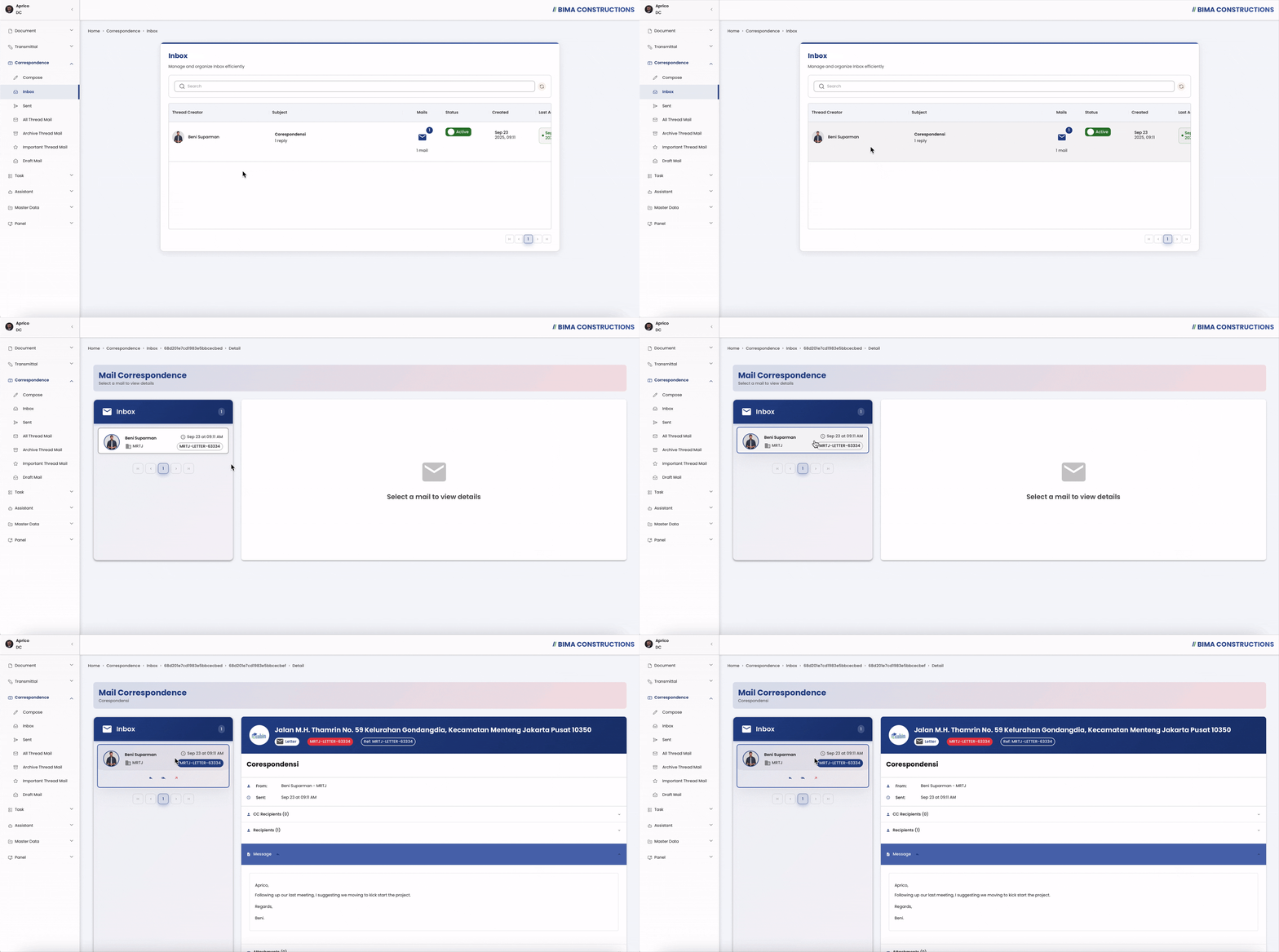 On this page, a list of incoming correspondence threads will be displayed. The Document Controller can click on the thread they want to open, then select the email within the thread. Once clicked, the message details such as sender, recipient, content, and attachments will be shown on the right side of the screen.
3. Reply Correspondence
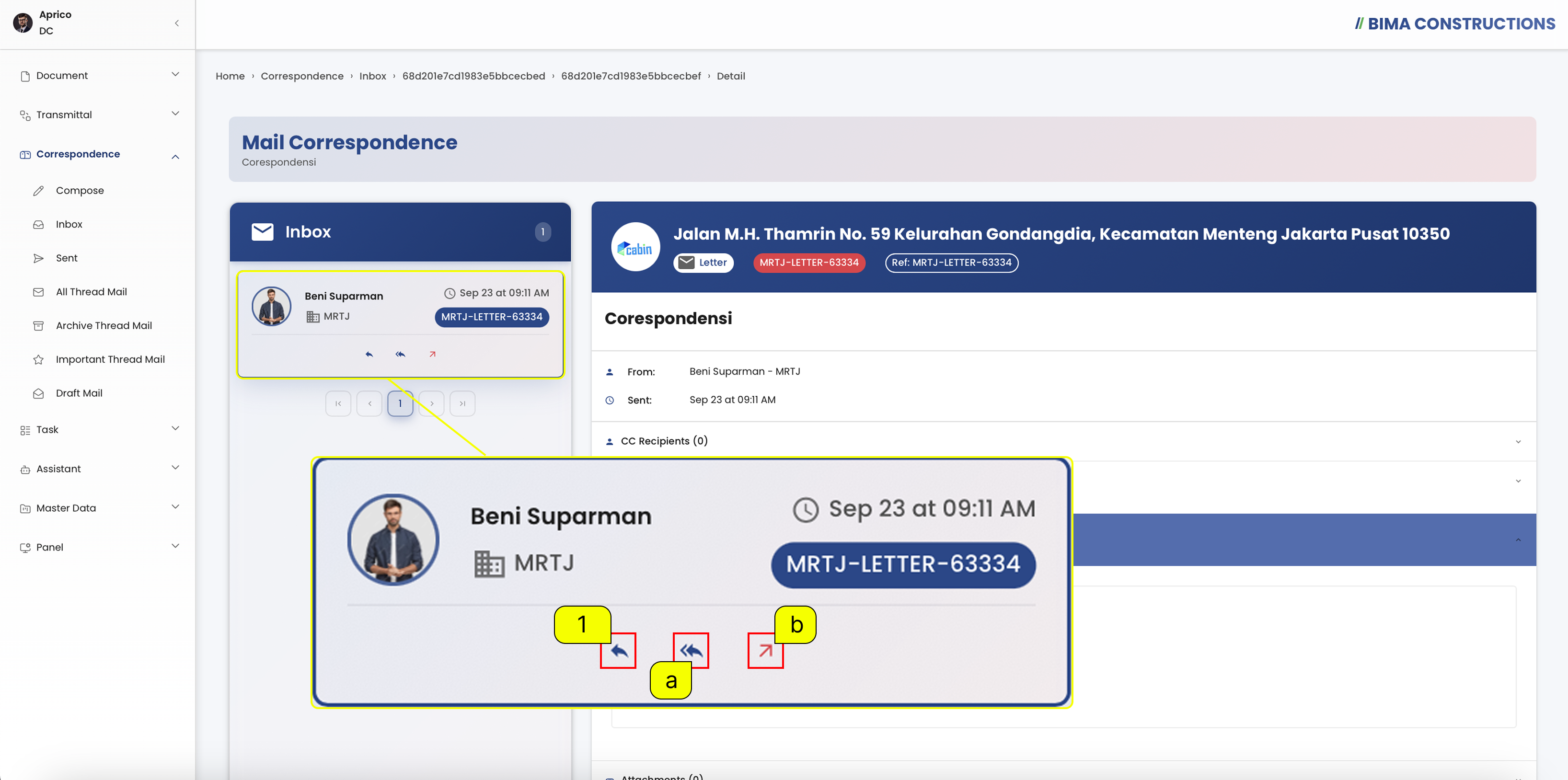 The Document Controller can reply to a message by clicking the Reply button marked with number
 1. To reply to all recipients, click the Reply All button (letter a). Meanwhile, to forward the message to other parties, use the Forward button (letter b).
4. Fill in the Correspondence Content
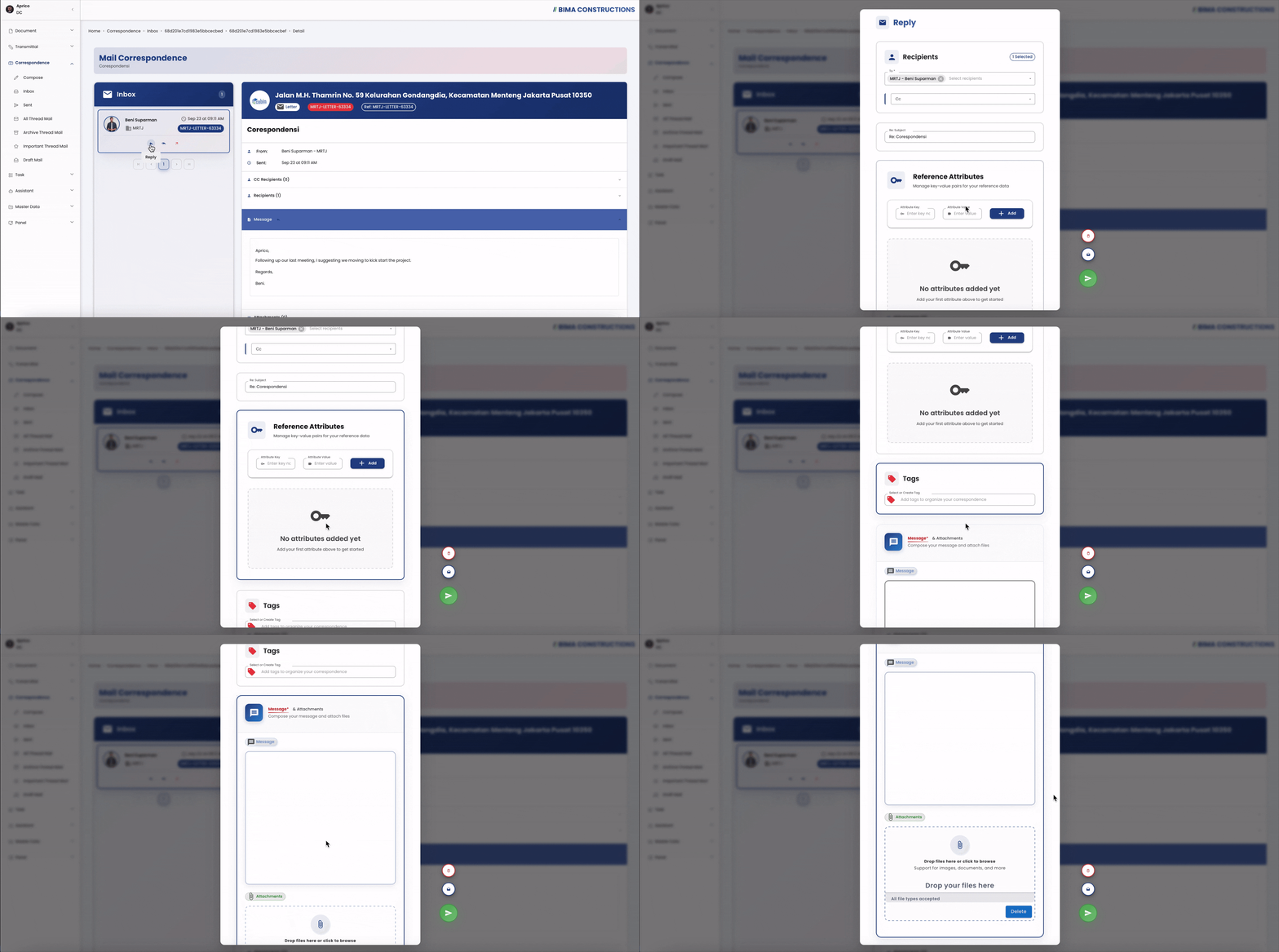 The Document Controller can still look at the process for Fill in the Correspondence Content using this link Make a New Correspondence
5. Reply Successfuly
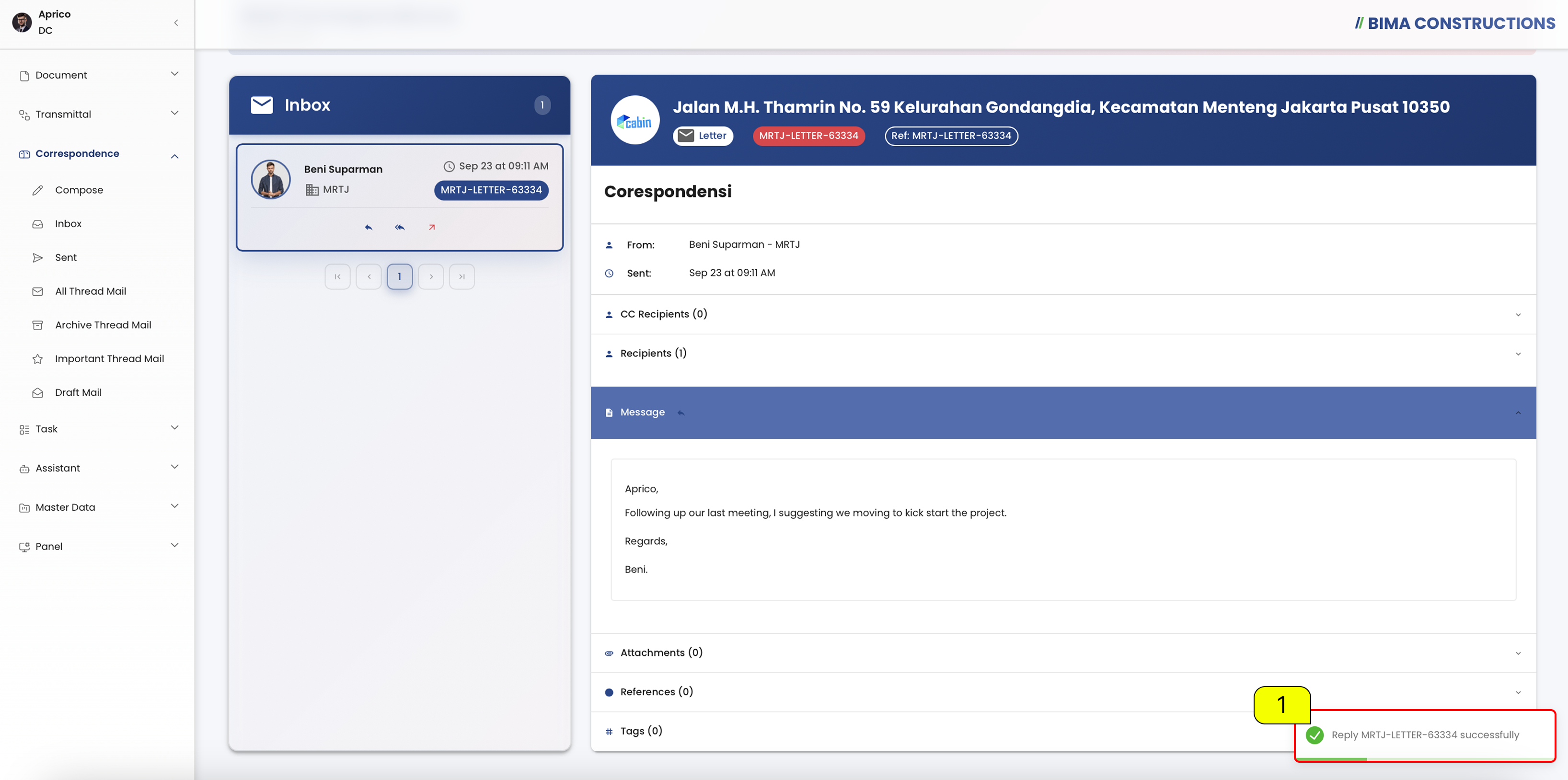 After finishing the reply process, a notification will appear at the bottom right corner of the screen saying
 Reply [Name Letter] Successfully.
6. Check in Correspondence Sent
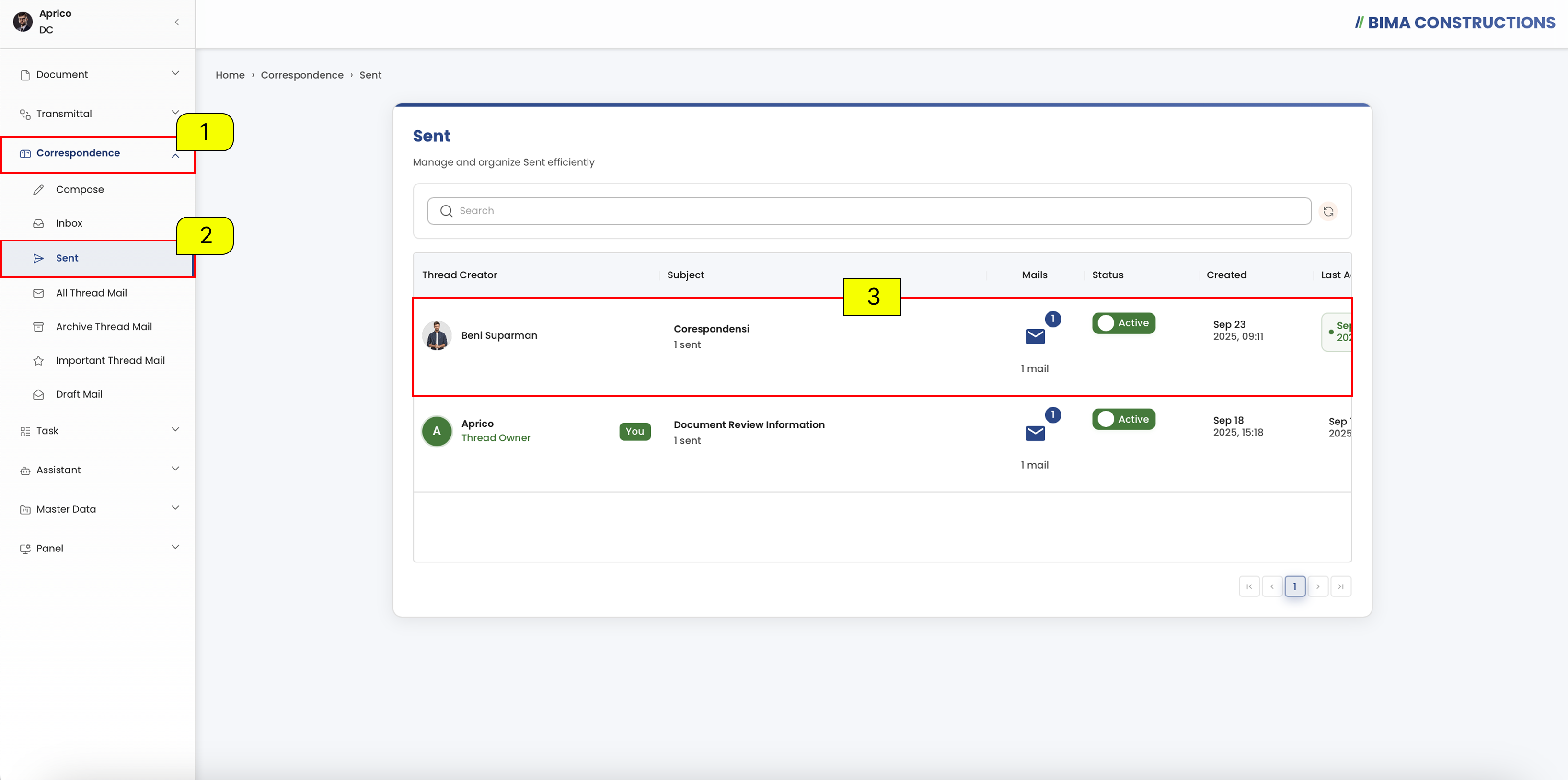
- Click the Correspondence menu (1) on the sidebar.
- Select the Sent submenu (2) to view the list of sent correspondences.
- In section (3), the DC can check the details of the sent message such as sender, subject, status, creation time and more.
7. Check in Email
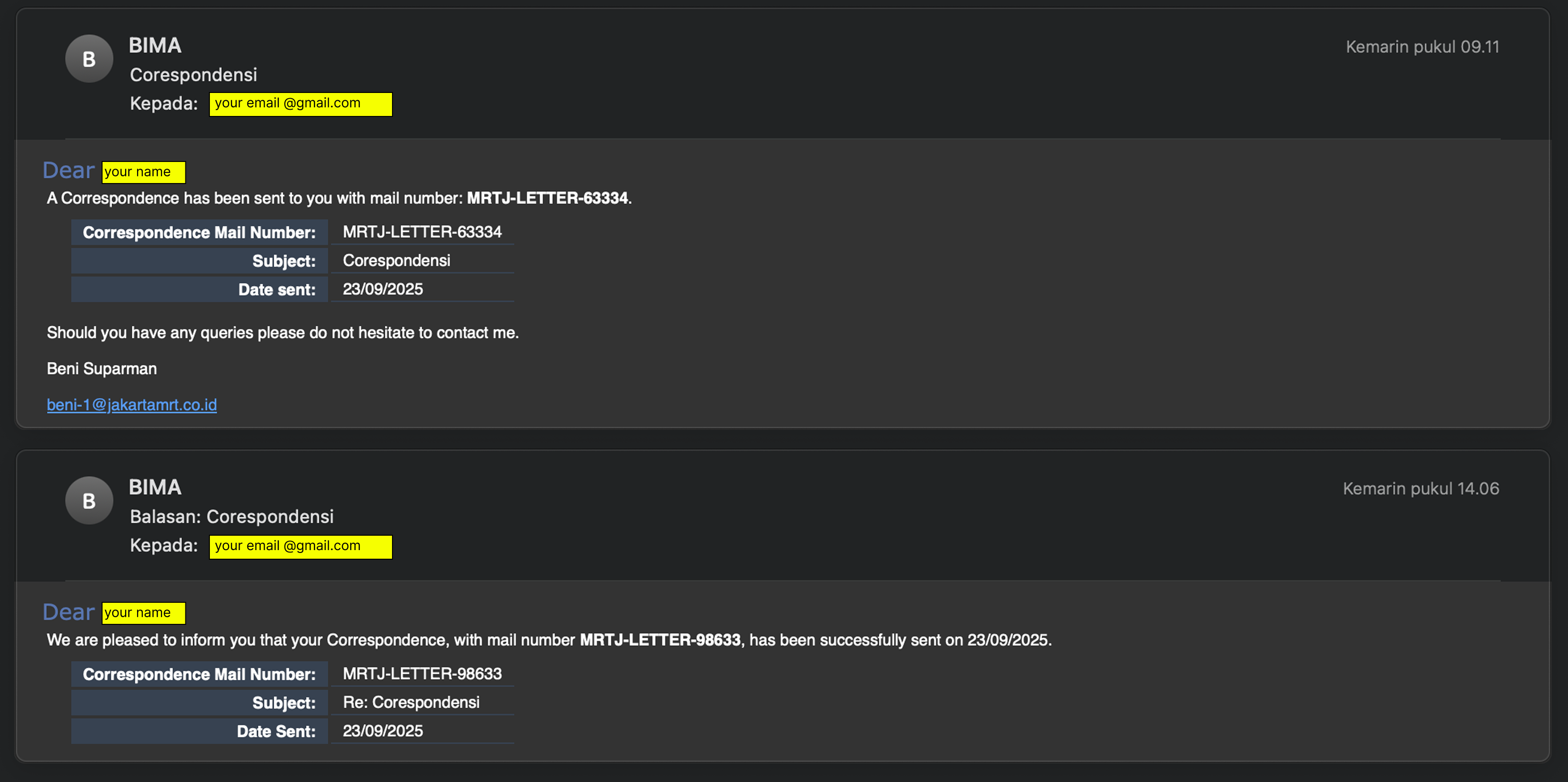 If the correspondence is successfully sent, the system will also send a confirmation email to the registered address.