Document Review
Read below first
To be able to reveiew/comment to a particular document, USER must first receive/be given task from USER with the Lead Reviewer role.
1. Open the Workflow Page
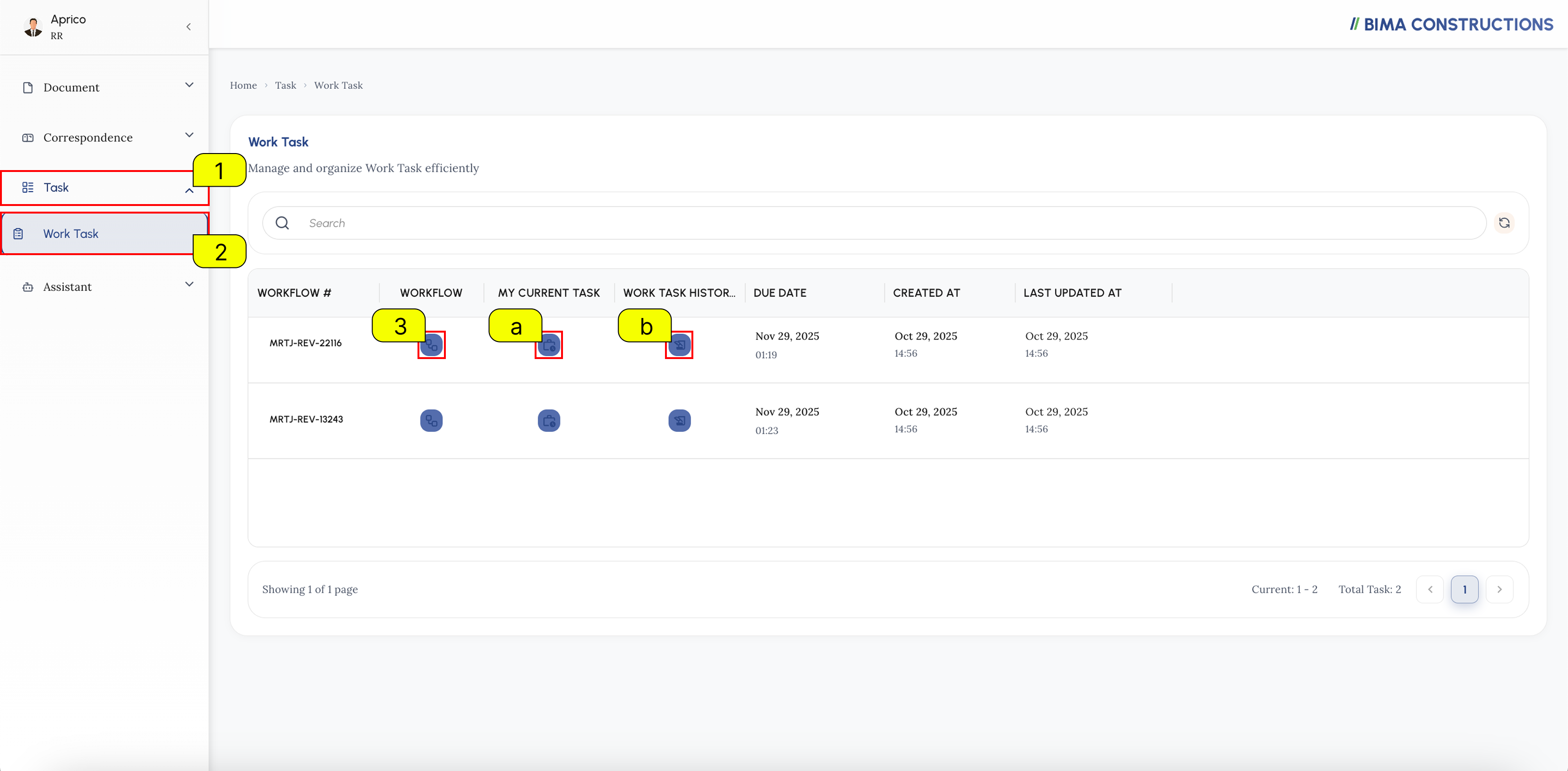
- On the side menu, Reviewer (RR) can click on the
Taskmenu to show the location of theWork Taskmenu button. - After the menu button shown, RR then can click onto the
Work Taskmenu to open up theWork Taskpage. - At the
Work Taskpage, RR can pick on the active workflow and click on theWorkflowsymbol that marked withNumber 3,
Extra:
a. Current Tasks
RR can look on what task are given to them by clicking on the
Work Task/Itemsymbol button.b. Work Task History
RR can look on the task flow by clicking on the
Work Task/Item History.
2. Do the Review
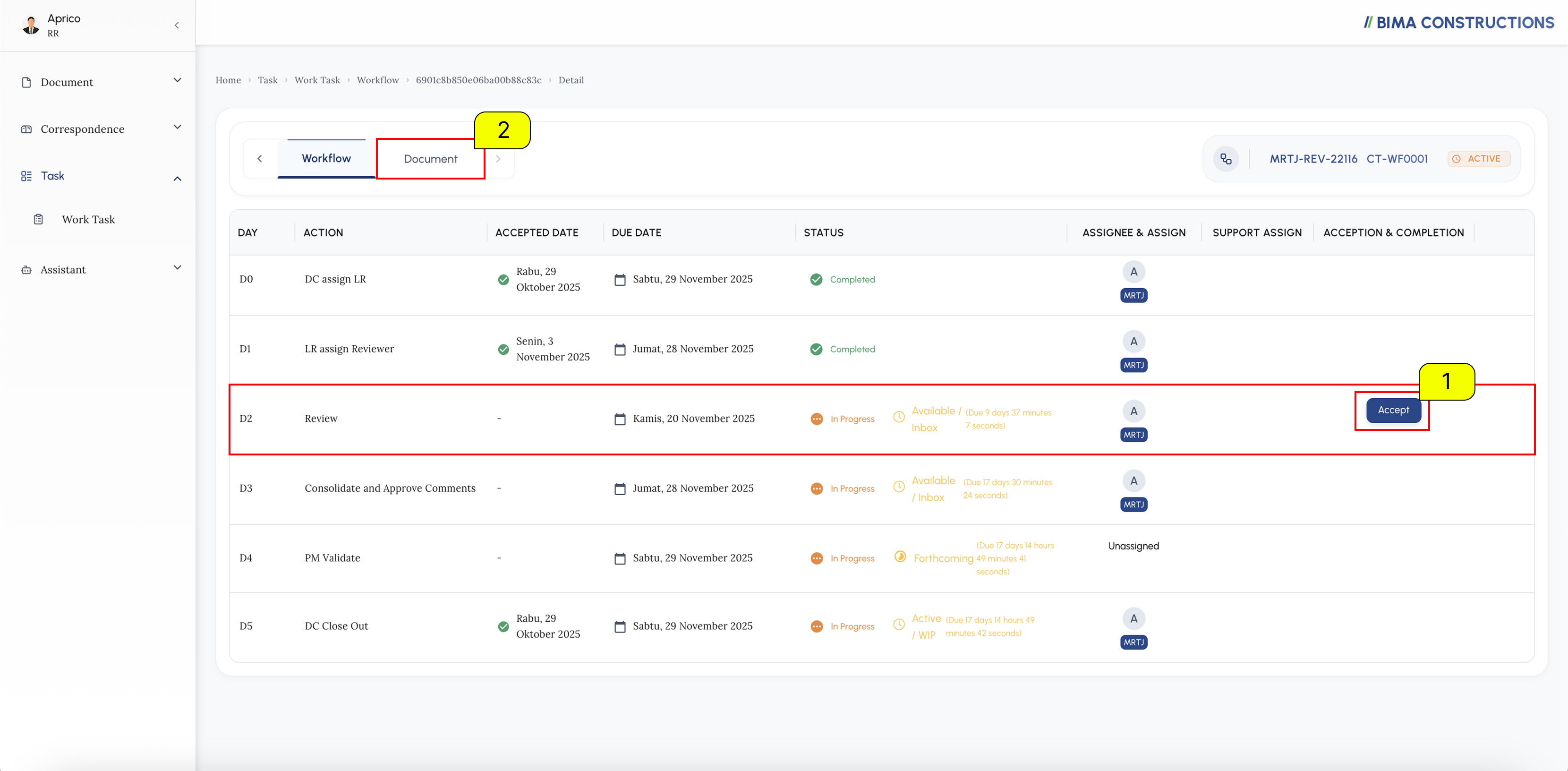
- Before RR could do any task given, RR can accept the assignment given by LR first by clicking on the
Acceptbutton. - RR then can click on the
Documenttab to start the review process.
3. Open the Document Detail
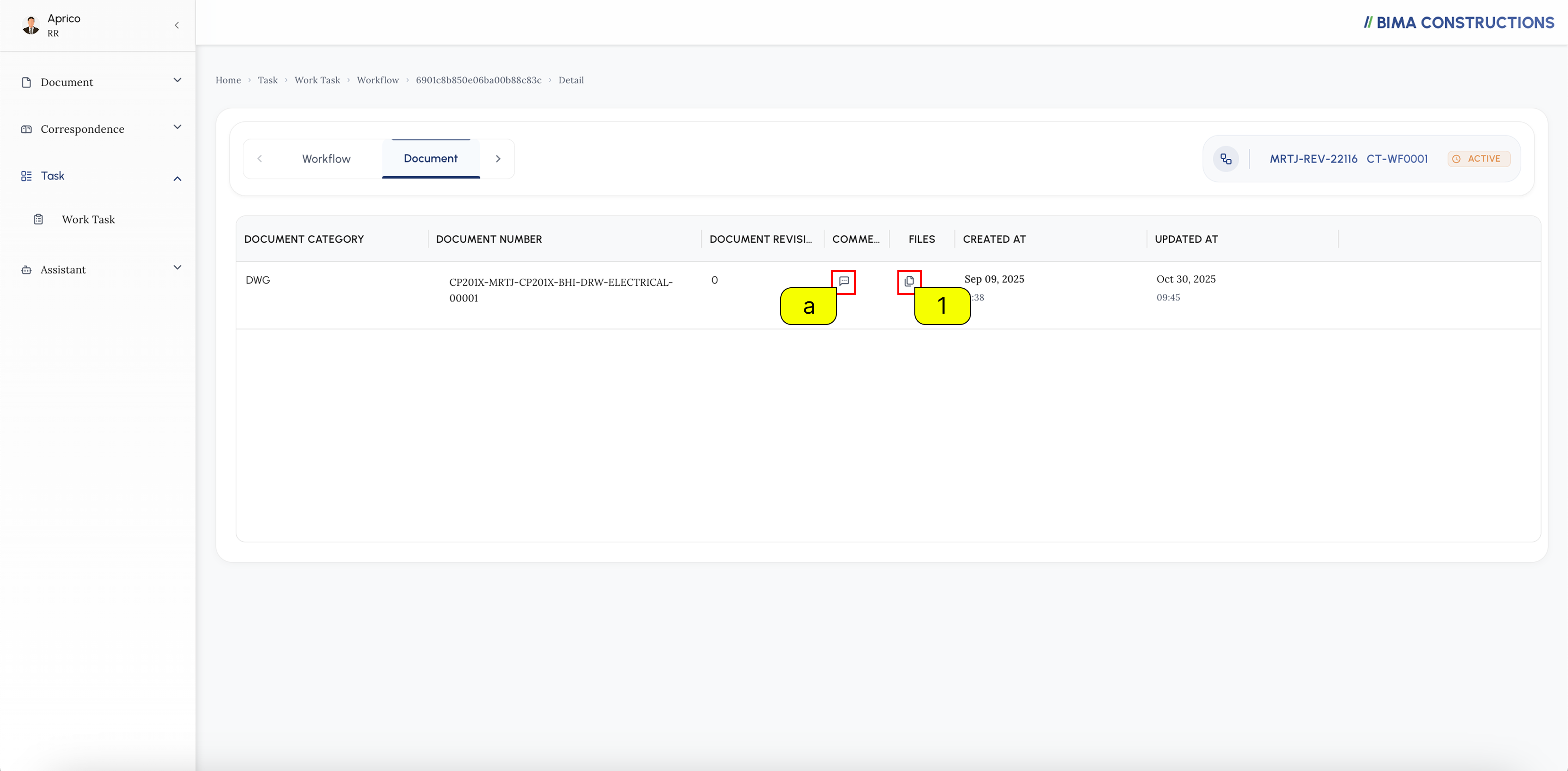
- RR can click on the
Filessymbol button to open theDocumentdetail.
Extra :
a. RR can also check all the comments that have been added before.
4. Open the File
A. Open File pdf
After the document is opened, a list of files will be visible.
- The RR can click on the
Number 1area, and series of action will shown.- The RR then can select
View in PDF Viewerwhich will display the file RR choose to be shown.Extra:
a. The RR can also use the
Downloadoption to save the document locally for offline review or archiving purposes.b. The
Generate summaryoption allows the RR to automatically create or view a summarized version of the document content for quick understanding.c. The
Download with commentoption enables the RR to download the file along with any comments or feedback that have been added, providing a consolidated view for further review.B. Open File ifc
After the document is opened, a list of files will be visible.
- The RR can click on the
Number 1area, and series of action will shown.- The RR then can select
Viewaction to be directed to BIMA3D, which will display the model of the file RR choose to be shown.Extra :
a. The
Downloadoption allows the RR to save the IFC model file locally, enabling offline access or further analysis using external BIM tools.b. The
View in BiMA Mapoption displays the IFC model in a map-based interface, showing its geographical placement or spatial context related to other models or site data.c. The
View in BiMA Roadoption enables the RR to view the model within the road-related environment of BiMA, providing specific visualization for infrastructure or roadway elements.d. The
Analyze Dataoption provides access to the analytical view of the model, where the RR can evaluate key data such as element properties, quantities, or relationships.e. The
Analyze Settingoption allows the RR to configure analysis parameters, filters, or criteria to customize how the data or model information will be reviewed.
5. Review Document
A. Document PDF
After the document is opened, RR can add comments or notes to highlight parts of the document.
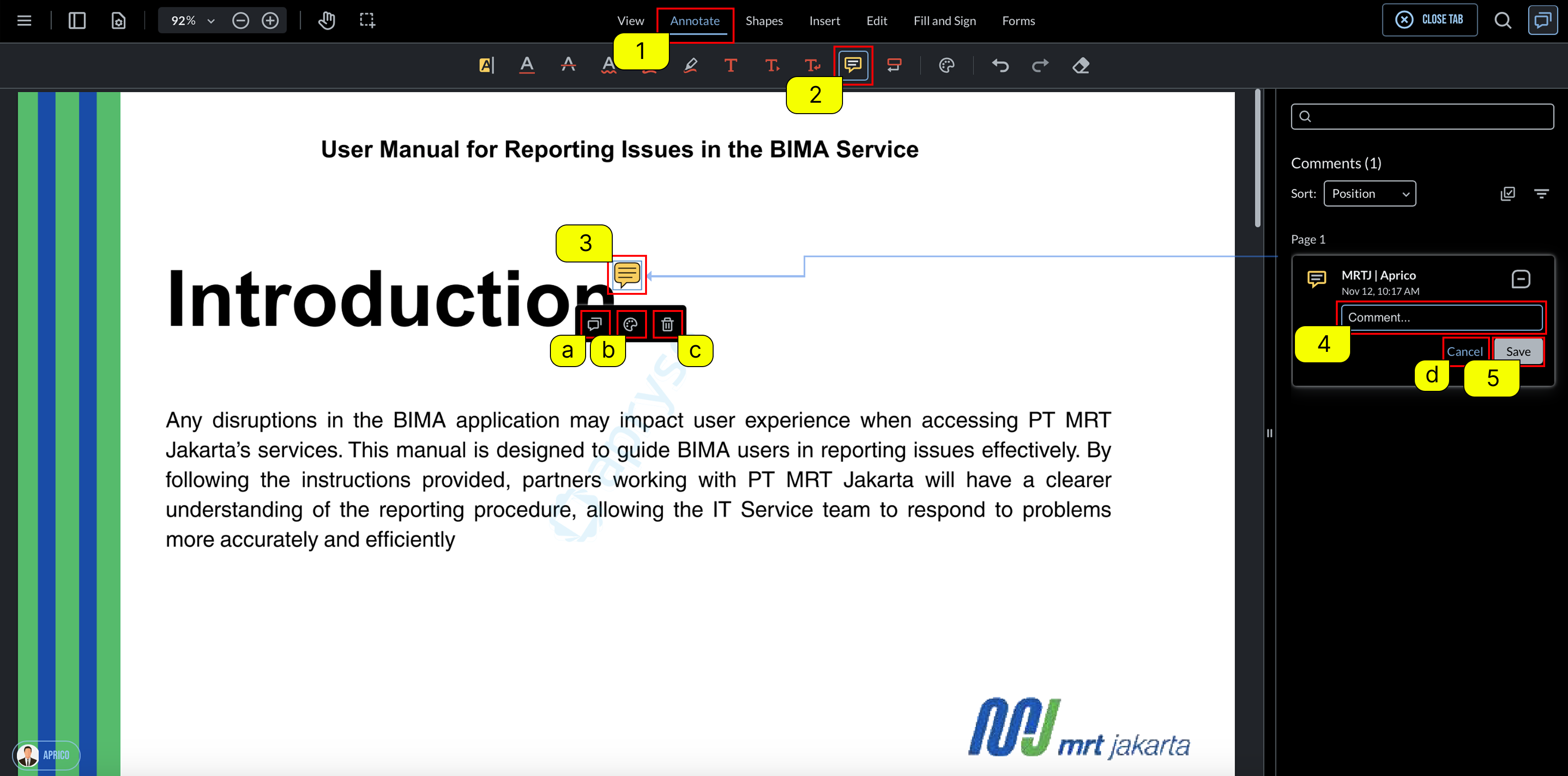
- Click the
Annotatemenu (Number 1) on the top toolbar to enable annotation tools.- Select the Comment tool (
Number 2) to start adding a comment box to the document.- Click anywhere in the document where you want to place a comment. A comment icon (
Number 3) will appear.- In the comment panel (
Number 4), type your feedback or note in the Comment box.- Click Save (
Number 5) to confirm and post the comment.Extra :
a.
Reply button— allows RR to respond to an existing comment.b.
Edit button— enables RR to modify or change their comment.c.
Delete button— removes the comment from the document.d.
Cancel button— discards the current comment draft without saving.B. Document IFC
After RR open the file/model from the detail of the document RR will be directed to the BIMA3D app, which will display the model of the file to be review.
In this phase RR can start on exploring BIMA3D that showing the file/model.
After exploring the file/model RR can start commenting on something if RR think its needed to be done so. To leave any comment/review on the object RR can follow the instruction below,
- RR can pick on any object that RR thinks need to add a comment/review.
- RR then can click the symbol that marked on
Number 2to open up the comment pannel.- RR then can click on the pencil symbol to start on leaving a comment/review.
After RR clicks the pencil icon to start writing a comment/review, the following panel will appear:
- On the first row, RR can enter a title/subject for the comment on the object.
- In the larger text box labeled "type here...", RR can type the content of the comment/review.
After RR finishes writing the comment/review using the available tools, RR can proceed with the following actions:
- RR can click the
+button (Number 1) to open the menu of additional tools. From here, RR can add various elements such as text, lists, titles, checklists, attachments, speech input, or use the AI TEXT feature to enhance or expand the comment/review.- RR can click the
⋮⋮(Number 2) to access options like Move up, Move down, or Delete, allowing RR to rearrange or remove the comment block as needed.- RR can click the
save/downloadicon (Number 3) to save the comment/review. This action ensures that the written feedback is stored and applied to the selected object.
6. Complete the Review Process
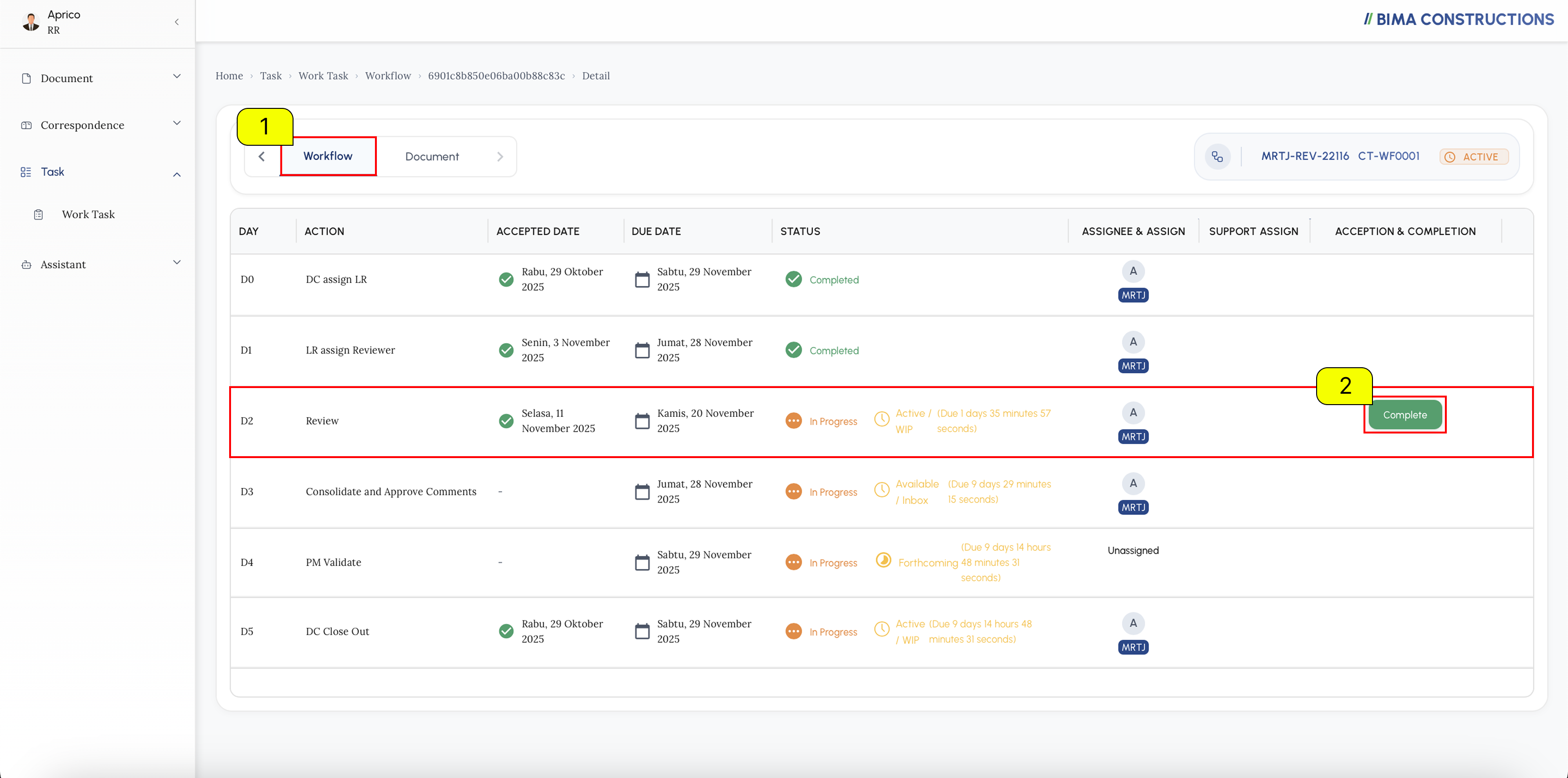
- RR can firstly go back to the
workflowtab to be able to access theCompletebutton. - Once RR on the
workflowtab, RR then can simply click on theCompletebutton to finish up theReviewprocess.
7. Review Completed
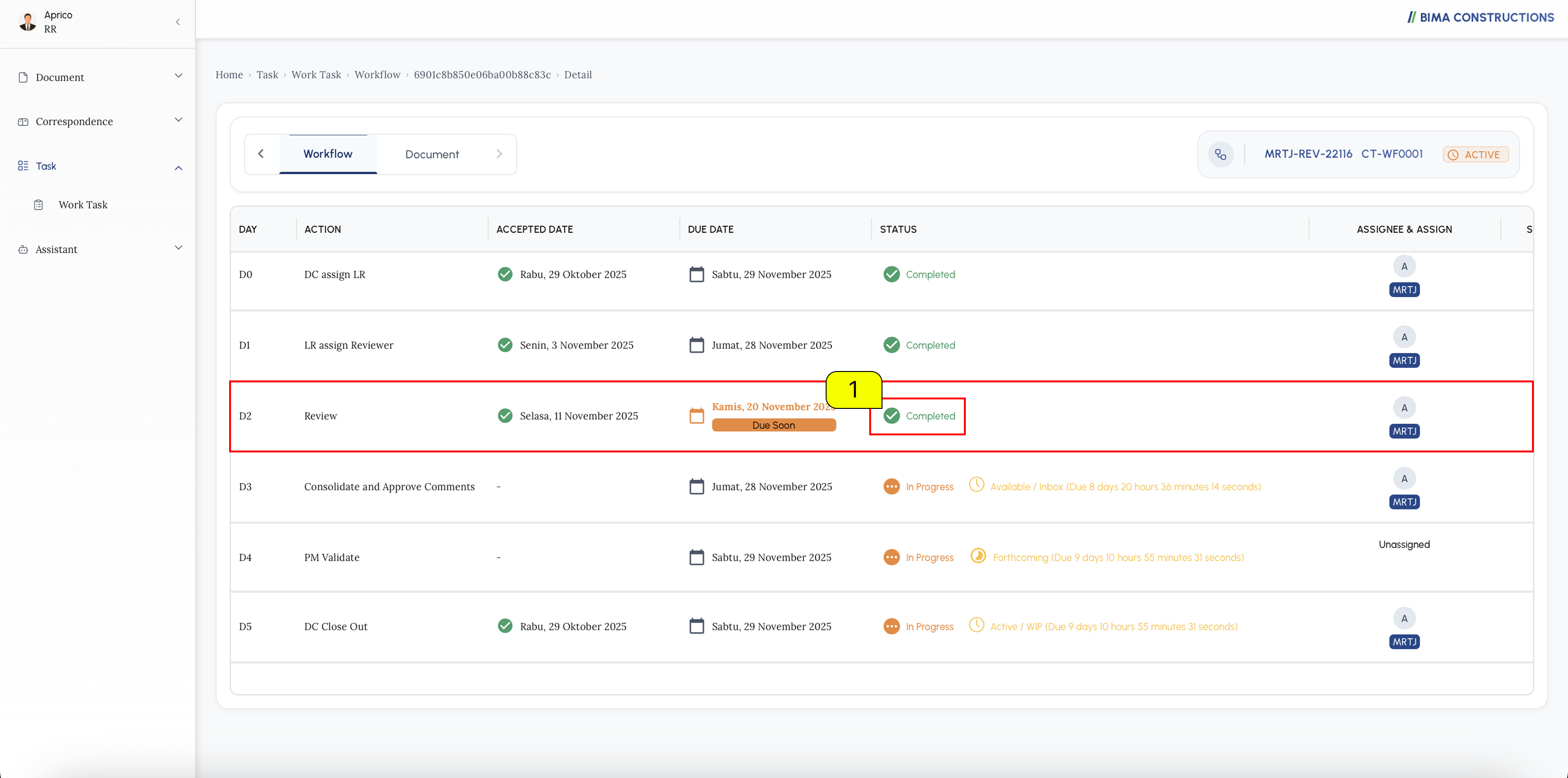 Finish!, the review proces are finished it's marked with the
 completion status on the Status column of the workflow.