Assign Task to Lead Reviewer
Read Below First
To be able to assign the Lead Reviewer to start the Review process for the created document, the USER with the Document Controller (DC) role must first receive the document sent by the Contractor from the BIMA Projects.
Assign Task To Lead Reviewer
1. Open the Workflow Page
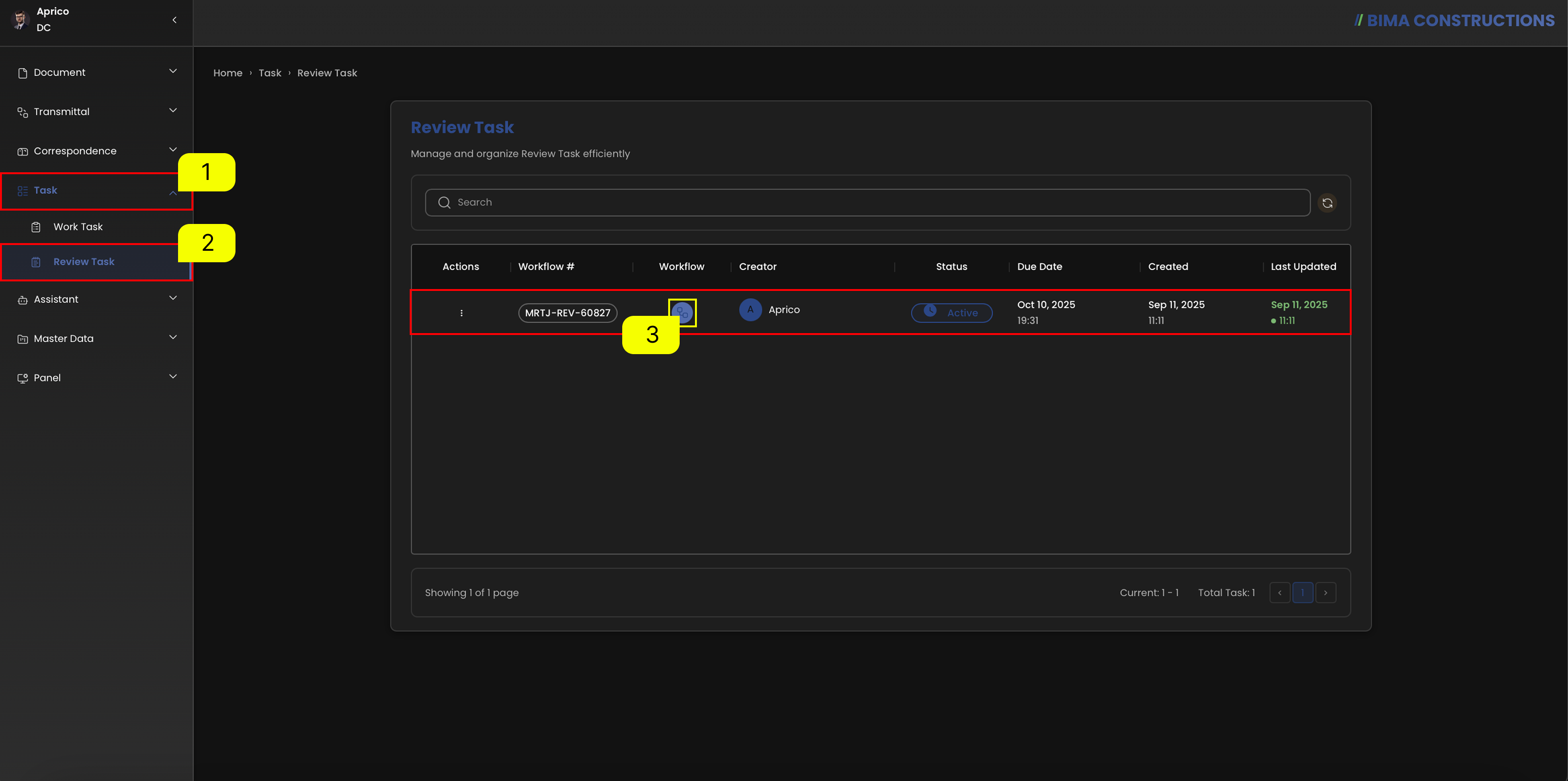
- On the side menu, DC can click on the
Taskmenu to show the location of theReview Taskmenu for the workflow. - After the menu shown, DC then can click onto the
Review Taskmenu to open up theReview Taskpage. - At the
Review Taskpage, DC can pick on the active workflow to and click on theWorkflowsymbol that marked withNumber 3.
2. Assign the Task
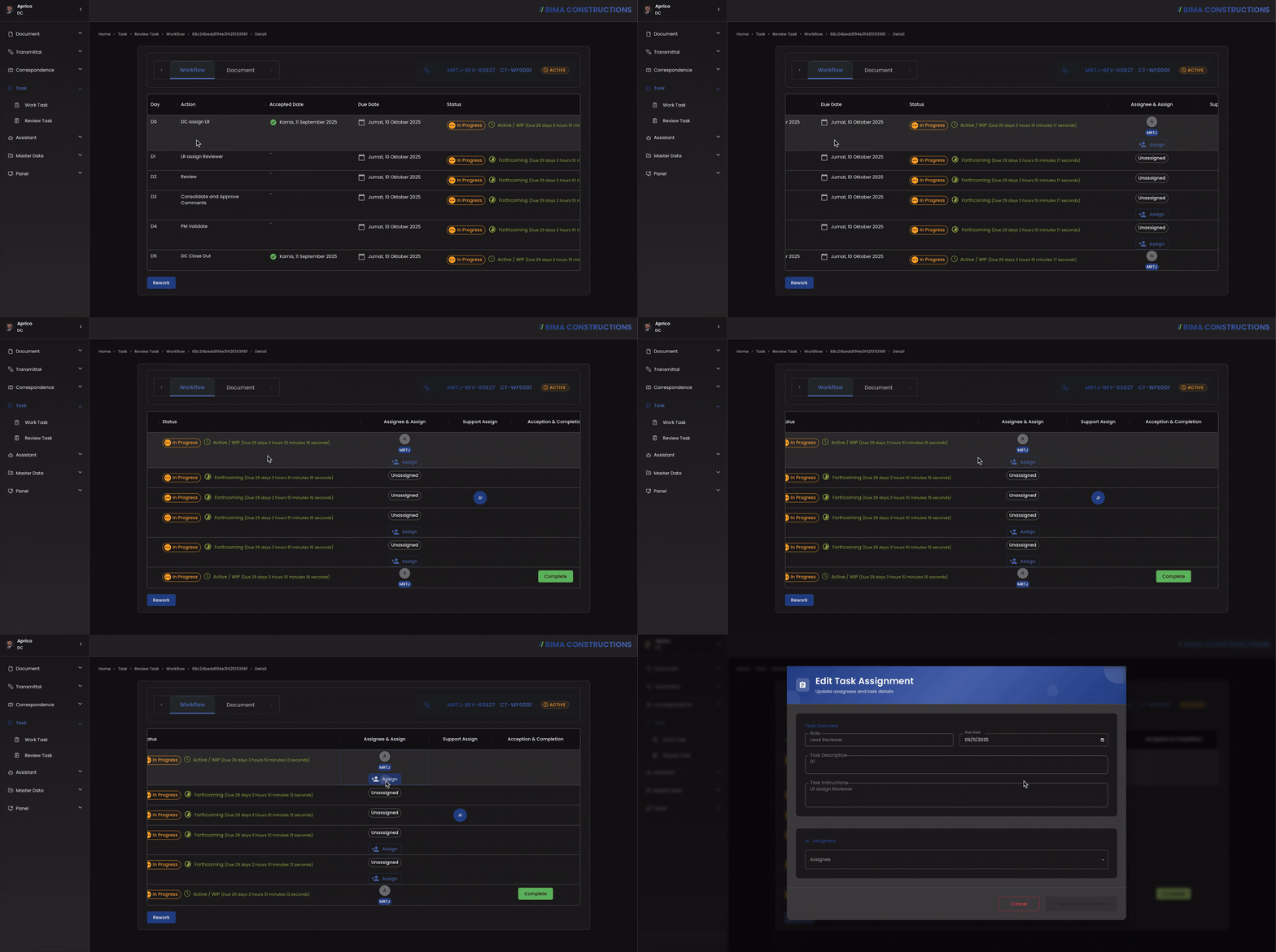 DC first need to click on the
 Assign button to open the Edit task assignments form, to assign the task to Lead Reviewer (LR).
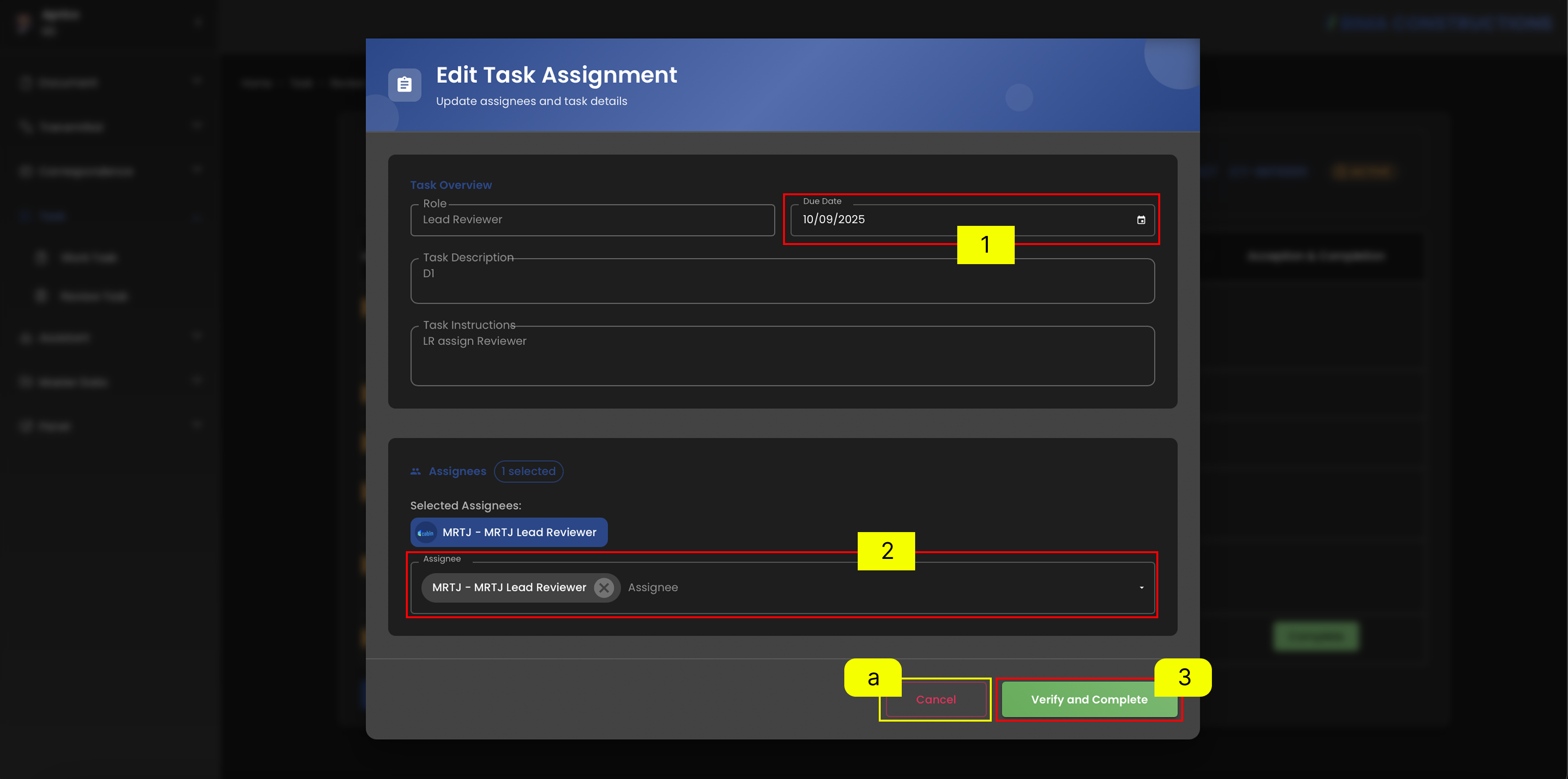
Edit Task Assignments
- Pick on the deadline date of the task given.
- From the dropdown list provided by BIMA Construction apps, pick the LR that needs to be assigned task to.
- Once the DC has ensured that all task data has been entered correctly, DC just need to click the
Verify and Completebutton to finish the Task Assign process. However, if the DC is not sure about the data, DC can click theClearsymbol marked with theletter a.
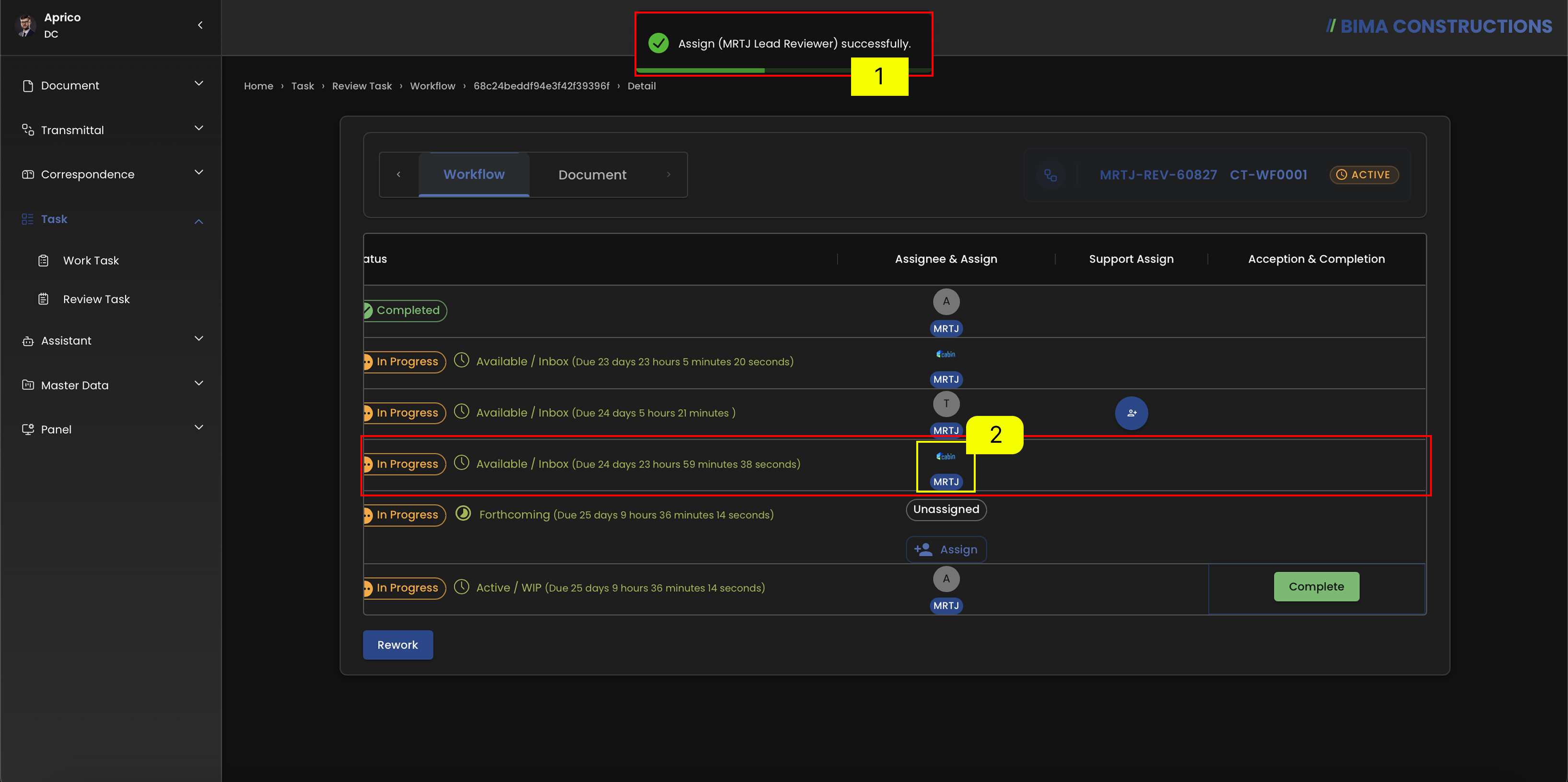
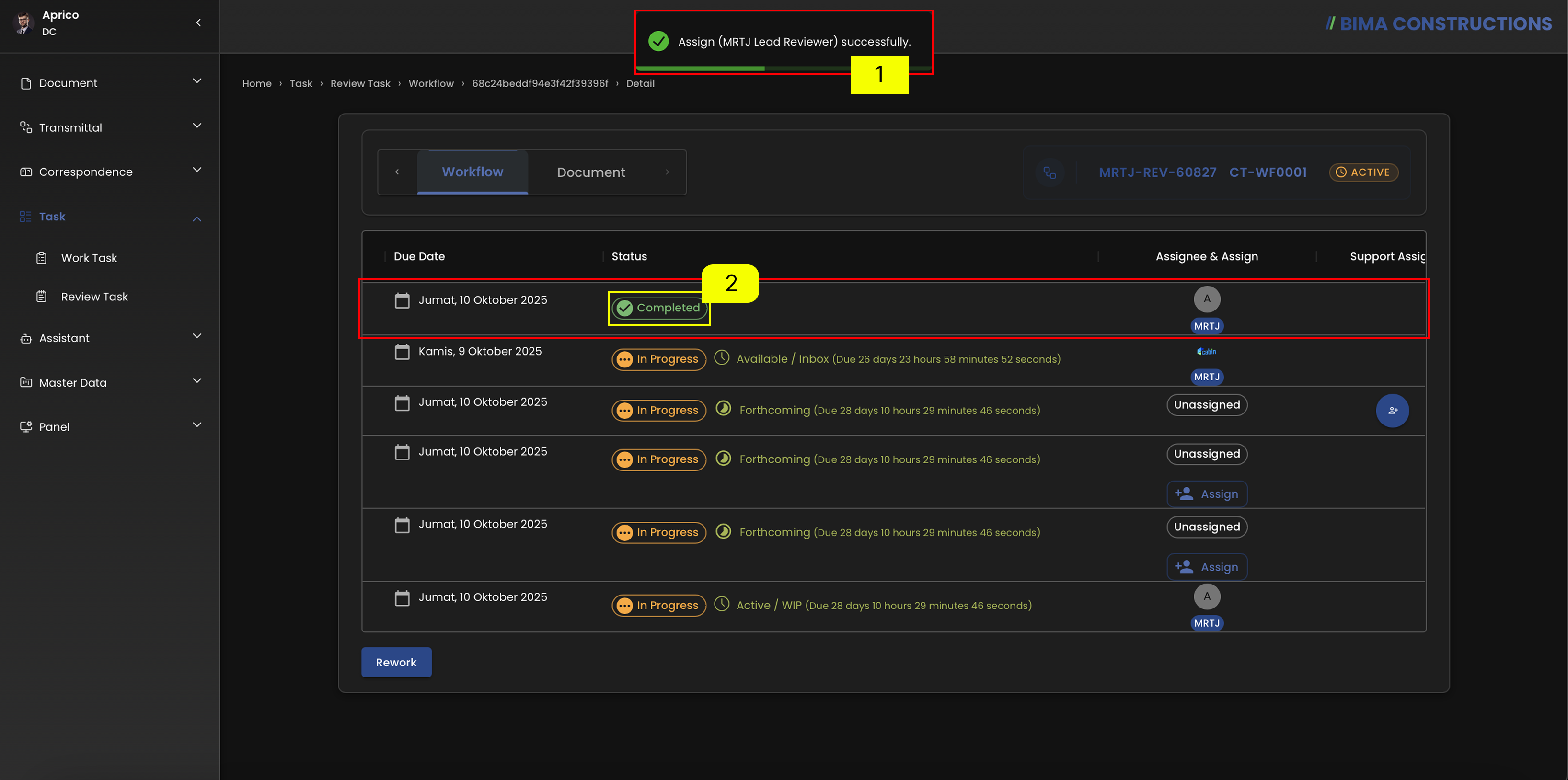
Task Assigned Successfully
- After DC click on the
Verify and Completebutton, a notification will pop-up sayingAssign ([Name]) successfully.- To make sure even more the successful assignee process are also marked with the
completion statuson the Status column of the workflow.
Support Assign [Review]
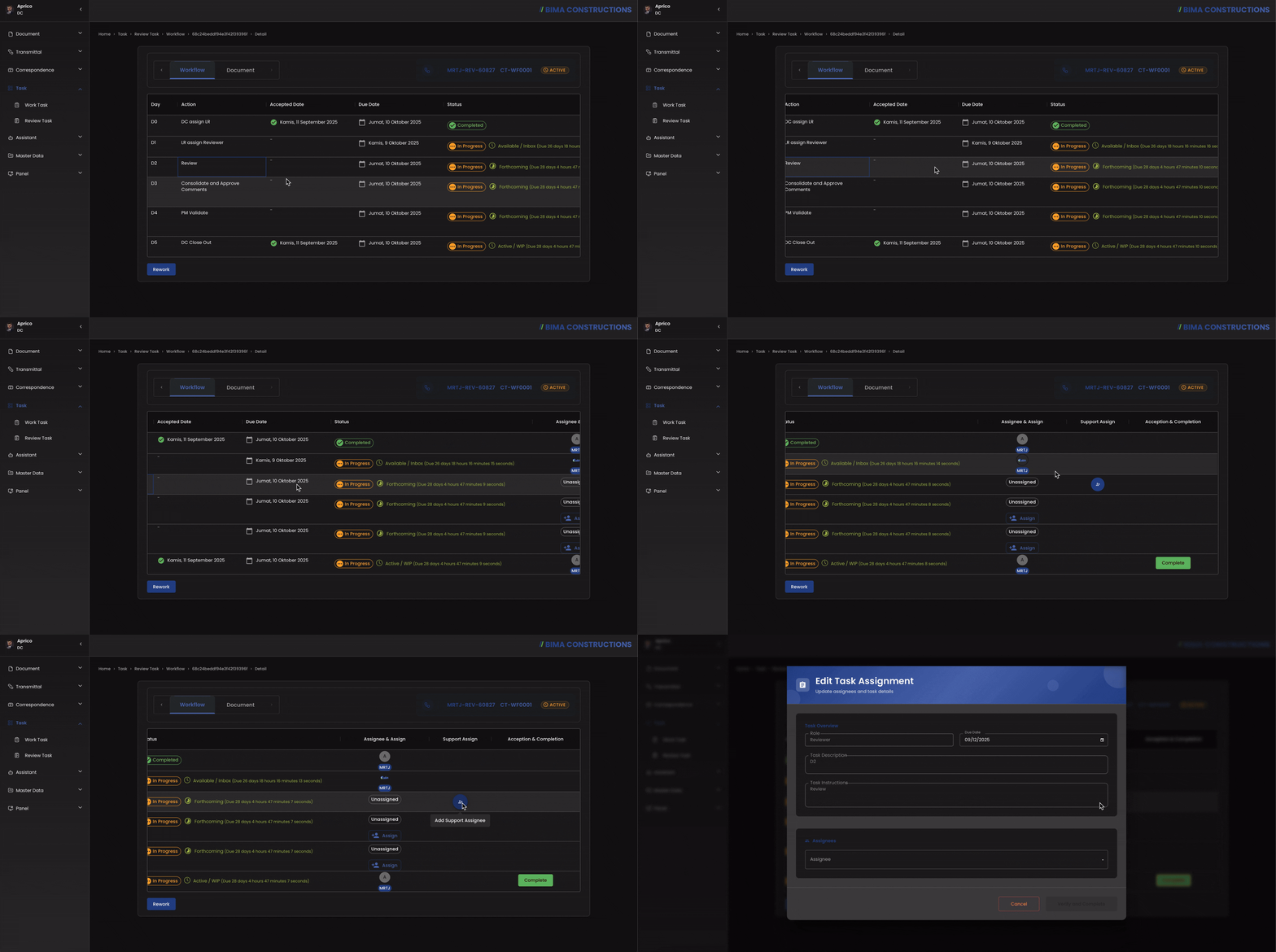 DC need to click on the
 Add Support Assignee button to open the Edit task assignments form, in order to assign a Support Reviewer for the task.
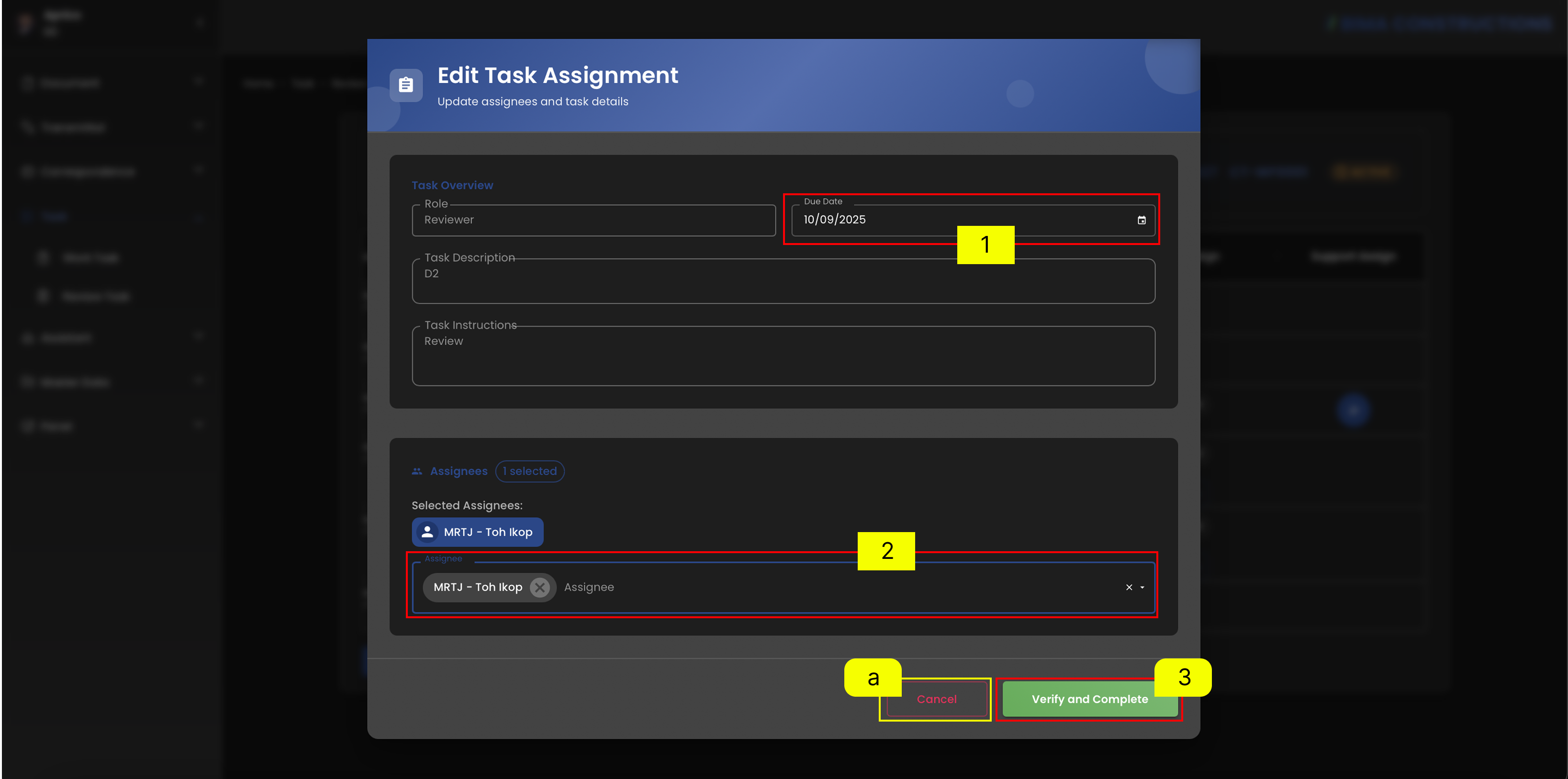
Edit Task Assignments
- Pick on the deadline date of the task given.
- From the dropdown list provided by BIMA Construction apps, pick the Support Reviewer that needs to be assigned task to.
- Once the DC has ensured that all task data has been entered correctly, they just need to click the
Verify and Completebutton to finish the Task Assign process. However, if the DC is not sure about the data, DC can click the Clear symbol marked with theletter a.
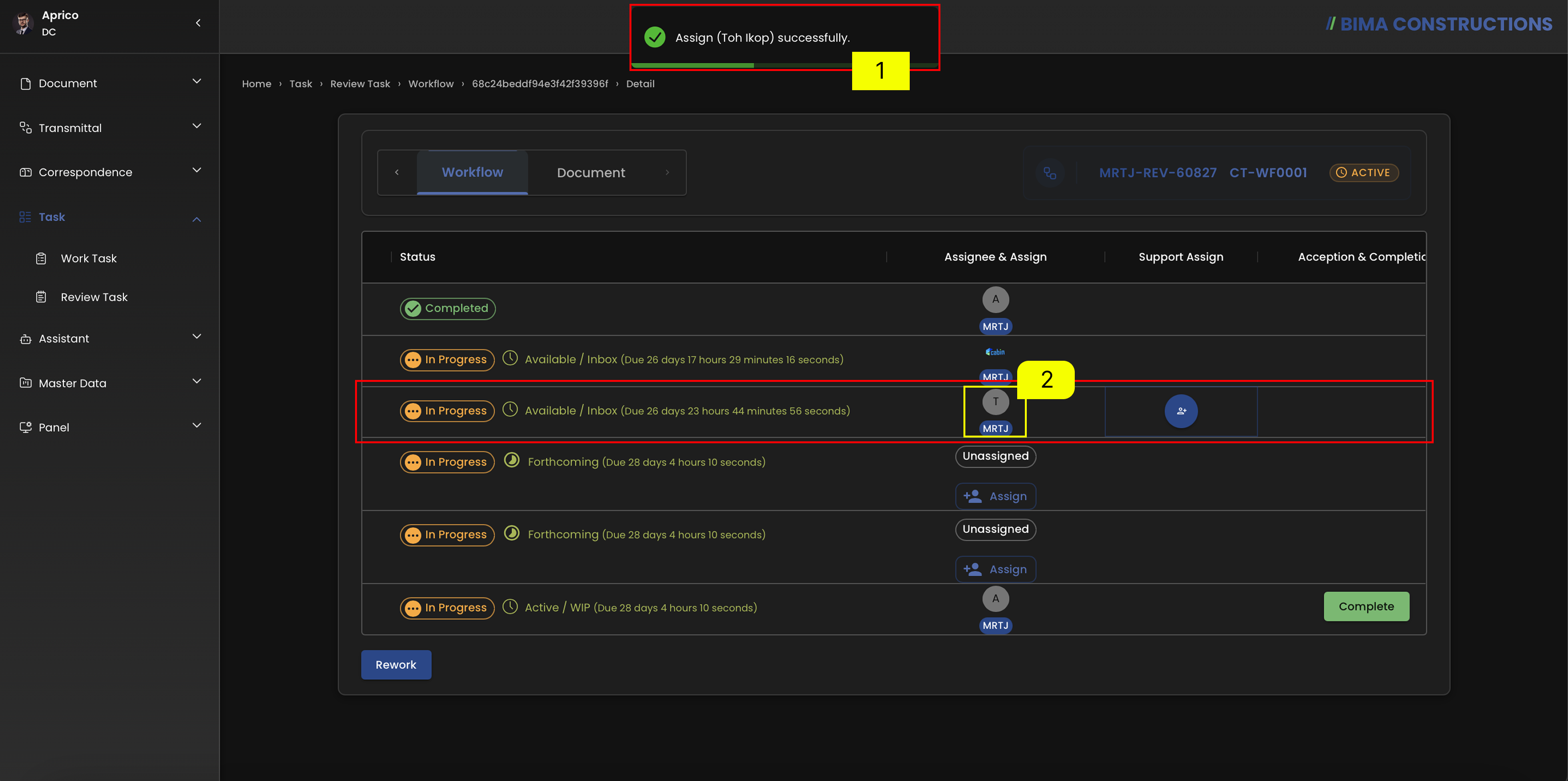
Task Assigned Successfully
- After DC click on the
Verify and Completebutton, a notification will pop-up sayingAssign ([Name]) successfully.- To make sure the verification is successful, the assigned profile will appear under the
Assignee & Assigncolumn in the workflow.
Assign Task To Lead Reviewer [Consolidate & Approve Comments]
1. Assign the Task
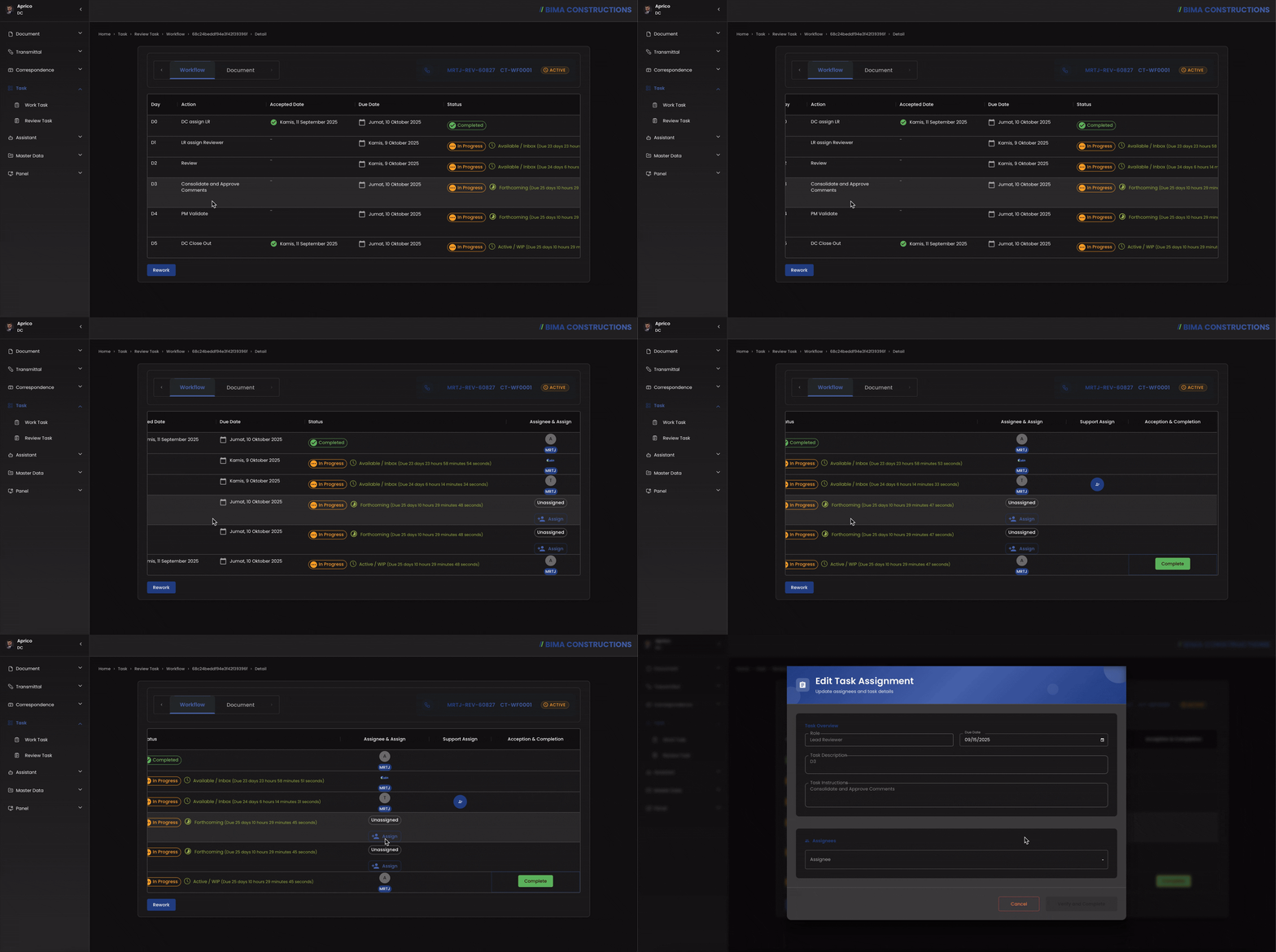 Before proceeding with the assignment, DC should first review the workflow list to ensure that all previous task statuses are either marked as Completed or are still In Progress. Once confirmed, DC can continue by clicking the
 Assign button to move forward with the process.
Set Assignee & Due Date
- DC Pick on the deadline date of the task will be given to LR.
- From the dropdown list provided by BIMA Construction apps, pick the LR that needs to be assigned task to.
- IF DC done on make sure of the data for the task are input correctly, DC just need to click on the
Verify and Completebutton to completed theTask Assign [Consolidate & Approve Comments]process. However, if the DC is not sure about the data, DC can click the Clear symbol marked with theletter a.
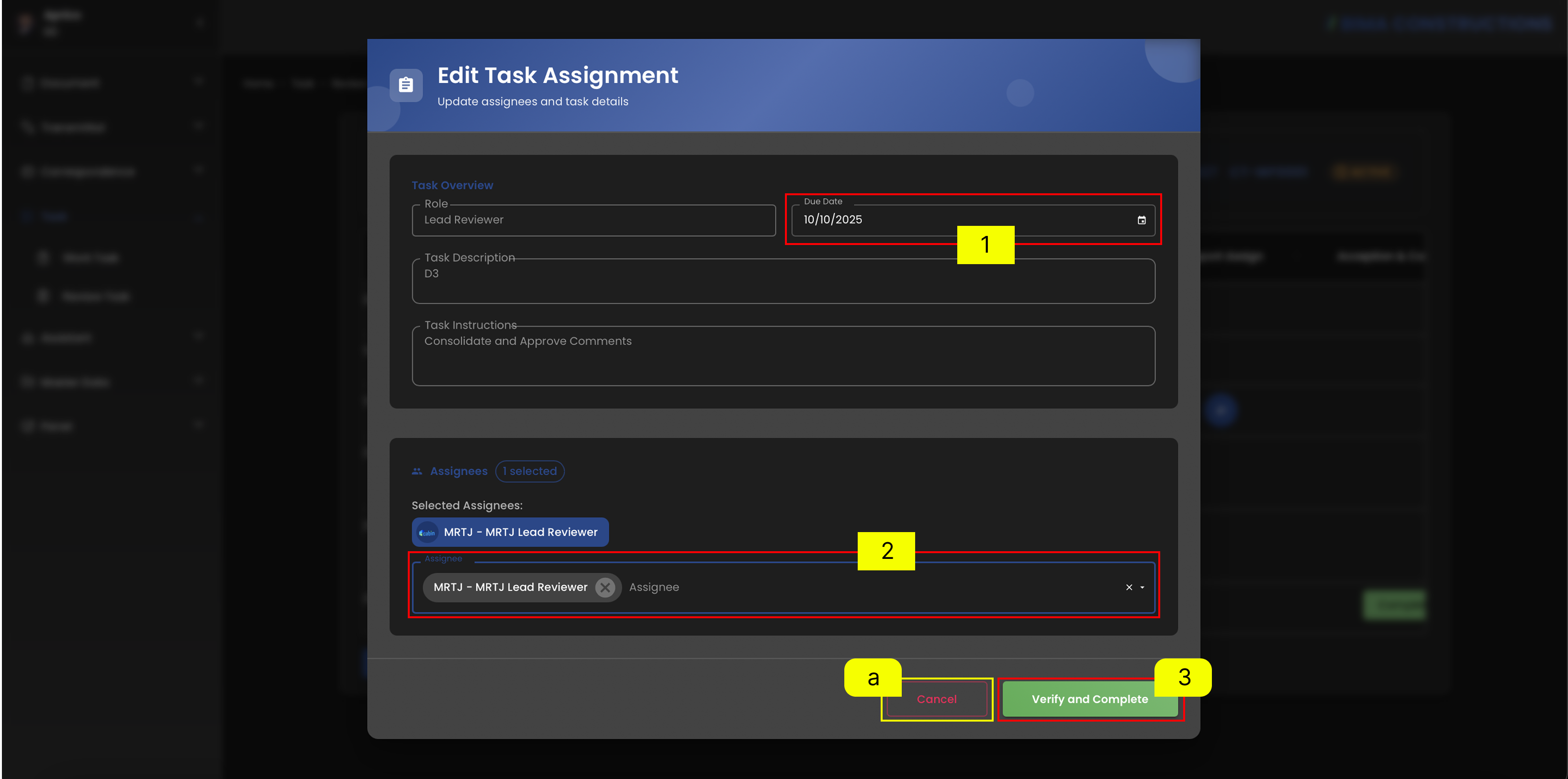
Task Assigned
- After DC click on the
Verify and Completebutton, a notification wil pop-up sayingAssign ([Name]) successfully.- To make sure even more the successful assigneed process are also marked with the appearance of profile photo of the assignee.