Edit Profile
Notice
Read Below First
Before starting the profile editing process, PLEASE REMEMBER, if the USER wants to change the profile other than the profile photo of the account, the USER can contacting the admin regarding the changes to be made.
Changing Profile Picture
1. Open Menu Profile
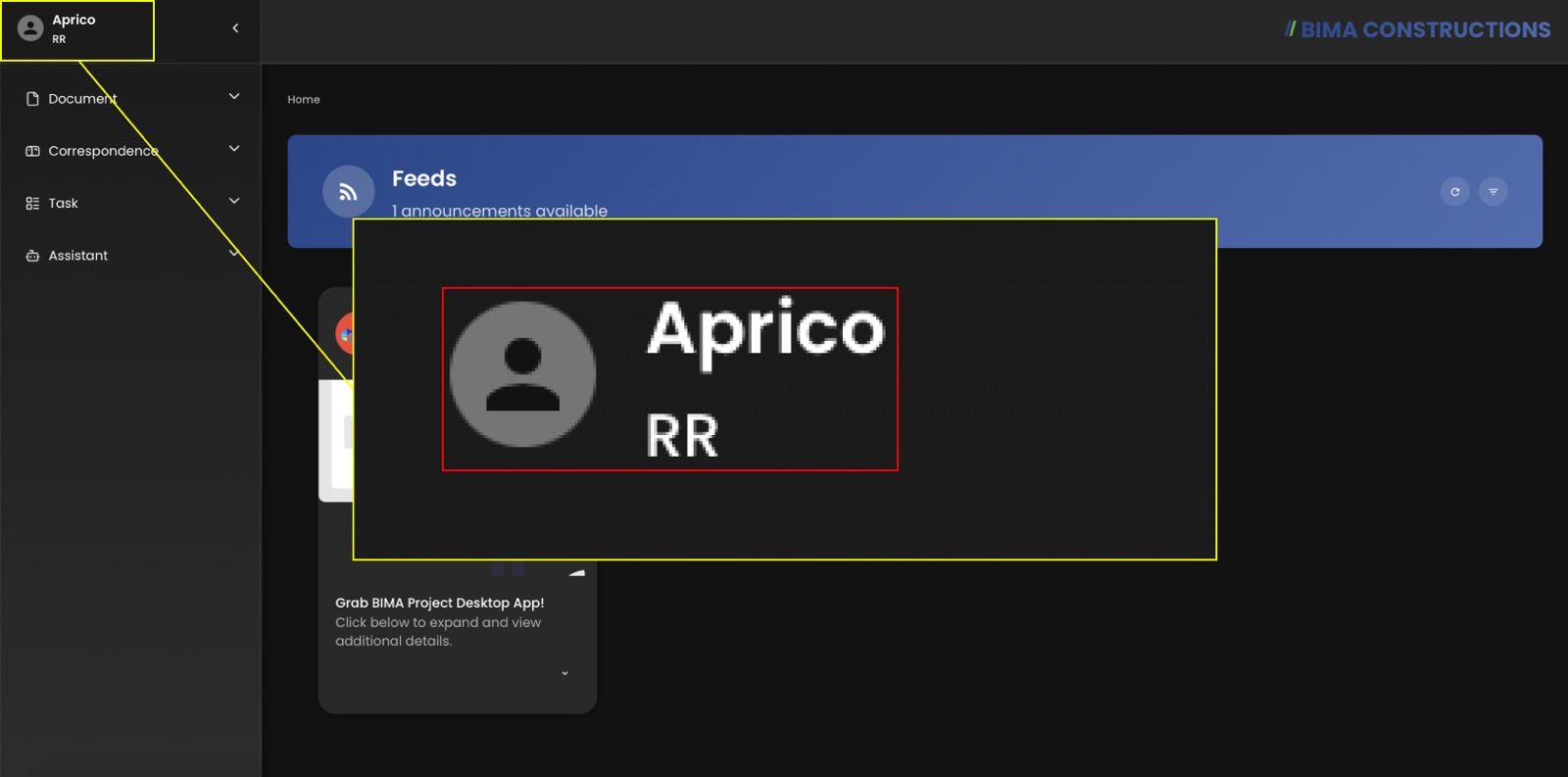 After accessing BIMA Construction, Click on the Profile section at the top left side of the page.
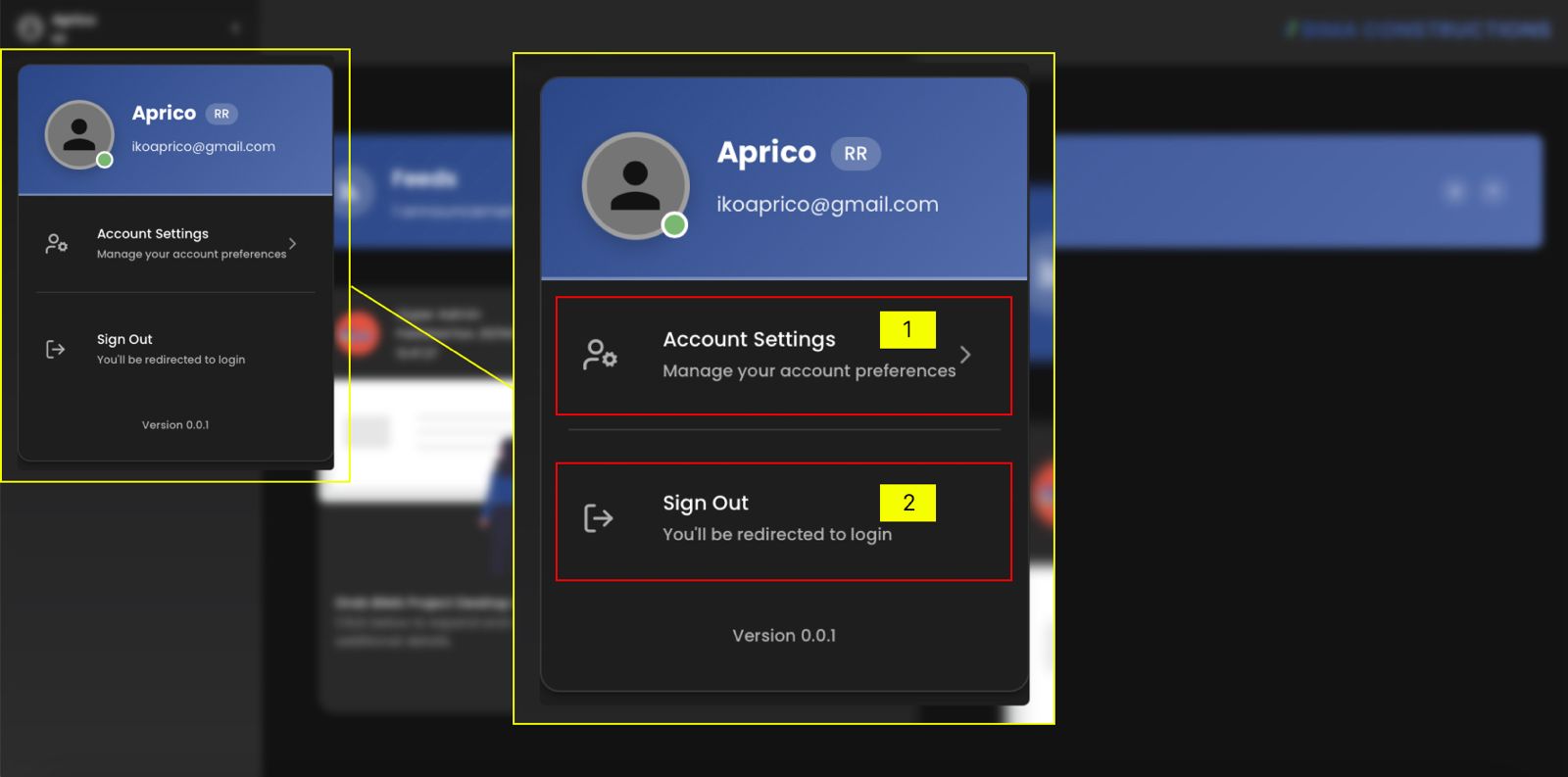 A dropdown menu will appear that contains:
Account Settings→ to manage and edit your account information.Sign Out→ to log out from the application.
Click on Account Settings to open the profile menu and make changes.
2. Edit the USER Profile
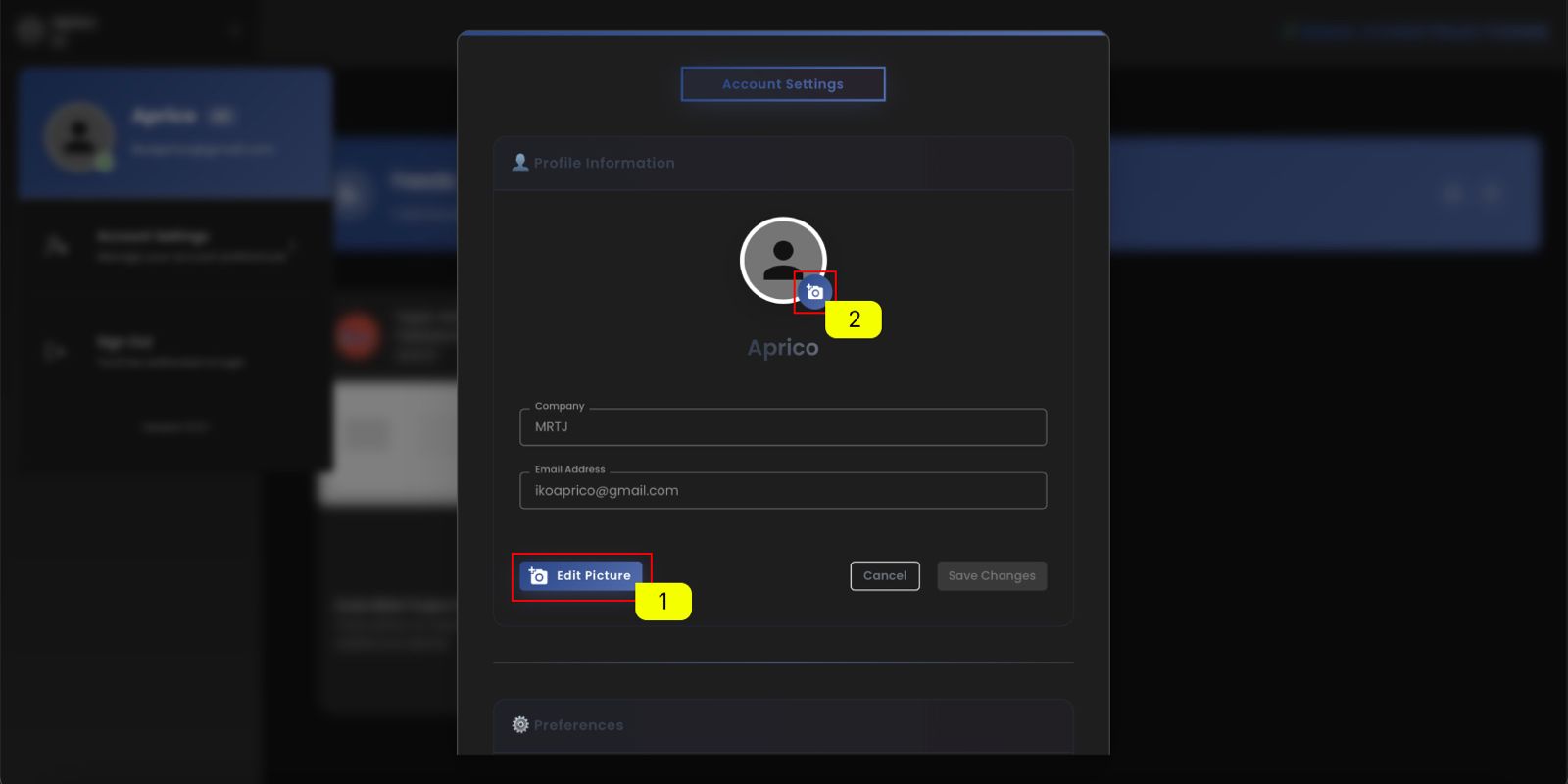 In the Profile Information section, USER can see details such as Company, Email Address, and your display name.
To change the profile picture
- click on the
Edit Picturebutton. - After that, the USER clicks on the profile photo to change the current photo.
3. Choosing the file
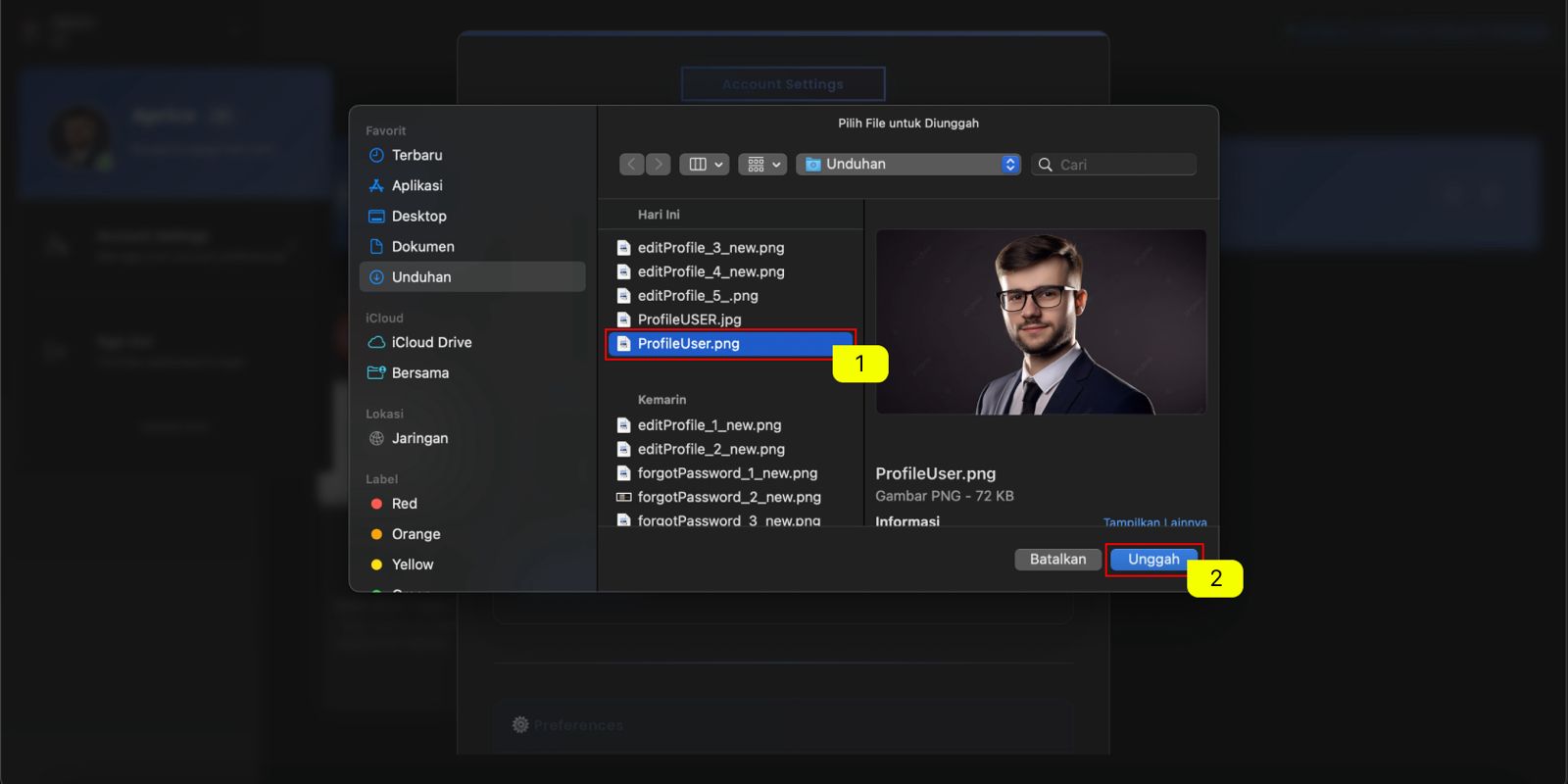
- The USER can choose the desired photo.
- If the selected file is correct and appropriate, USER can click the
Unggahbutton to complete the profile photo selection.
4. Save the Changes
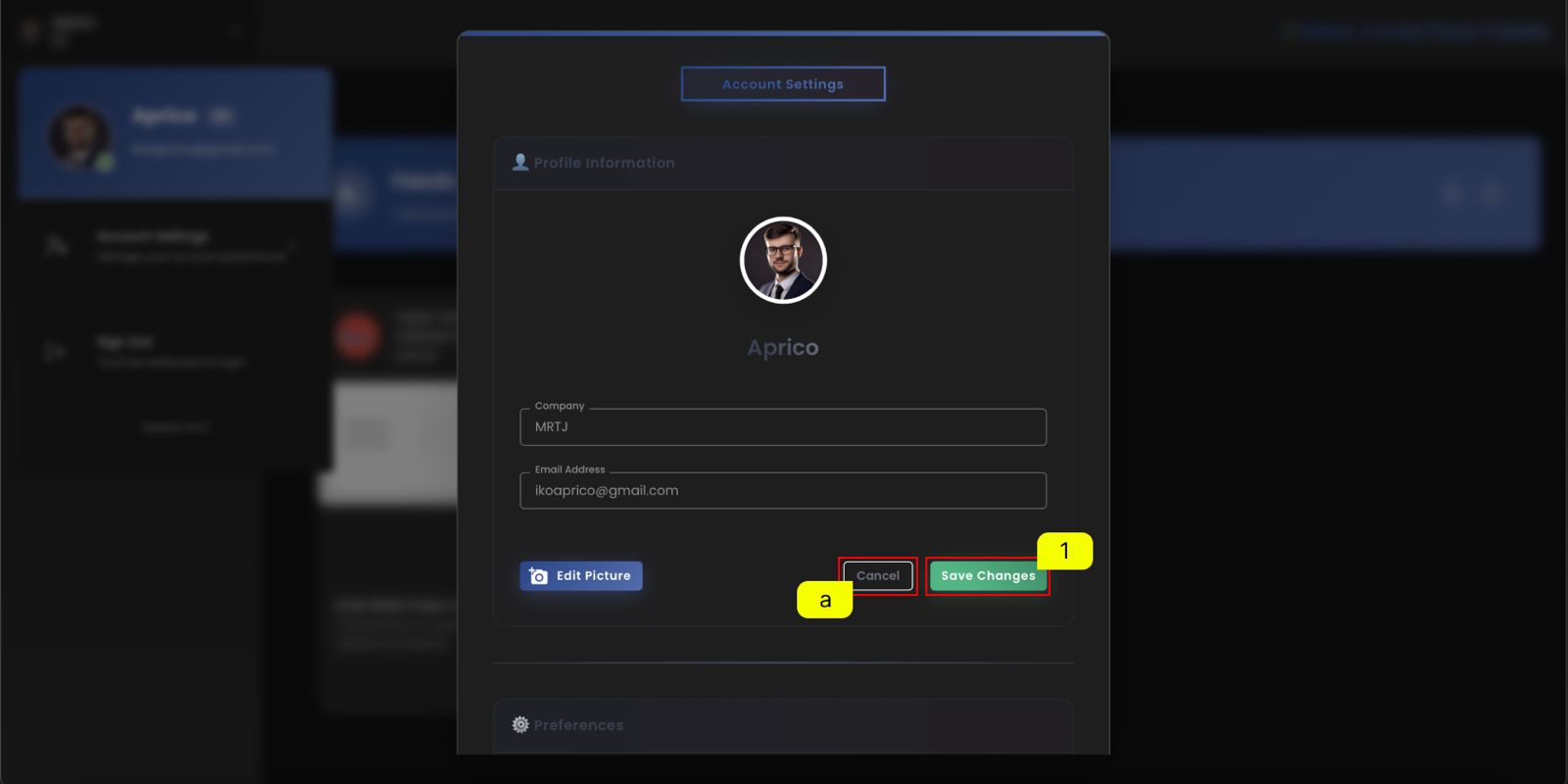
- The user can save the changes by clicking the
Save changesbutton.
a. Extra:
If the USER want to cancel the profile editing process, USER are welcome to just click on the
Cancelbutton, to terminate the editing process.
5. Check The Updated Profile
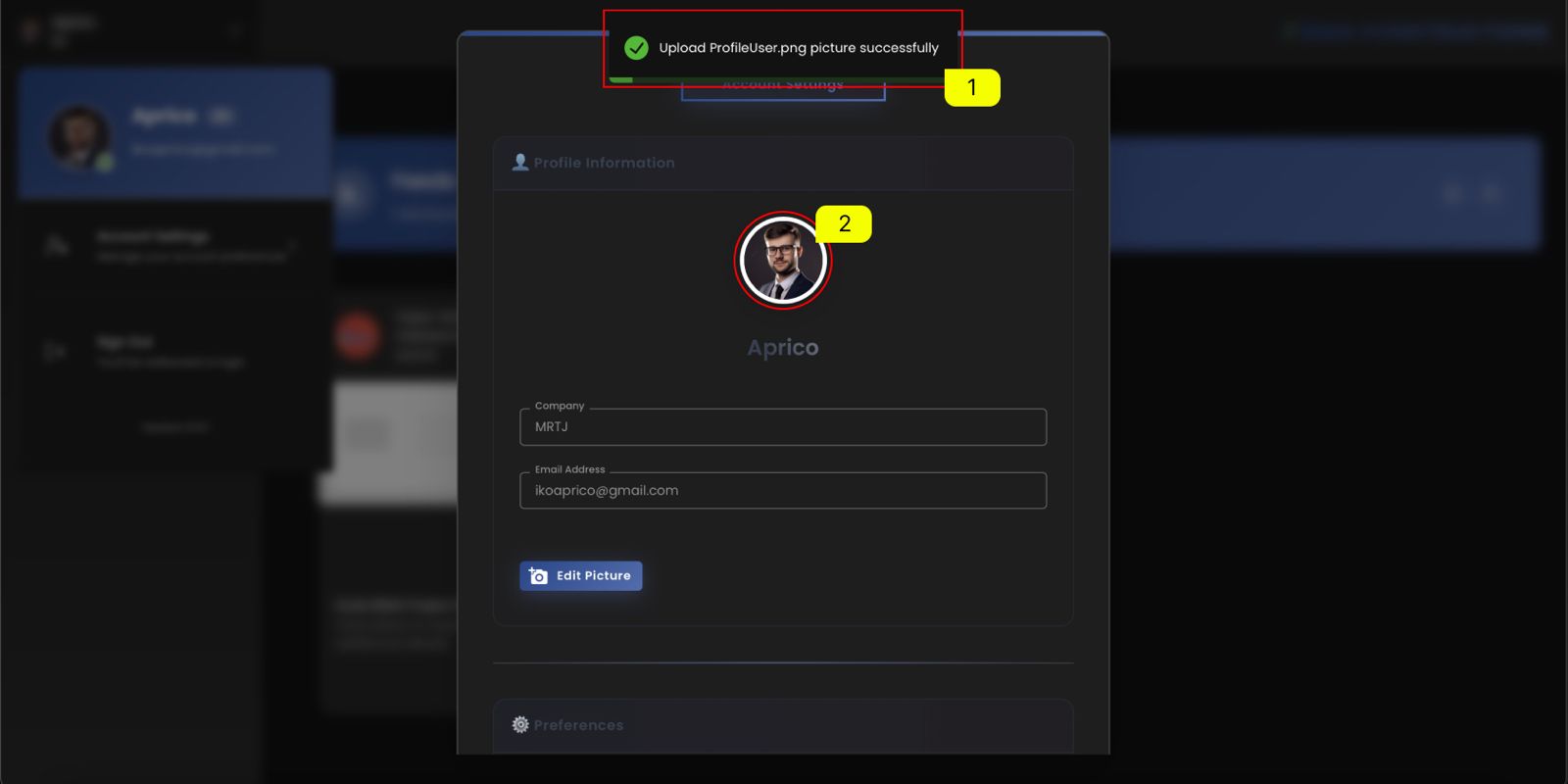
- After USER click on the
Save Changesbutton, a notification will popup sayingUpload [File_Name] picture successfully. - To make sure even more, the USER can check on the profile photo; if the profile photo are updated or not.