Consolidate & Approve Comments
1. Terima Penugasan
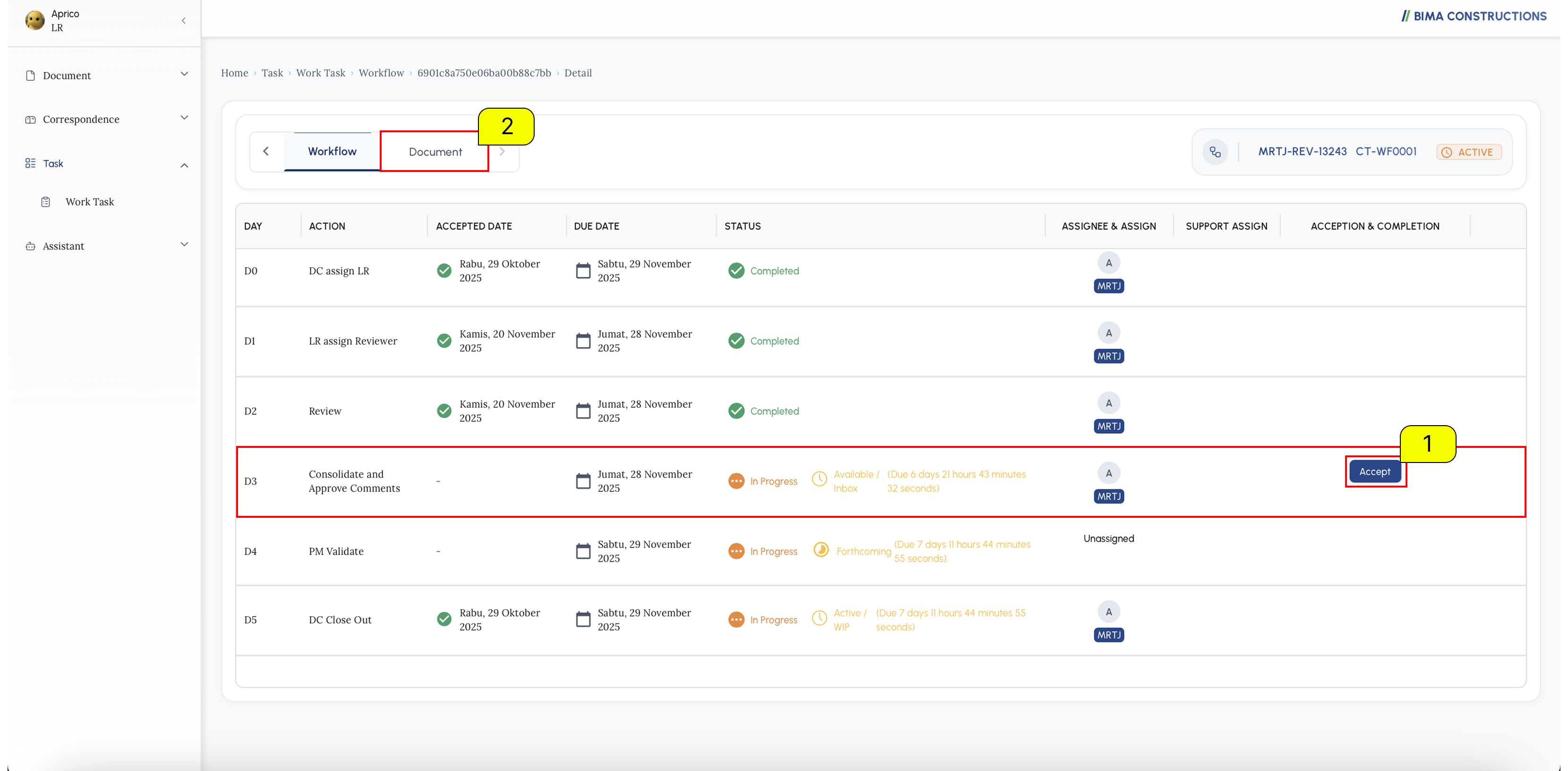
- Lead Reviewer dapat
Acceptpenugasan yang diberikan oleh Document Controller terlebih dahulu, dengan mengklik tombolAccept. - Setelah menerima penugasan, Lead Reviewer kemudian dapat mengklik tab
Documentuntuk melihat berkas yang perluConsolidate & Approval.
2. Tampilkan File
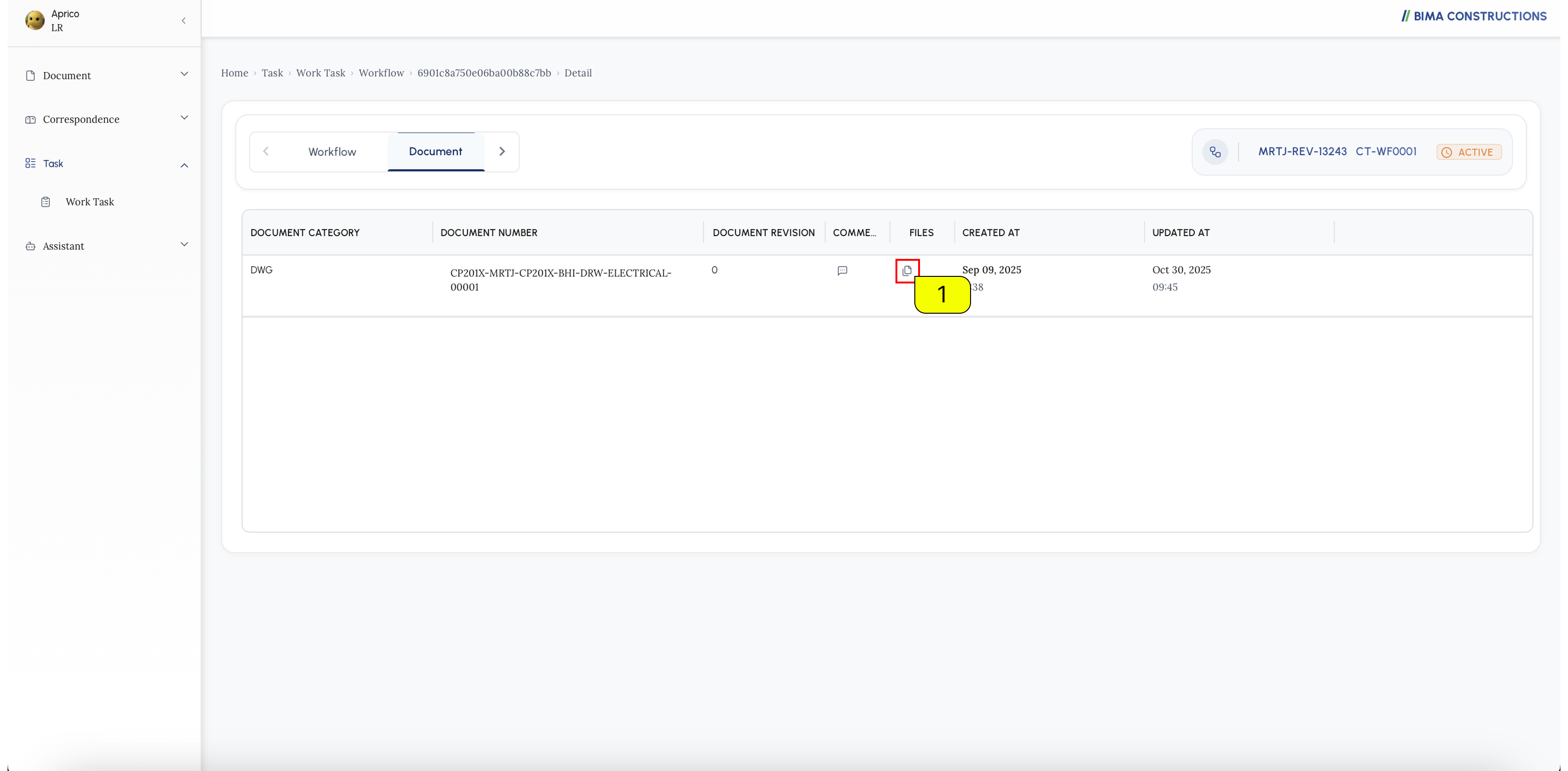 Setelah tab
 Document ditampilkan,
- Lead Reviewer dapat mengklik simbol 🗎 seperti yang ditunjukkan oleh tanda
number 1.
3. Memeriksa Dokumen/Model yang Telah Ditinjau
A. Memeriksa Dokumen pdf
Setelah dokumen dibuka, daftar berkas akan terlihat.
- Lead Reviewer dapat mengklik area
Number 1, dan serangkaian tindakan akan ditampilkan.- Lead Reviewer kemudian dapat memilih
View in PDF Vieweryang akan menampilkan berkas yang Lead Reviewer pilih untuk ditampilkan.
Tambahan:
a. Lead Reviewer juga dapat menggunakan opsi
Downloaduntuk menyimpan dokumen secara lokal untuk peninjauan luring atau pengarsipan.b. Opsi
Generate summarymemungkinkan Lead Reviewer untuk secara otomatis membuat atau melihat versi ringkasan isi dokumen agar mudah dipahami.c. Opsi
Download with commentmemungkinkan Lead Reviewer untuk mengunduh berkas beserta komentar atau umpan balik yang telah ditambahkan, sehingga memberikan tampilan terkonsolidasi untuk peninjauan lebih lanjut.
Setelah dokumen dibuka, Lead Reviewer akan ditampilkan dengan antarmuka penampil PDF, seperti yang ditunjukkan pada gambar di atas. Di sisi kanan, panel komentar akan menampilkan komentar atau umpan balik yang ditambahkan ke dokumen.
- Jika panel komentar belum terlihat, Lead Reviewer dapat mengeklik ikon yang ditampilkan di
Nomor 1untuk membuka atau menampilkan daftar komentar yang tersedia untuk dokumen ini.- Di panel komentar, Lead Reviewer dapat memilih komentar apa pun dari daftar seperti yang ditunjukkan pada
Nomor 2. Memilih komentar akan menyorot anotasi terkait pada dokumen dan menampilkan opsi tambahan untuk berinteraksi dengan komentar tersebut.Tambahan:
a. Jika Lead Reviewer ingin menanggapi atau memberikan klarifikasi tambahan, mereka dapat menggunakan kolom balasan yang ditunjukkan pada huruf
a. Hal ini memungkinkan peninjau untuk menambahkan komentar lanjutan langsung di dalam utas untuk menjaga konteks dan meningkatkan kolaborasi.Setelah Lead Reviewer selesai meninjau atau menanggapi komentar, mereka dapat melanjutkan ke langkah berikutnya dalam proses konsolidasi atau persetujuan.
B. Checking Document ifc
After the document is opened, a list of files will be visible.
- The Lead Reviewer can click on the
Number 1area, and series of action will shown.- The Lead Reviewer then can select
Viewaction to be directed to BIMA3D, which will display the model of the file Lead Reviewer choose to be shown.
Extra :
a. The
Downloadoption allows the Lead Reviewer to save the IFC model file locally, enabling offline access or further analysis using external BIM tools.b. The
View in BiMA Mapoption displays the IFC model in a map-based interface, showing its geographical placement or spatial context related to other models or site data.c. The
View in BiMA Roadoption enables the Lead Reviewer to view the model within the road-related environment of BiMA, providing specific visualization for infrastructure or roadway elements.d. The
Analyze Dataoption provides access to the analytical view of the model, where the Lead Reviewer can evaluate key data such as element properties, quantities, or relationships.e. The
Analyze Settingoption allows the Lead Reviewer to configure analysis parameters, filters, or criteria to customize how the data or model information will be reviewed.
When opening a file, the Lead Reviewer will be directed to BIMA3D. Inside this view, the Lead Reviewer can explore the comments or reviews that have been provided by the Reviewers. The Lead Reviewer can also follow the steps below to directly check the results of the reviews/comments left by the reviewers:
- If the list of reviews/comments does not appear, the Lead Reviewer can click the icon indicated by
number 1to reload or sort the reviews/comments that have been created.- Once the review list is visible, the Lead Reviewer can click the icon indicated by
number 2to see which objects have been commented on by the Reviewers.- After the Lead Reviewer clicks the icon
number 3, BIMA3D will highlight or display the specific objects that have been reviewed by the Reviewers, allowing the Lead Reviewer to directly see the parts of the model being discussed.Extra:
a. If the Lead Reviewer wants to add additional notes or comments, the Lead Reviewer can click the icon pointed to by the letter
a.If the Lead Reviewer feels they have reviewed or added enough comments, the Lead Reviewer may close BIMA3D to proceed to the next process.
4. Finalize the Consolidate & Approval Process
After completing the review inside BIMA3D, the Lead Reviewer will return to the document workflow page. On this page, the Lead Reviewer can view the list of documents associated with the workflow and access the comments related to each file.
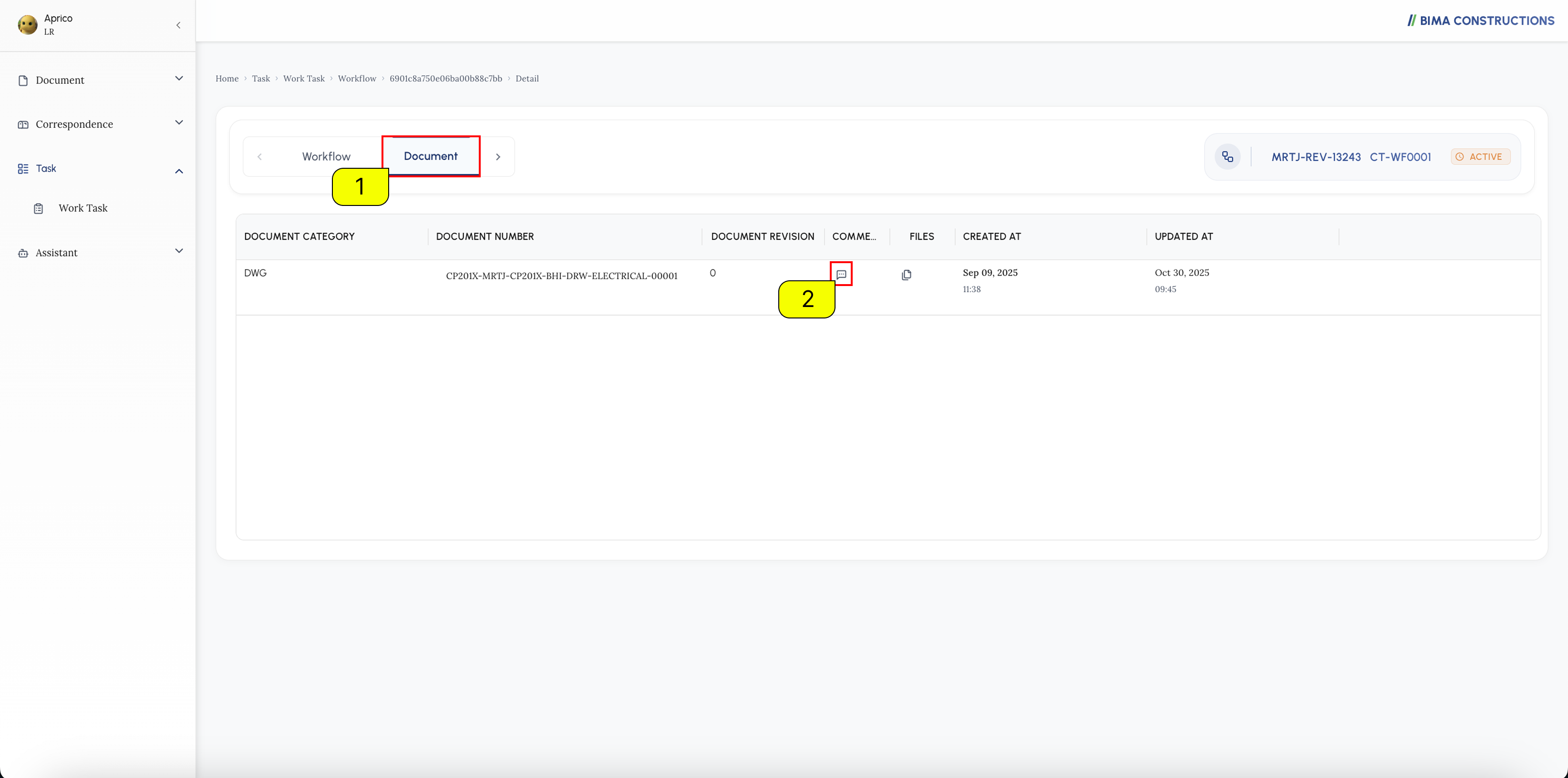
- The Lead Reviewer can click the
Documenttab, as shown in the area marked withNumber 1. This tab displays all documents included in the current workflow and their details. - To view the comments or feedback given by the Reviewers for a specific document, the Lead Reviewer can click the comment icon, as shown in the area marked with
Number 2. Clicking this icon will open the comments panel, which contains the review discussion for the selected document.
This step involves taking the final action to close the review and consolidation workflow.
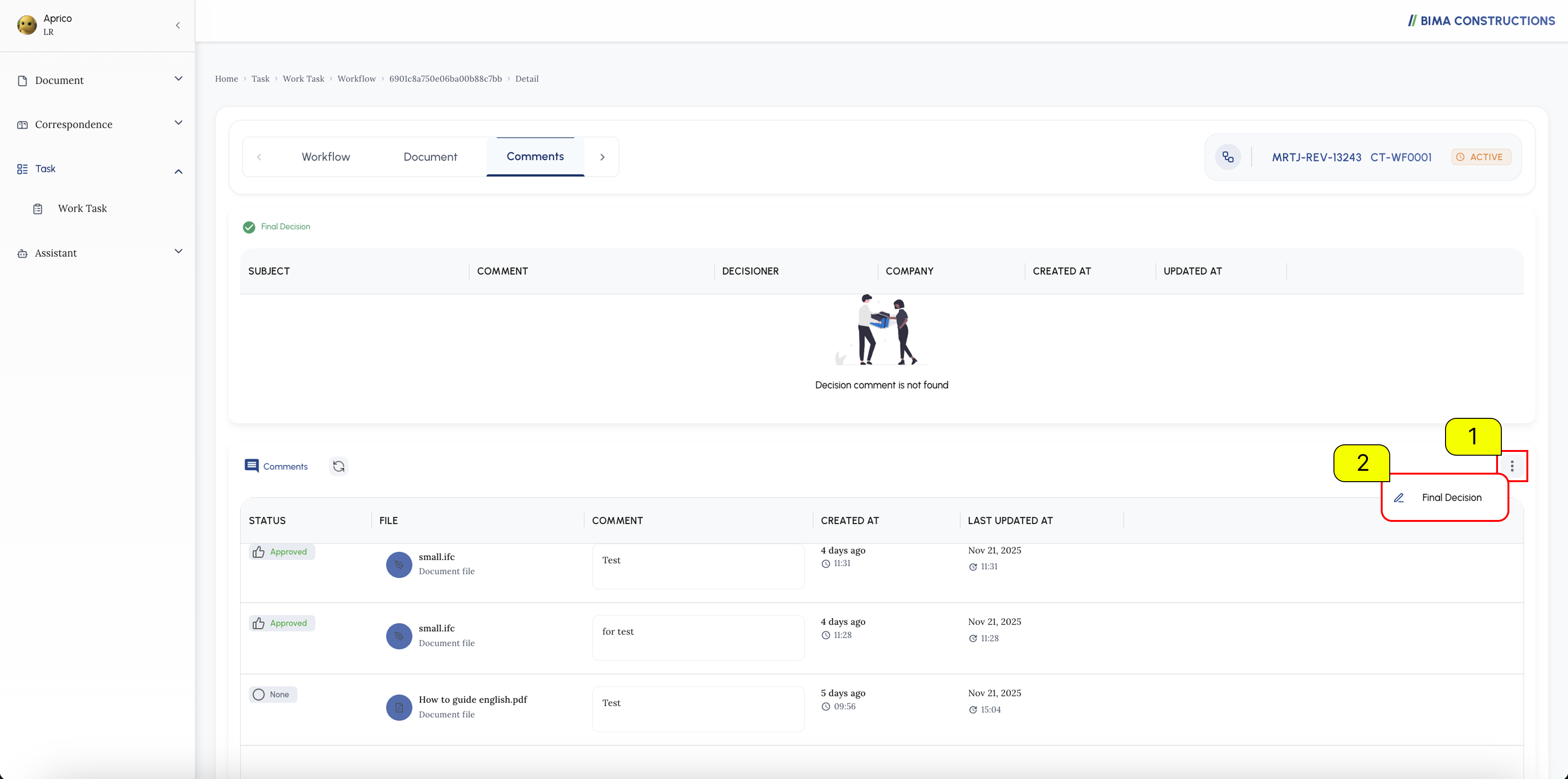
- The Lead Reviewer must click the Action Menu
⋮, as shown in the area marked withNumber 1. - The Lead Reviewer must click
Final Decision,as shown in the area marked withNumber 2. This menu contains the closing actions for the workflow.
After clicking Final Decision, a modal window appears, requiring the Lead Reviewer to select the appropriate final status for the document workflow.
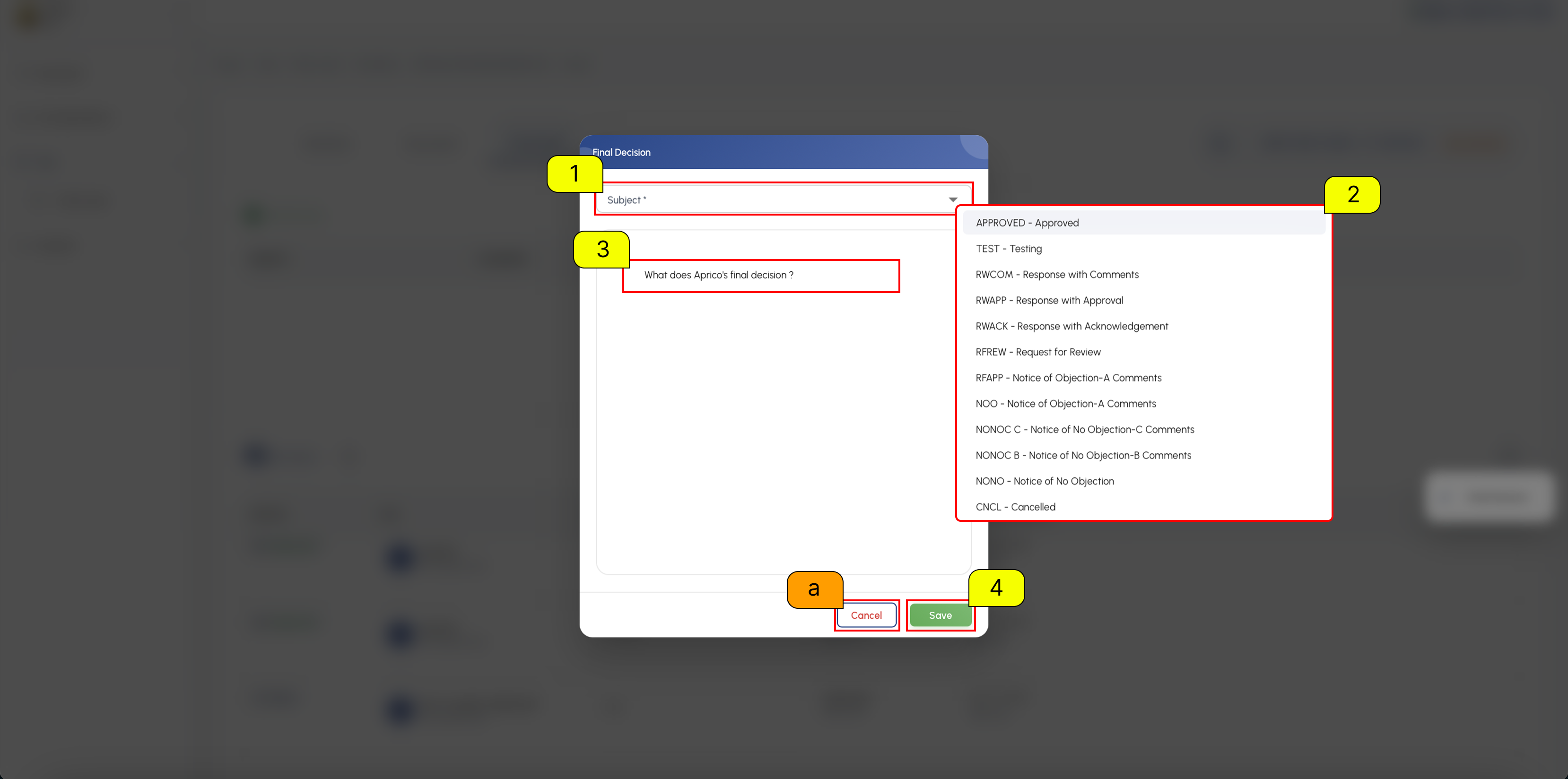
- The Lead Reviewer must click the
dropdownmenu for Subject (Number 1) to display the available final decision options. - A list of possible statuses will appear, as shown in the area marked with
Number 2. The Lead Reviewer must select the most suitable status (e.g., APPROVED, RINCOM - Response with Comments, RNAPP - Response with Approval, etc.) that reflects the outcome of the review process. - In the field below the subject (
Number 3), the Lead Reviewer has the option to input a final comment or note regarding the decision. This field is typically optional but recommended for clarity. - Once the subject/status and any necessary comments are entered, the Lead Reviewer must click the
Savebutton (Number 4) to finalize and submit the decision, thus closing the workflow.
Extra:
a. The Cancel button, marked with
a, is used to close the modal window without submitting any decision.
5. Completing the Assignment
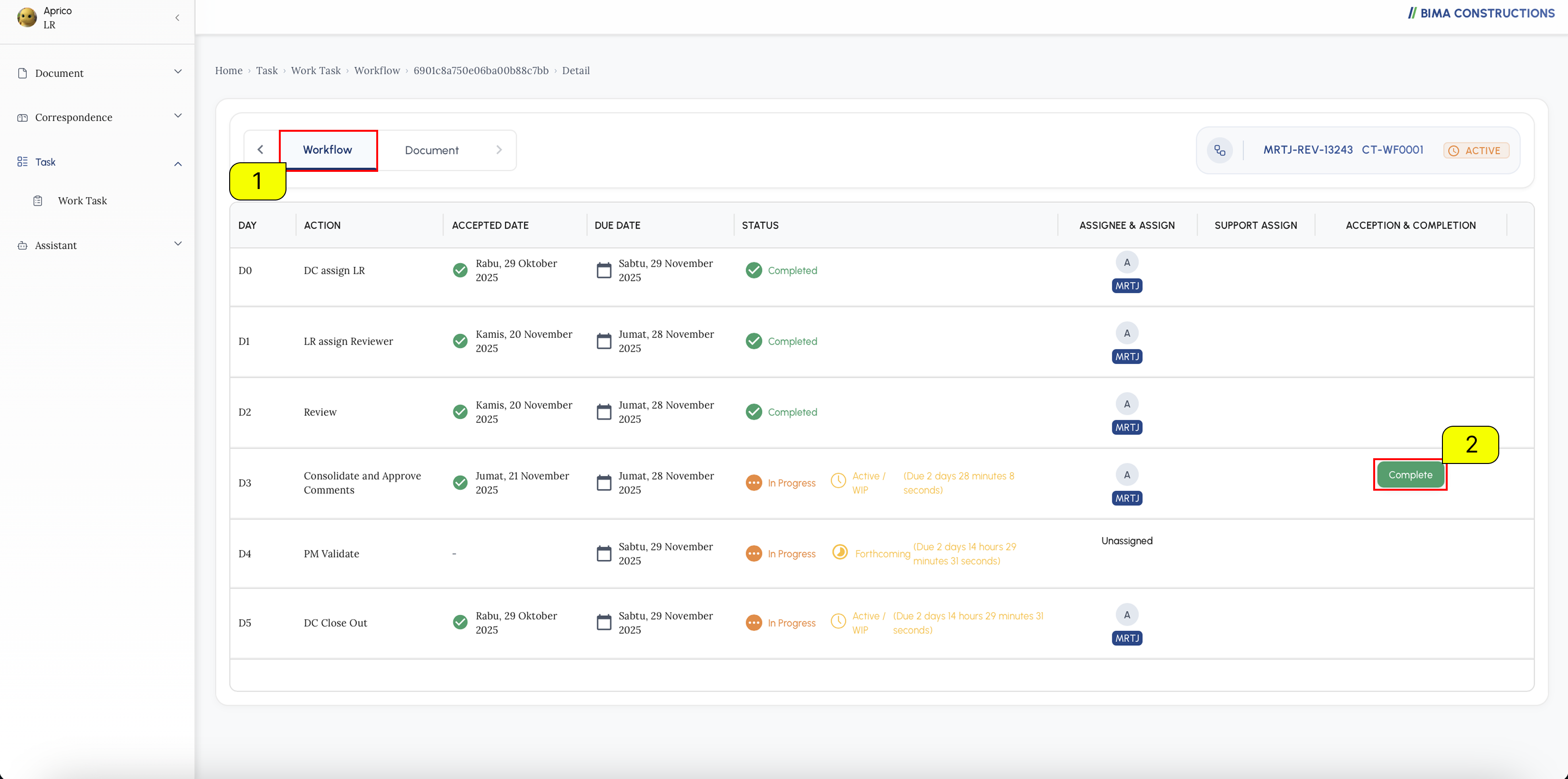
- Lead Reviewer can click the
Workflowtab agan, so that BIMA Construction can display theWorkflowtab. - After the
Workflowtab opens, Lead Reviewer can click theCompletebutton to complete the given assignment.
6. Consolidate & Approval Finish
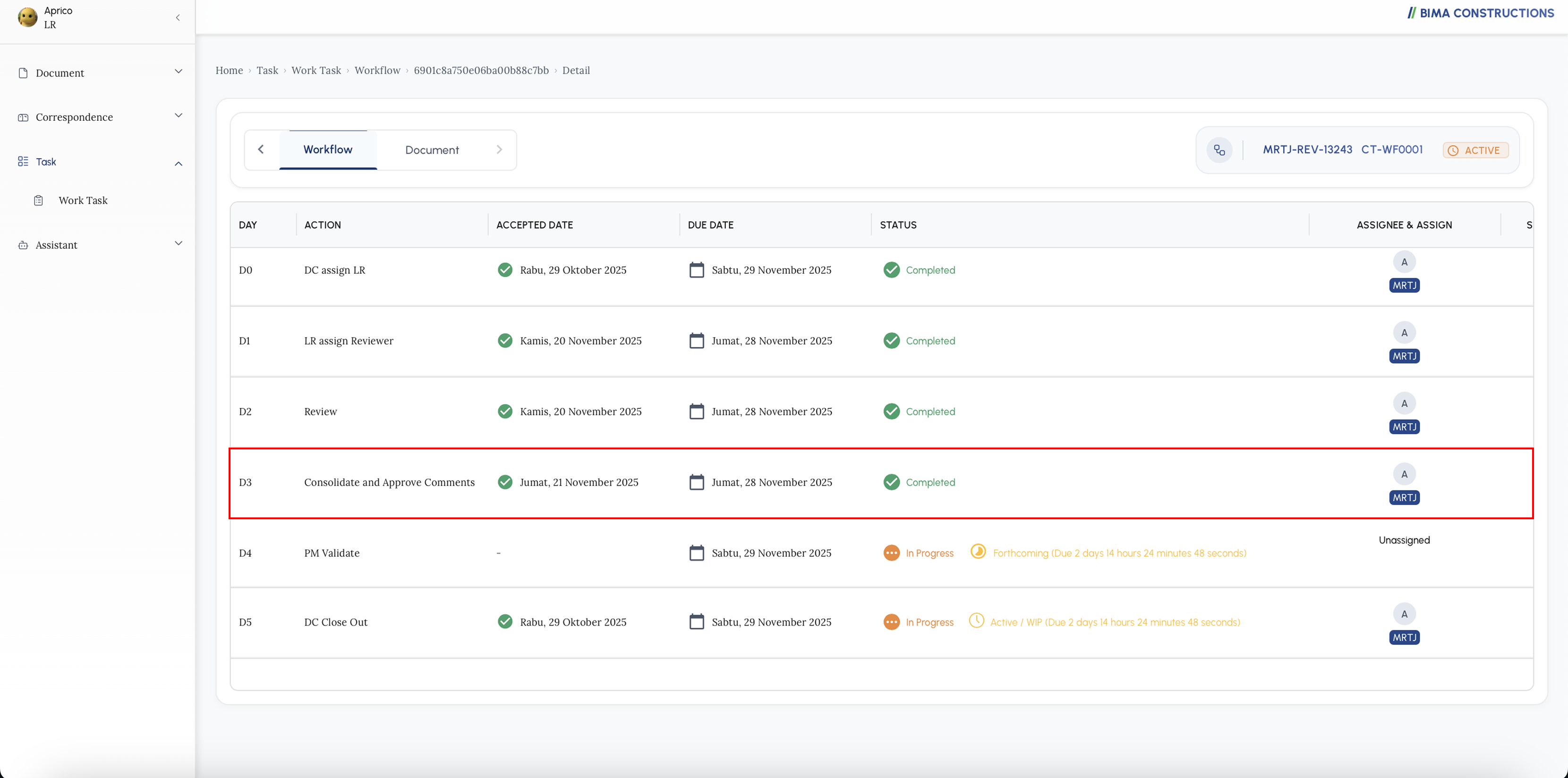 The
The Consolidate & Approval process is complete, BIMA Construction will provide notification to the Document Controller.