Departments
Create
1. Go To Departments Page
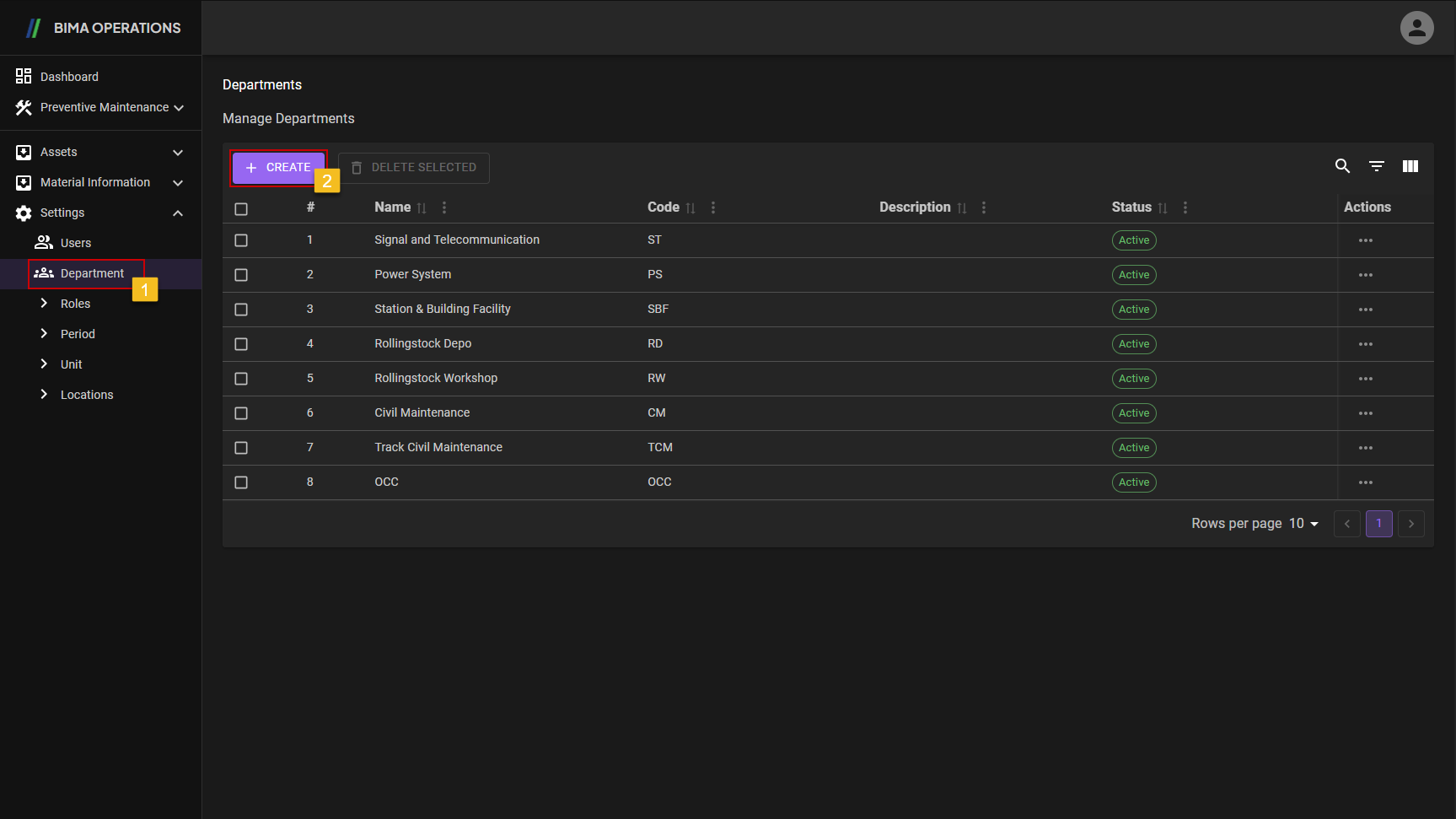
- Super Admin can click on the
Departmentsmenu button located inside theSettingsmenu to go to theDepartmentpage. - Super Admin can click on the
CREATEbutton to display theCREATEpanel.
2. Create a New Department
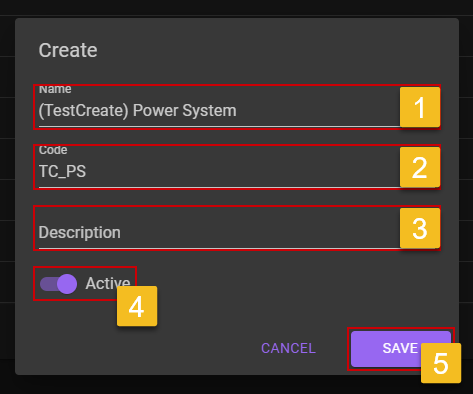
- Super Admin input a new name for the new department into the input field.
- Super Admin input a code that represents the new department name into the input field.
- Super Admin can input a short description for the new department that gonna be created.
- Don't forget to turn the switch on, so the new department will be active when Super Admin/Planner/Section Head want to use it for the adding new asset, creating work order and more.
- After checking all the data inputed, Super Admin can click on the
SAVEbutton to save the department that was created.
3. Checking the New Department
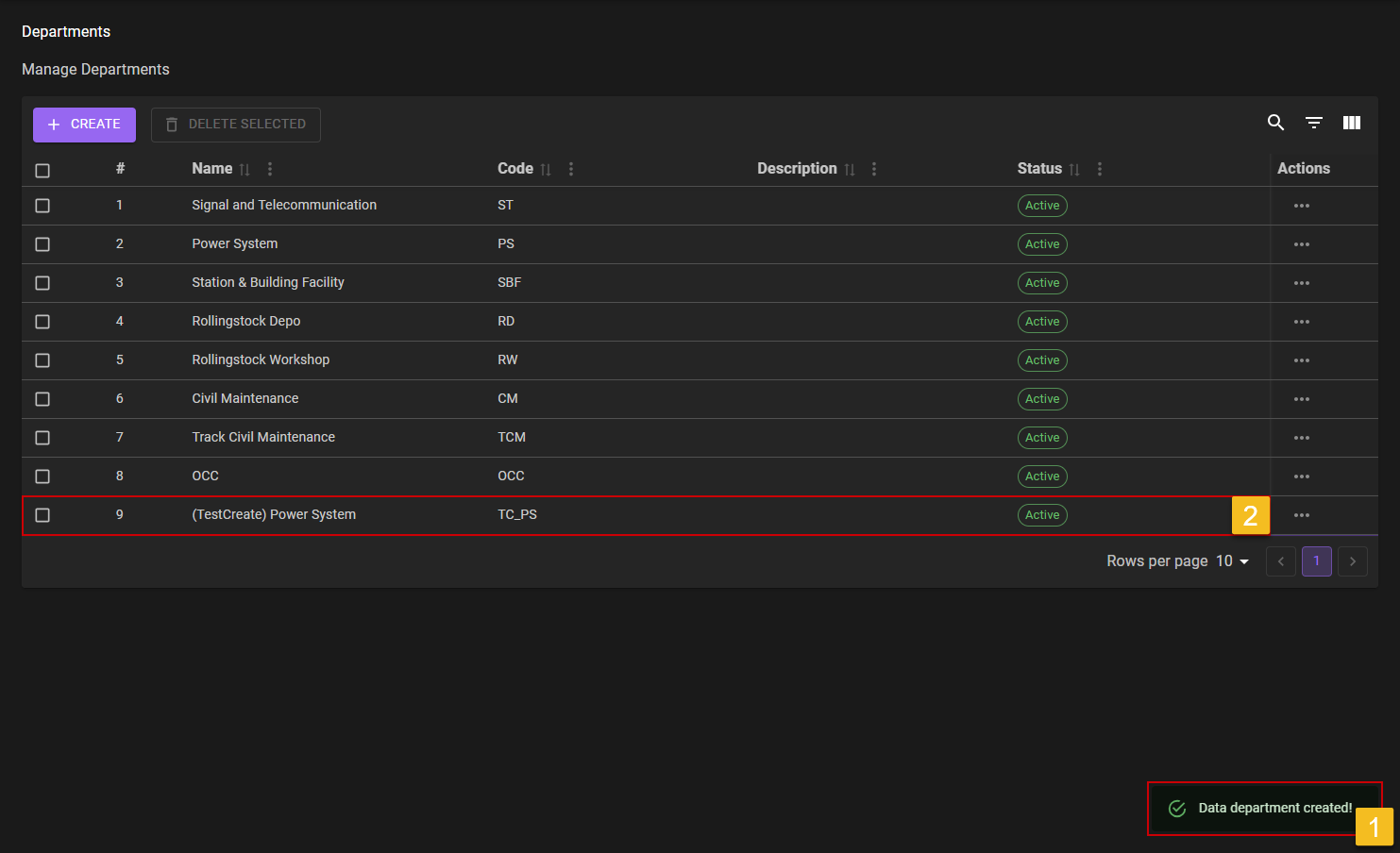
- After saving the new
DepartmentUSER will got a notificationdata department created. - Make sure the new department are created successfully by looking on the list with the
Activestate on theStatuscolumn.
Edit
1. Choose Department That Need to Edit
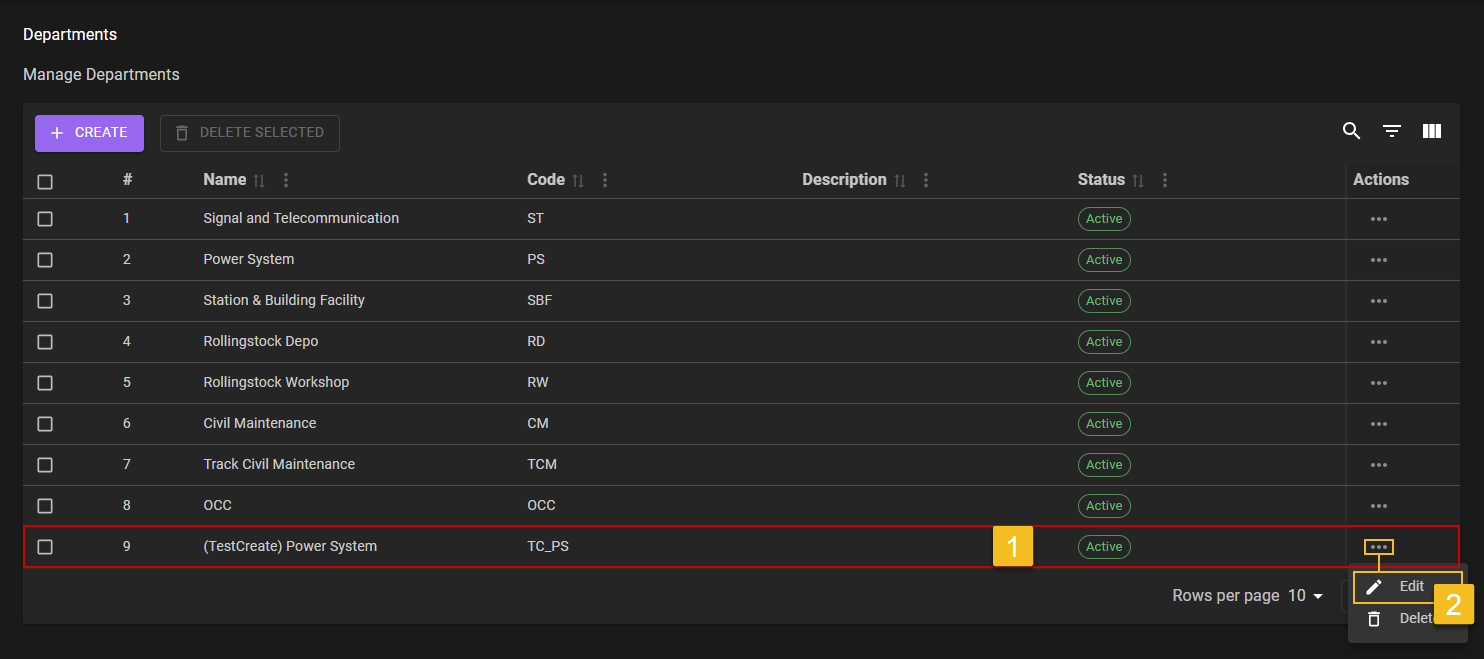
- Super Admin choose on which
Departmentneed to be edited. - Click on the
Three-Dotaction button, to reveal theEditaction menu and click it to start the editing process.
2. Choose What FIeld Need to Edit
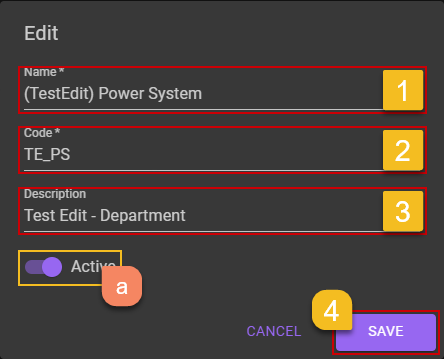
- Super Admin can choose on which field are needed to edit.
- Super Admin can choose on which field are needed to edit.
- Super Admin can choose on which field are needed to edit.
- If Super Admin already sure about the data change, then Super Admin can click on the
SAVEbutton.
Extra:
a. Deactivate Department
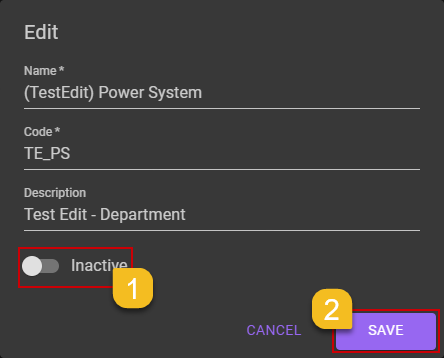
- Super Admin can flick the
Statusswitch toOFF, if Super Admin want to deactivate theDepartment.- Super Admin then can click on the
SAVEbutton to save theDepartmenton anInactivestate.b. Department Deactivated
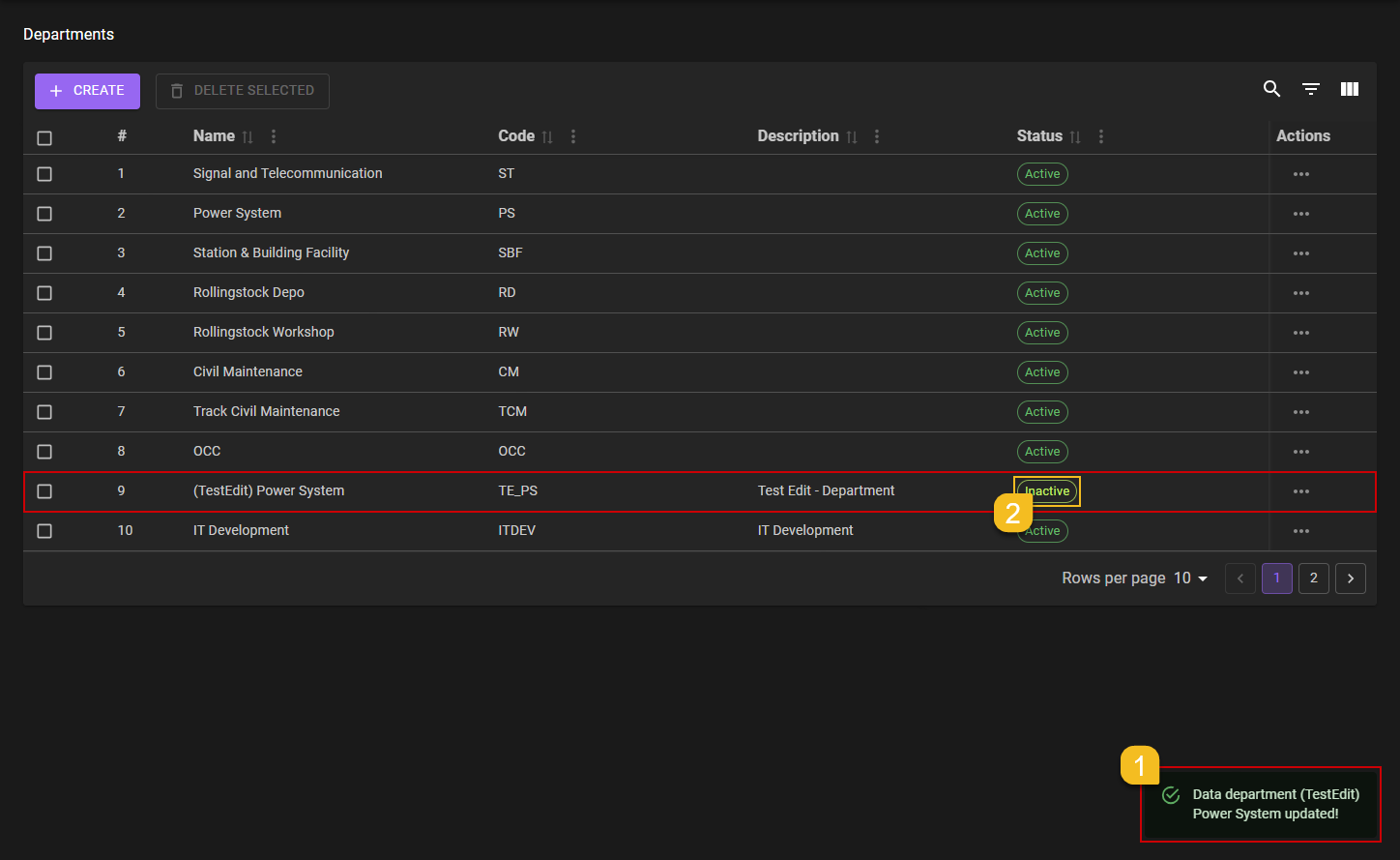
- After Super Admin deactivate the Department, a notification will come out saying
Data department [Name] updated!.- Make sure the edited
Departmentare successfully updated by looking on the list it self.
3. Confirm Edit
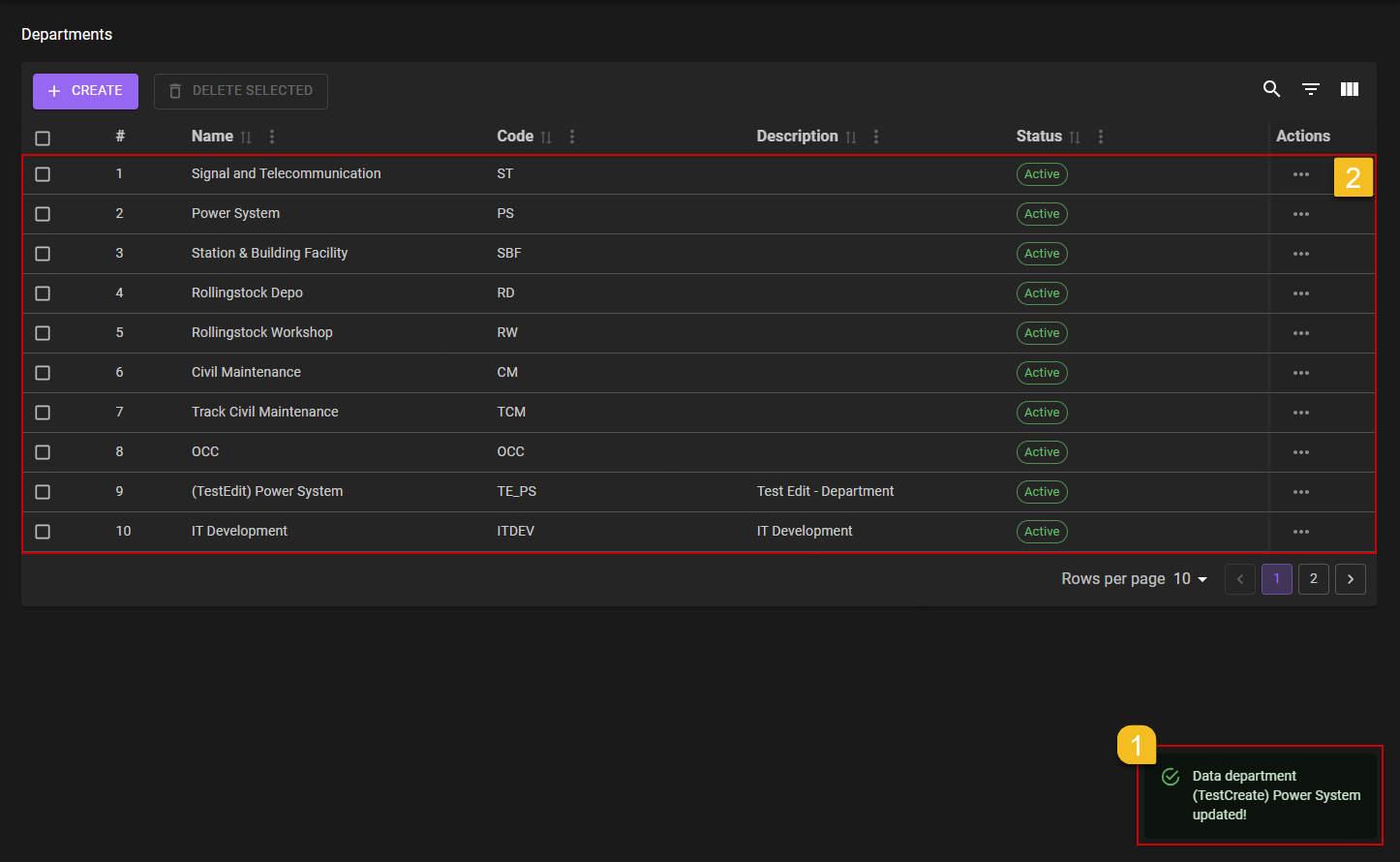
- After Super Admin click the
SAVEbuton, a notification will came out sayingData department [Name] updated!. - Make sure the edited
Departmentare updated accordingly into the list by looking into the list it self.
Delete
1. Choose Location That Need to be Delete
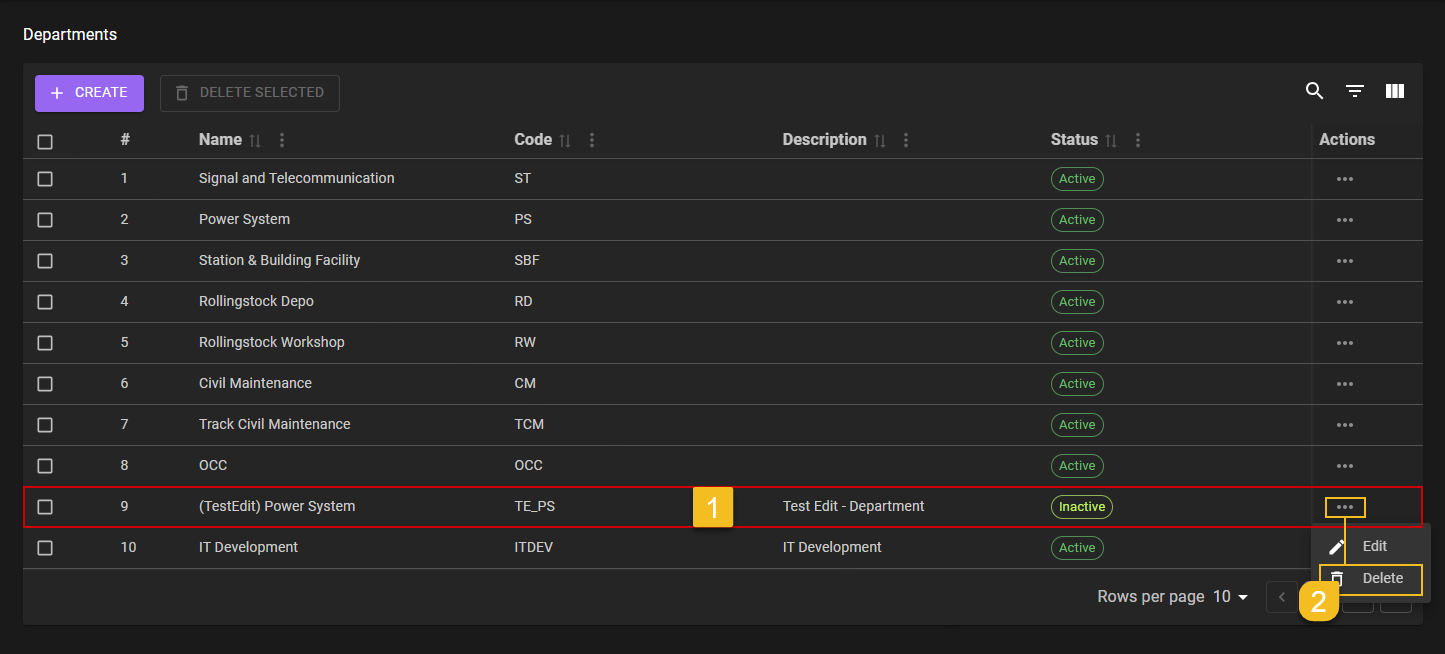
- Super Admin choose on which
Departmentneeds to be deleted. - click on the
Three-Dotaction button, to reveal theDeleteaction menu and click it to start the deletion process.
2. Delete Department
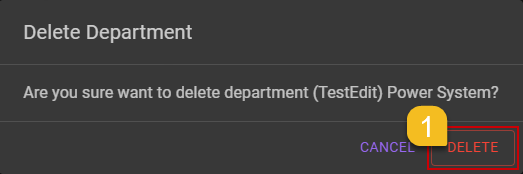
- After clicking on the
Deleteaction menu, confirmation messages will be shown. Super Admin can chooseDELETEbutton to confirming it.
3. Confirm the Deleteion of Department
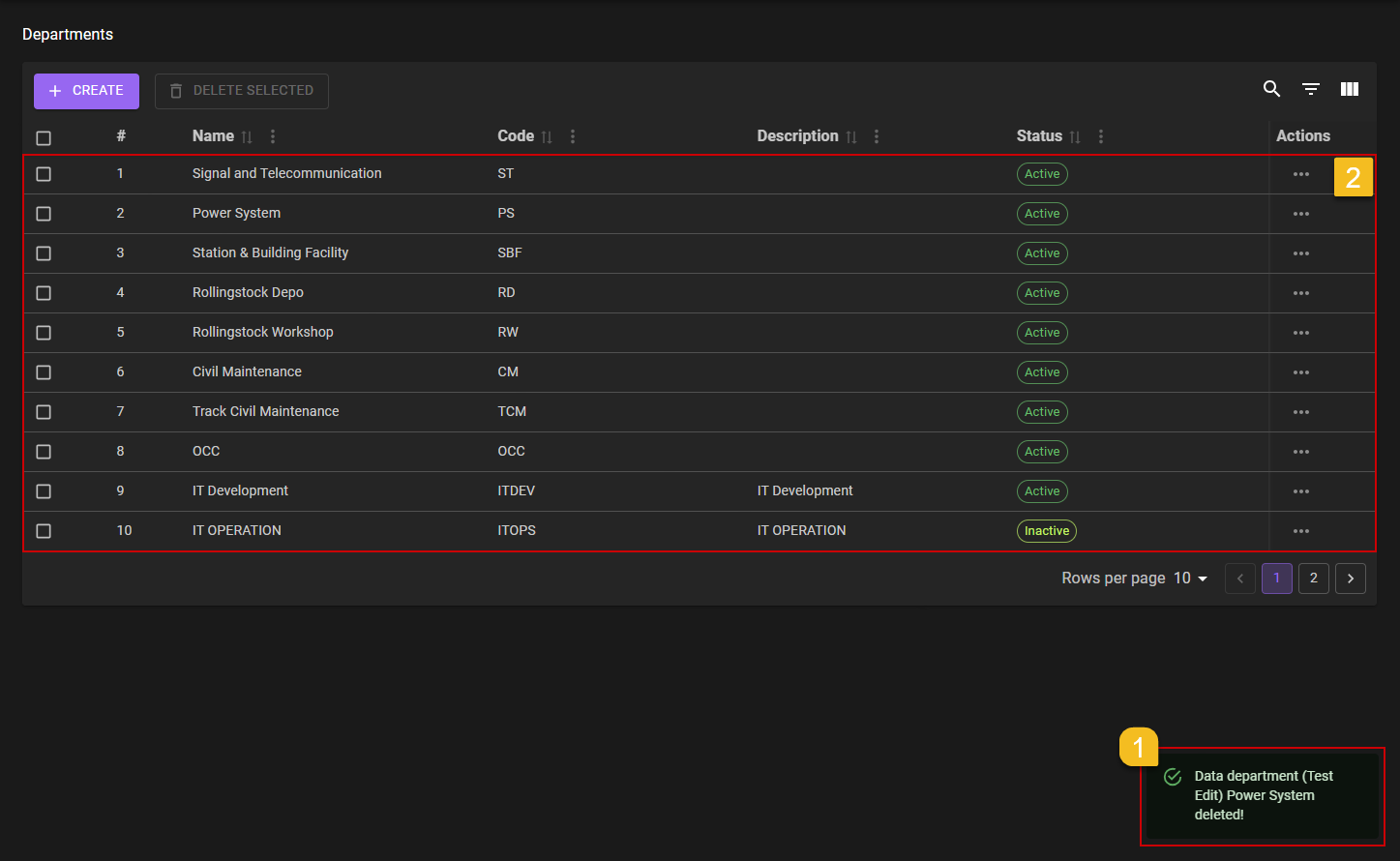
- Super Admin will got a notification saying
Data department [Name] deleted!. - Super Admin can check on the list if, the deleted
Departmentare stil on the list or not by checking on the list it self.