Work Order
Manage Work Order
1. Go To Work Order Page
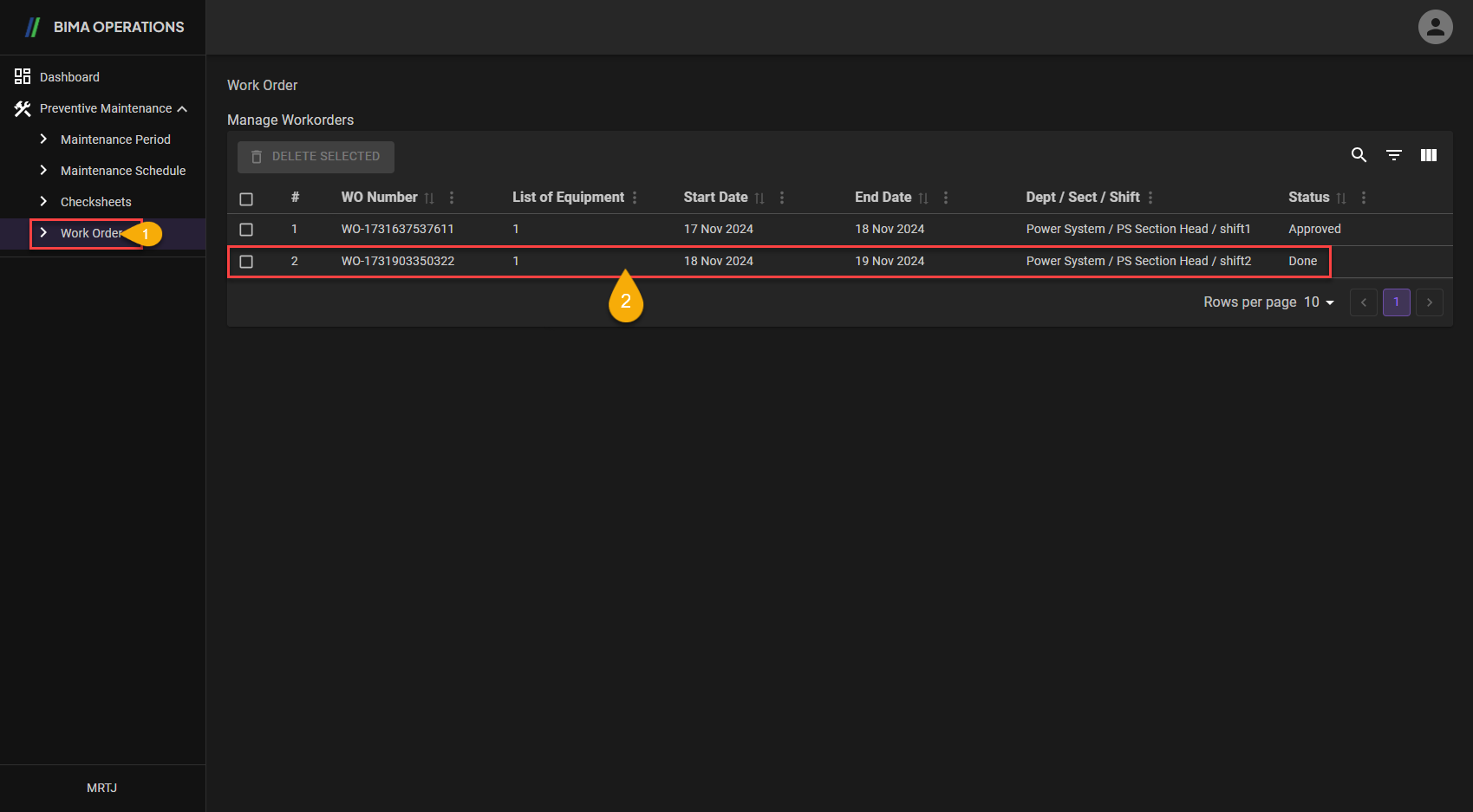
- Super Admin can click on the
Work Ordermenu to go to theManage Work Orderpage. - Super Admin can click in the inner area of the red box to be directed to the
Work Orderpage.
2. Reviewing the Work Order
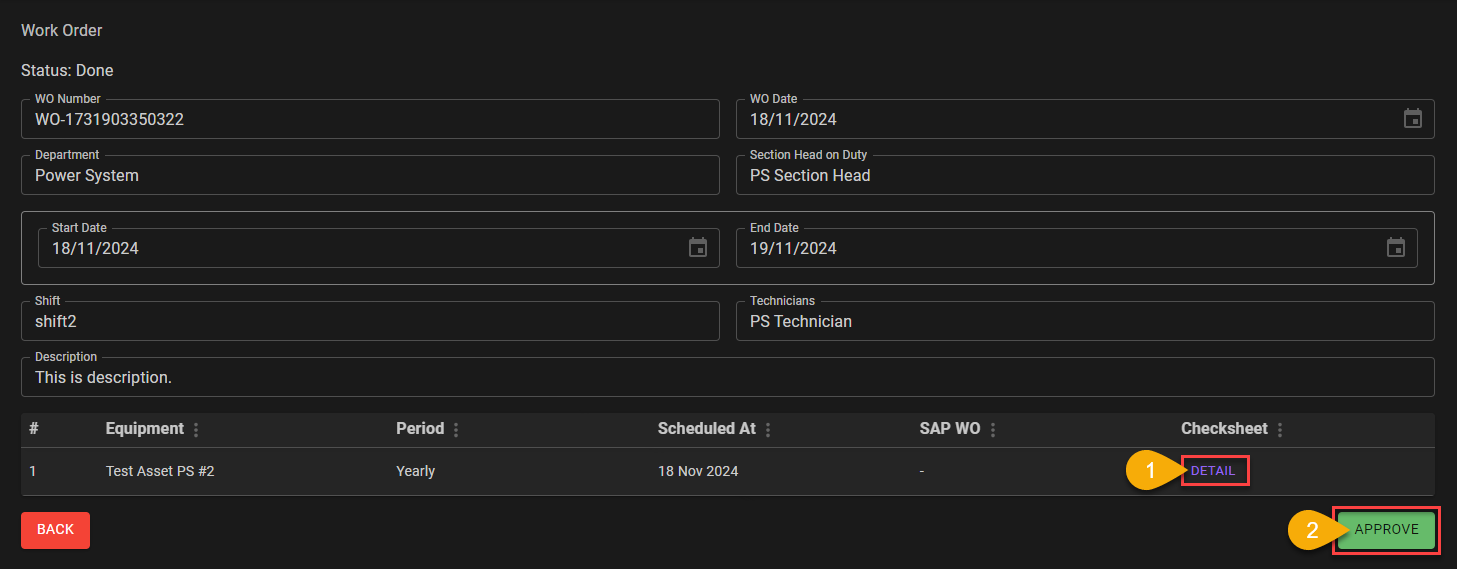
- Super Admin can click on
DETAILbutton to see the result of the task given to the Technicians . - After checking on the result, Super Admin can approve the
Work Orderby clicking on theAPPROVEbutton.
Extra:
a. Looking the
DETAIL
After clicking the
DETAILbutton on theWork Orderpage, Super Admin can see the answers/results given by Technician when working on theWork Order.
- Super Admin can see photos of the work results or during the work process by clicking the
SEE PHOTObutton as in number1.- After finish checking the details of the work, Super Admin can close the
DETAILpanel by clicking theCLOSEbutton.
3. Approve Work Order
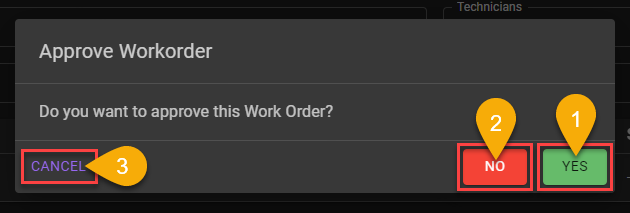
- If after checking the work given and it has been declared appropriate Super Admin can click the
YESbutton to approve theWork Orderthat has been completed. - If after checking there is data/results that are not appropriate or not expected Super Admin can click the
NObutton to disapprove theWork Orderthat was given.
4. Closing the Work Order
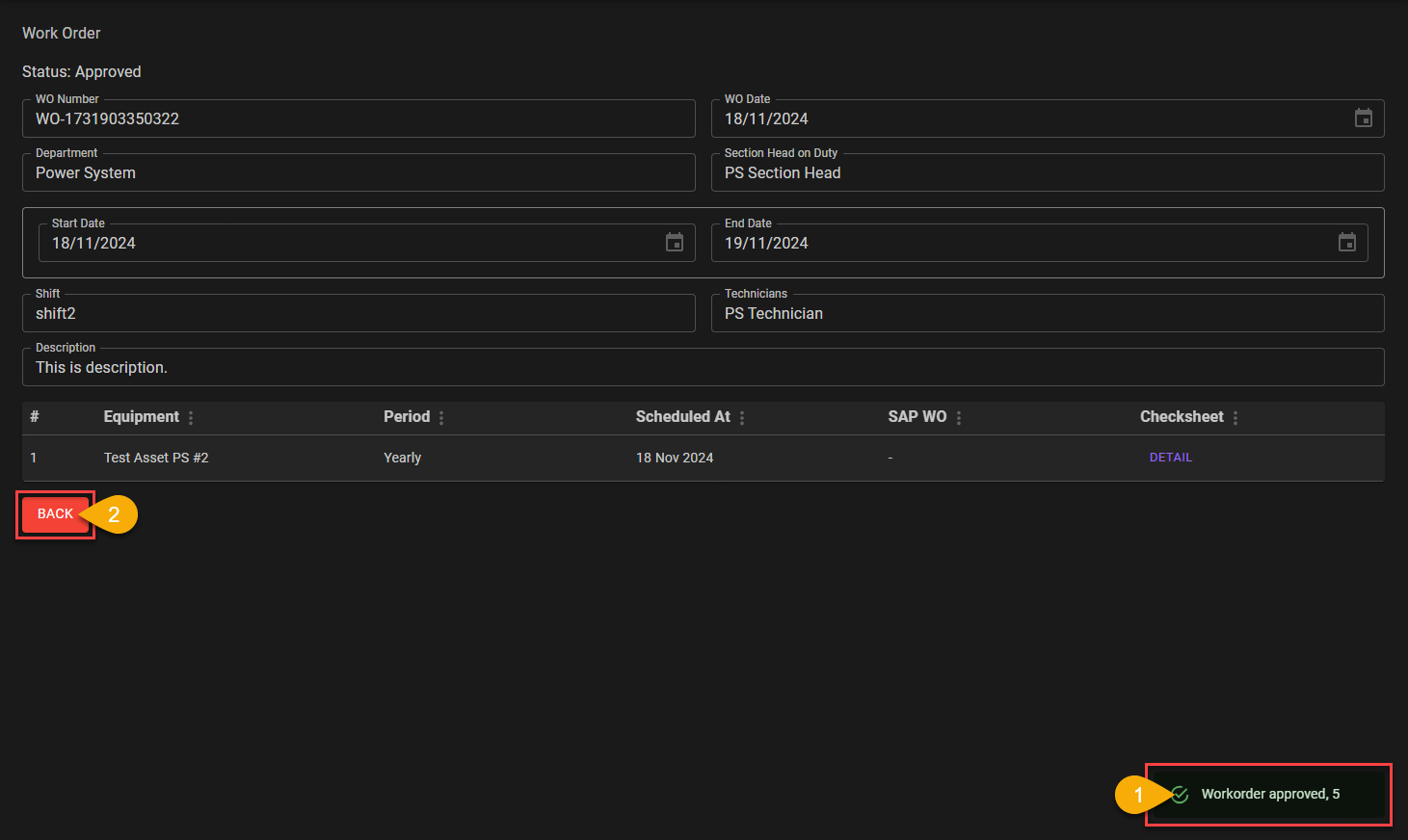
- After approving the work from Technician, Super Admin will get a notification
Workorder approved, [number]. - Super Admin can then close the
Work Orderpage by clicking the redBACKbutton.
5. Make Sure The Status Are Changed To Approved
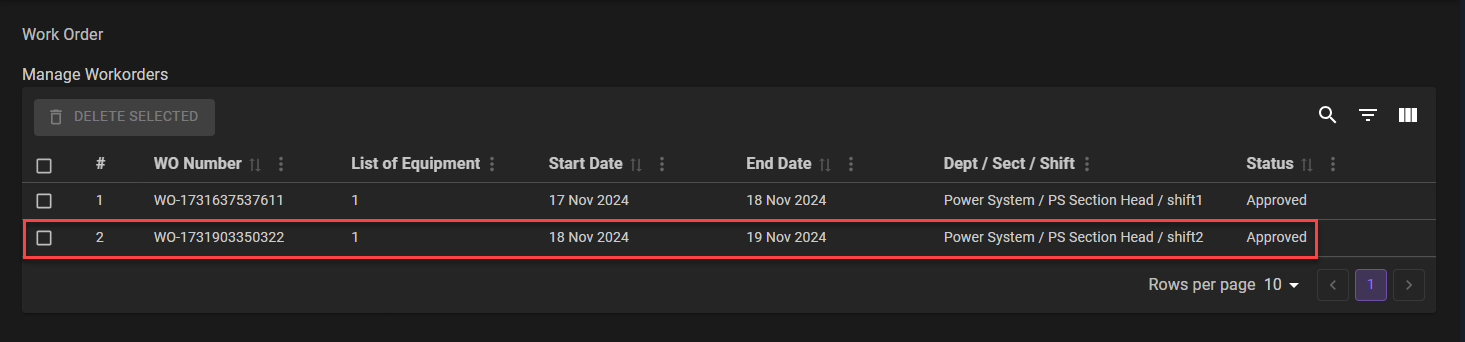 After closing the
 WorkOrder page, Super Admin also need to make sure the Status on the Work Order has changed from Done to Approved.